


Most businesses running Google Ads or Meta campaigns send traffic to their site and hope for the best. But the ones actually converting clicks into clients? They know exactly who’s showing up, what those visitors do, and how to act on that data. That’s where Google Analytics audience segments come in, and most business owners either ignore them completely or set them up wrong.
GA4 handles audiences and segments differently than the old Universal Analytics, and the distinction matters more than you think. Audiences feed your ad platforms. Segments power your analysis. Knowing when to use each one, and how to build them correctly, can be the difference between burning budget and scaling a client acquisition funnel that actually works.
At Client Factory, we build data-driven marketing systems for service businesses and law firms, and GA4 audience segments are a core part of how we optimize every dollar our clients spend. This guide breaks down exactly how to create and use both audiences and segments in GA4, with practical examples you can apply to your own campaigns right now.
What audiences and segments mean in GA4
Before you can use google analytics audience segments effectively, you need to understand that GA4 treats these two concepts as separate tools with different jobs. Audiences are user lists GA4 builds over time based on conditions you define. Segments are temporary filters you apply inside reports to slice your data for analysis. Confusing the two leads to wasted setup time and missed opportunities, so let’s be clear about what each one actually does.
Audiences: lists GA4 builds and exports
An audience in GA4 is a saved group of users that gets populated as real people meet your criteria. Once GA4 identifies a qualifying user, it adds that person to the list and can share that list directly with Google Ads for targeting. You can use audiences to trigger remarketing campaigns, set bid adjustments, or exclude certain groups from seeing your ads entirely. The most important thing to remember is that audiences are forward-looking: GA4 only adds users from the moment you create the audience, not retroactively from historical data.
Audiences in GA4 are not just analysis tools. They are live, actionable user lists that feed directly into your ad platforms the moment someone qualifies.
GA4 gives you three audience types to work with:
- Predictive audiences: Users GA4 predicts are likely to purchase or churn, powered by machine learning (requires sufficient conversion volume to activate)
- Custom audiences: Users you define using any combination of events, parameters, user properties, or demographic filters
- Suggested audiences: Pre-built templates GA4 offers based on your industry, such as "Recently Active Users" or "Non-Purchasers"
Segments: filters you apply for deeper analysis
A segment in GA4 is a temporary filter you apply inside the Explore section to compare groups of data side by side within a single report. Unlike audiences, segments do not get exported anywhere and they require no waiting period to populate. When you apply a segment, GA4 retroactively filters your existing historical data, which makes segments the right tool for diagnosing problems, spotting behavioral patterns, and answering specific questions about what users actually do on your site.
GA4 offers three segment scopes, and the one you pick changes your results significantly:
- User segments: Filter by users who performed an action at any point during your selected date range
- Session segments: Filter by sessions that match your conditions within a single visit
- Event segments: Filter by individual events meeting specific criteria, regardless of who triggered them or when
Choosing the right scope matters. If you want to know how many users ever viewed your services page, use a user segment. If you want to see sessions where someone viewed that page and left without contacting you, use a session segment.
How the two tools work together
Audiences and segments are most powerful when you run them in sequence rather than treating them as separate features. You build a segment first to identify a meaningful pattern in your existing data, such as users who visit multiple practice area pages but never submit a contact form. Once you confirm that group is worth pursuing, you create a matching audience so Google Ads can target those exact users with a retargeting campaign. This approach turns raw GA4 data into a repeatable client acquisition system rather than just a reporting dashboard.
Step 1. Get your GA4 tracking ready for segmentation
Before you build any audiences or segments, your GA4 property needs to be collecting the right data in the right format. If your tracking setup is incomplete or inconsistent, your segments will be built on gaps rather than actual behavior, and your audiences will pull in the wrong users. Most service businesses and law firms skip this audit entirely and wonder later why their retargeting campaigns underperform.
Confirm your key events are firing correctly
The foundation of effective google analytics audience segments is clean event data. GA4 records every interaction as an event, and you need specific events firing consistently before you can segment on them meaningfully. Open GA4 DebugView (Admin > DebugView) on a test device and walk through the actions that matter most to your business: visiting a service page, clicking a phone number, starting a contact form, and completing a submission. Every one of those actions should appear in DebugView as a named event in real time.
If a key action on your site does not show up as a named event in GA4, no segment or audience you build around that action will produce accurate data.
Verify at minimum that these five events are firing before you move forward:
| Event Name | What It Tracks |
|---|---|
page_view |
Every page load across your site |
scroll |
Users who scroll 90% down a page |
click |
Outbound clicks including phone numbers and email links |
form_submit |
Contact or intake form completions |
session_start |
Every new session on your property |
Mark your highest-value events as conversions
Once your events are confirmed, mark your most important events as conversions inside GA4. Go to Admin > Events, locate the event you want to mark (for example, form_submit), and toggle the "Mark as conversion" switch. This step matters because GA4 uses conversion status when building predictive audiences and when calculating segment performance inside Explore reports. Without conversions properly marked, you lose access to GA4’s machine learning segmentation features, and your campaign optimization data becomes unreliable for making real business decisions.
Step 2. Build GA4 audiences you can activate
With your tracking confirmed and conversions marked, you are ready to build GA4 audiences that actually do something useful. Go to Admin > Audiences in your GA4 property and click "New audience." You will see options to start from a template, use a suggested audience, or build from scratch. For most service businesses, building from scratch gives you the most control over who ends up in your remarketing lists.
Choose conditions that reflect real buying intent
Your audience conditions should mirror the behavior of someone who is close to becoming a client but has not converted yet. For a law firm, that might be someone who visited two or more practice area pages in a single session. For a consulting firm, it might be someone who viewed your pricing page but did not submit a contact form. You set these conditions using GA4’s condition builder, which lets you filter by events, parameters, user properties, and predicted behaviors in any combination.
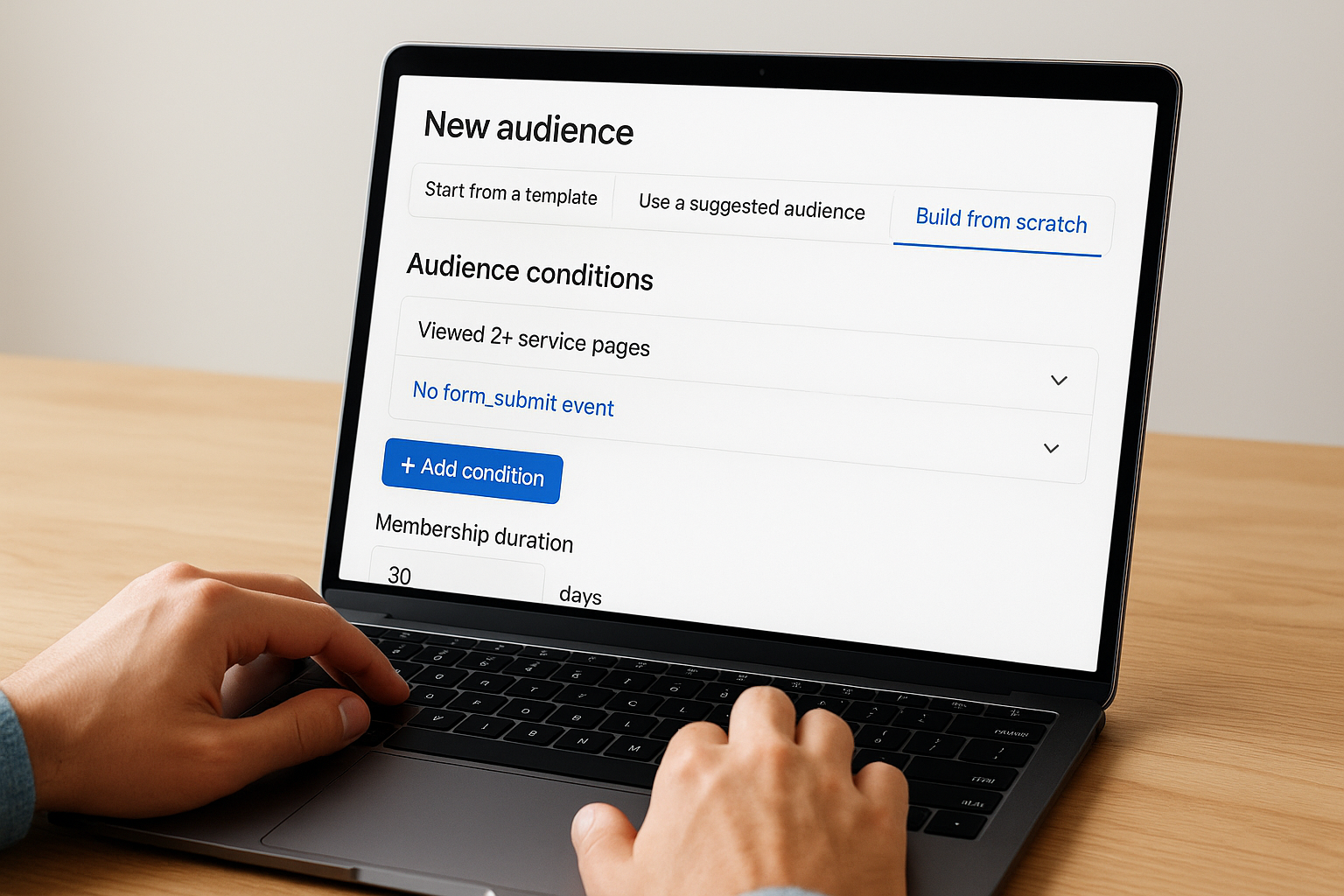
Build audiences around behaviors that signal intent, not just presence. A user who lands on your homepage once is not the same as one who reads three service pages and clicks your phone number.
Use the table below as a starting framework for common high-intent audiences in service businesses:
| Audience Name | Condition | Membership Duration |
|---|---|---|
| High-Intent Visitors | Viewed 2+ service pages, no form_submit event |
30 days |
| Engaged Non-Converters | scroll depth 90% on contact page, no conversion |
14 days |
| Past Converters | form_submit event fired |
90 days |
| Phone Click No Form | Clicked phone link, no form_submit |
7 days |
Set membership duration and publish
Membership duration controls how long a user stays in your audience list after qualifying. GA4 allows up to 540 days, but shorter windows typically produce better ad performance because they reflect more recent intent. Set your duration based on your typical sales cycle. Once you configure your conditions and duration, click Save and GA4 immediately starts building the list. Link your GA4 property to Google Ads under Admin > Google Ads Links, and your new google analytics audience segments will become available inside Google Ads within 24 to 48 hours.
Step 3. Create GA4 segments for deeper analysis
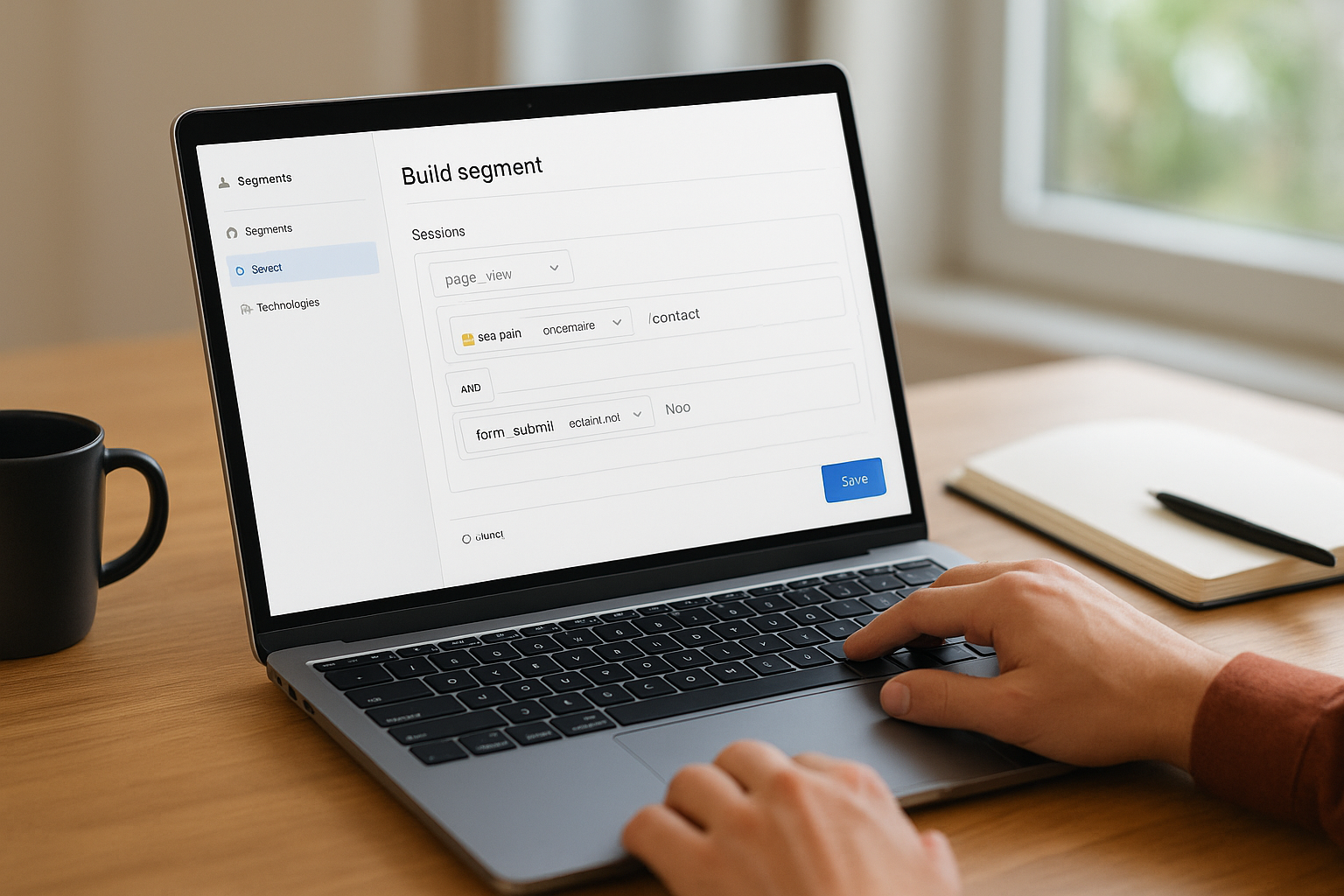
Segments live inside the GA4 Explore section, not the standard reports. To get there, go to your GA4 property and click Explore in the left navigation menu. From there, open a Blank exploration or any existing report, then locate the "Segments" card in the Variables panel on the left side. Click the plus icon next to Segments to open the segment builder. This is where you define the rules that filter your data retroactively across your selected date range, giving you immediate results without any waiting period.
Choose the right segment scope for your question
The scope you select determines what GA4 actually filters, so picking the wrong one distorts your results. If you want to analyze overall user behavior across multiple sessions, use a user segment. If you want to isolate what happens during specific visits, use a session segment. If you need to look at individual interactions like a single button click or a page view, use an event segment.
The most common mistake with GA4 segmentation is using a user segment when a session segment would answer the question more accurately.
Use the reference below to match your question to the right scope before you build:
| Analysis Question | Segment Scope to Use |
|---|---|
| How many users ever visited my services page? | User segment |
| Which sessions included a pricing page view with no form submission? | Session segment |
| How often does a specific button click happen per visit? | Event segment |
Build a practical segment to spot conversion gaps
Here is a concrete example you can replicate directly in GA4 to find users who engaged but did not convert. In the segment builder, select Session segment, add a condition for page_view where page_path contains /contact, then add a second condition set to exclude the form_submit event. Apply the segment to an Exploration report showing page paths or traffic source. This shows you exactly where high-intent visitors are coming from before they abandon the contact process, which is precisely the kind of insight that makes google analytics audience segments worth building in the first place. Once you spot a pattern, you have the data to fix the funnel or build a matching remarketing audience.
Step 4. Turn segments into actions and better decisions
Running segments in GA4 without acting on what you find is the same as reading a map and staying where you are. The real payoff from google analytics audience segments comes when you take your findings out of the Explore section and use them to drive changes: to your pages, your ad targeting, your budget allocation, and your messaging. This step shows you how to close the loop between analysis and outcome so your data actually earns its keep.
Use segment findings to fix your highest-leak pages
Every segment you build reveals where users drop off or disengage. When you find a pattern, like a large group of high-intent visitors landing on your contact page and leaving without submitting a form, that is not just a data point. It is a directive to fix something specific. Look at what the segment shows about traffic source, device type, and page path, then make one targeted change at a time so you can measure impact clearly without muddying the results.
Changing one variable at a time after reviewing a segment gives you clean data to determine what actually improved results.
Use the table below to match common segment findings to the action they should trigger:
| Segment Finding | Action to Take |
|---|---|
| Mobile users convert at half the rate of desktop users | Simplify your mobile contact form to fewer required fields |
| Paid traffic bounces from landing page at 80%+ | Rewrite the page headline to match the ad copy directly |
| Organic visitors view 3+ pages but rarely convert | Add a stronger call-to-action on each service page |
| Returning visitors never complete a form | Build a retargeting audience and serve a direct offer ad |
Turn your best segments into a repeatable monthly workflow
Once you identify which segment conditions reliably surface valuable user groups, document those conditions and rebuild the segments each month as your data refreshes. Set a recurring Explore report where you compare your two or three most important segments side by side against the previous period.
Track how the conversion rate for each group shifts over time, and update your matching GA4 audiences to reflect any new behavior patterns you identify. This process turns what could be a one-time analysis into a system that consistently feeds your client acquisition strategy with current, reliable behavioral data.
Next steps
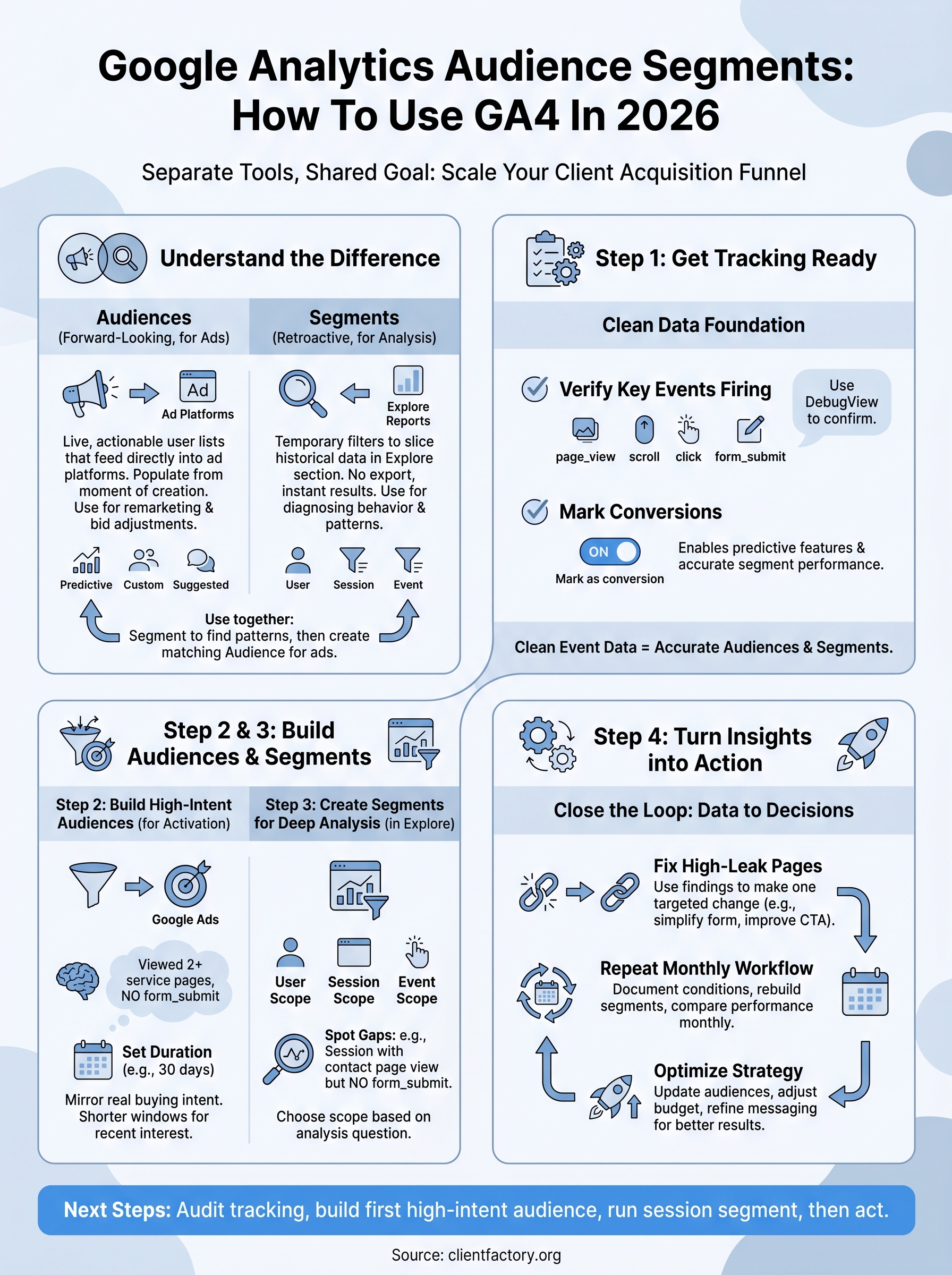
You now have a complete framework for building and using google analytics audience segments in GA4. Start with your tracking audit, confirm your key events are firing correctly, mark your conversions, and then build your first high-intent audience before you run a single segment in Explore. Each step depends on the one before it, so the order matters more than most people realize.
From there, run your first session segment to find where high-intent visitors drop off, fix that specific page or form, and then build a matching remarketing audience inside Google Ads. Repeat this process monthly and you have a system that compounds over time, not just a one-time report.
If you want experienced eyes on your current funnel before investing more in paid traffic, book a free conversion audit with the Client Factory team. We will identify exactly where your acquisition funnel is leaking and give you a concrete plan to fix it.