
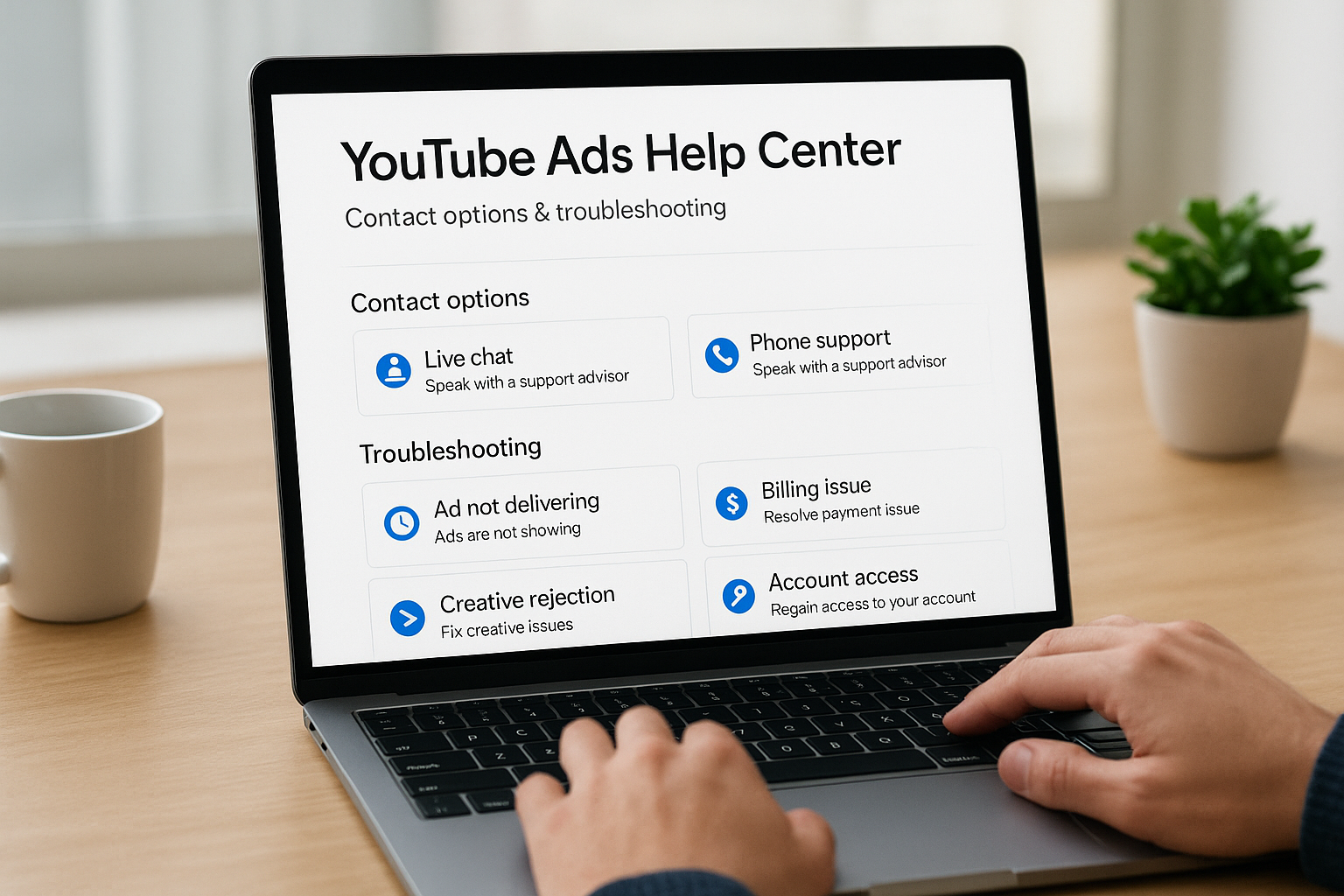
Running YouTube ads can be incredibly profitable, until something breaks. A disapproved ad, a billing glitch, or a campaign that won’t deliver can burn through your budget fast. That’s when you need the YouTube Ads Help Center, and knowing exactly where to go and who to contact makes all the difference between a quick fix and days of frustration.
Google’s support ecosystem for YouTube advertising is surprisingly layered. There are self-service troubleshooting tools, live chat options, phone support, and community forums, but not all of them are equally useful, and some are only available once you meet certain criteria. This guide breaks down every contact option available to you and walks through the most common troubleshooting scenarios so you can get your campaigns back on track.
At Client Factory, we manage YouTube ad campaigns daily for service businesses and law firms, so we’ve spent plenty of time navigating Google’s support channels firsthand. We wrote this guide based on real experience resolving real issues, not recycled help docs. Whether you’re running campaigns yourself or just want to understand how support works before investing in ads, you’ll find exactly what you need below.
What the YouTube Ads Help Center covers
The YouTube Ads Help Center sits within Google’s broader support ecosystem and covers nearly everything you’ll encounter when running video advertising campaigns. From initial campaign setup to billing disputes and policy appeals, the help center organizes its resources into distinct topic areas so you can find answers without contacting a support rep at all.
Most issues you’ll face running YouTube ads already have documented solutions in the help center, and finding the right article saves you hours of waiting in a support queue.
Campaign setup and delivery
Setting up a YouTube ad campaign involves more moving parts than most advertisers expect. The help center walks you through choosing the right campaign type (skippable in-stream, non-skippable, bumper ads, and more), configuring bid strategies, and linking your Google Ads account to your YouTube channel. If your ads aren’t delivering, this section also covers budget pacing, targeting settings, and audience configuration in detail.
You’ll also find step-by-step guidance on video ad format specifications, minimum technical requirements for each format, and how to upload your creative assets correctly so campaigns go live without triggering automatic rejections.
Policy, billing, and account access
Ad disapprovals and billing errors are the two issues that send advertisers scrambling for support most often. The help center documents Google’s advertising policies in detail, including what content is restricted or prohibited, and explains exactly how to submit an appeal when your ad gets flagged incorrectly. On the billing side, you’ll find clear documentation on payment methods, invoice cycles, and promotional credit terms, along with steps for disputing unexpected charges.
Account access problems, including two-factor authentication lockouts and manager account permission errors, are also covered here with specific resolution steps rather than vague guidance.
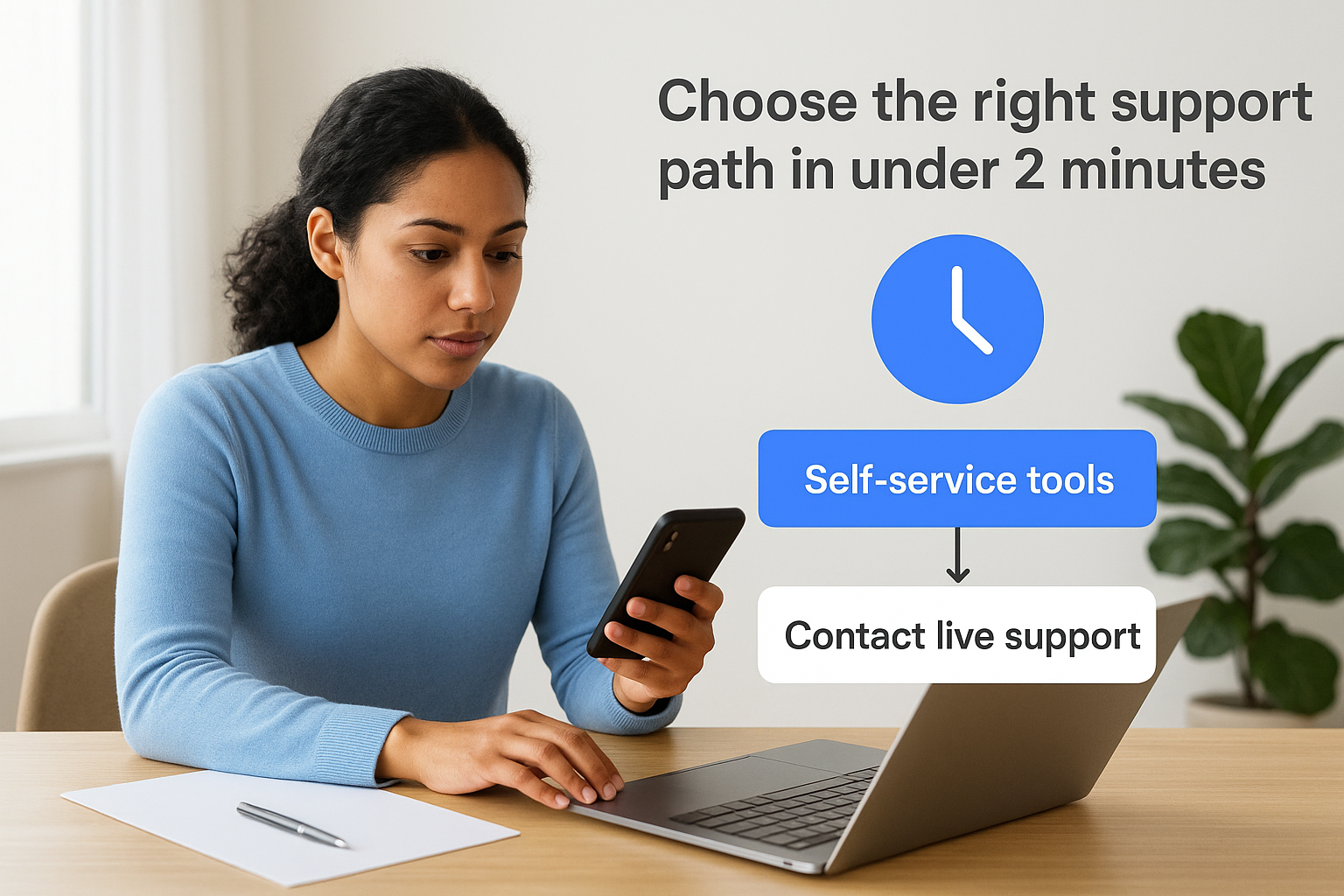
Choose the right support path in under 2 minutes
Not every issue requires a live support agent, and not every problem warrants a ticket. Before you spend time searching through the YouTube Ads Help Center, use this quick decision framework to route yourself to the fastest resolution path for your specific issue type.
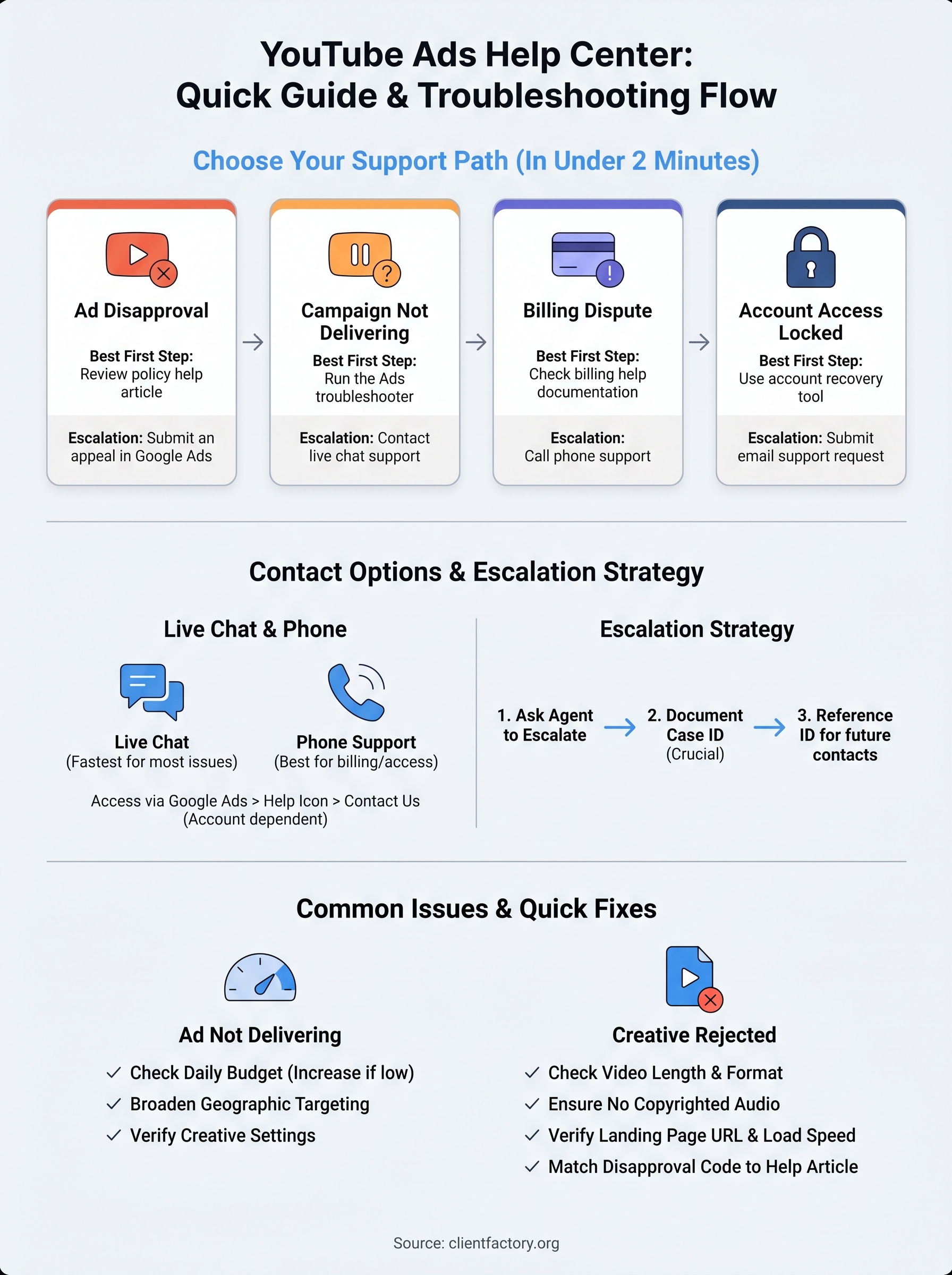
| Issue Type | Best First Step | Escalation Option |
|---|---|---|
| Ad disapproval | Review policy help article | Submit an appeal in Google Ads |
| Campaign not delivering | Run the Ads troubleshooter | Contact live chat support |
| Billing dispute | Check billing help documentation | Call phone support |
| Account access locked | Use account recovery tool | Submit email support request |
Match your issue to the right channel
Self-service tools resolve most common problems without any wait time. If your ad was disapproved, review Google’s advertising policy documentation before contacting anyone. For delivery problems, the built-in Google Ads troubleshooter walks you through a guided checklist that identifies the root cause in most cases.
Reaching out to support before checking the help center often results in agents redirecting you to the same documentation anyway.
Contacting a live agent makes sense when self-service steps have failed or when your issue involves account-level access, a large billing discrepancy, or a repeated ad disapproval that standard appeals haven’t resolved.
Contact options and how to escalate issues
Google offers multiple contact channels through the YouTube Ads Help Center, but access depends on your account status and spend level. Knowing which option applies to your situation saves you from waiting in the wrong queue.
Live chat and phone support
Live chat is the fastest way to reach a Google Ads specialist for most advertisers. You can access it by signing into your Google Ads account, clicking the help icon, and selecting "Contact Us." Phone support is also available for accounts with active campaigns, and Google displays a callback number rather than placing you on hold. Both options appear inside Google Ads support when your account qualifies.

Phone support tends to resolve billing and account-access issues faster than chat because agents can verify your identity in real time.
How to escalate when basic support fails
If your first contact doesn’t resolve the issue, ask the agent directly to escalate your case to a senior specialist or account team. Document your case ID number from every interaction, since this reference speeds up any escalation and prevents you from repeating your issue from scratch.
Fix common YouTube ad setup and delivery problems
Most YouTube ad issues fall into two categories: your ad won’t get approved, or your campaign isn’t spending. Both have specific, fixable causes that don’t require a support ticket.
Delivery problems almost always trace back to targeting, budget, or creative settings rather than something broken on Google’s end.
Ad not delivering after launch
If your campaign shows "Eligible" but spends nothing, check your daily budget first. A budget under $10 combined with narrow geographic targeting will consistently prevent delivery. Broaden your audience or increase your budget to give the algorithm room to find impressions.
Creative rejected at upload
Google’s system scans video assets automatically before your campaign goes live. Destination URLs that redirect or load slowly trigger automatic rejections, and video assets with copyrighted audio often fail the scan without a clear error message. Replace the audio track and verify your landing page loads under three seconds.
Run through this checklist before submitting any new creative:
- Video length meets the format minimum
- Landing page URL returns a 200 status code
- No third-party copyrighted audio
- Ad copy avoids restricted claims
The YouTube Ads Help Center documents every rejection reason with a specific code. Match your disapproval code to the corresponding help article before submitting an appeal.
Handle policy, billing, and ad feedback issues
Policy and billing problems follow a clear pattern: Google flags something, you get a notification with minimal context, and you need to act fast before it affects your campaigns. The YouTube Ads Help Center documents every policy category, so your first move is always to match your disapproval or billing alert to the specific policy page that explains it.
Submit a policy appeal correctly
When your ad gets disapproved, open your Google Ads account, navigate to Ads and Assets, locate the disapproved ad, and click "Appeal" next to the rejection reason. Write a brief, specific explanation stating which policy you believe your ad complies with and why. Vague appeals get rejected automatically, so reference the exact policy name in your response.
A well-documented appeal that cites the specific policy clause resolves most disapprovals within 24 hours.
Dispute a billing charge
For unexpected charges, go to Billing > Transactions in Google Ads and download the transaction report. Submit a dispute through the Google Ads billing support page with the following details:
- Your transaction ID
- The charge amount and date
- A one-sentence description of the discrepancy
Next steps
You now have a complete map of the YouTube Ads Help Center, including where to go for setup issues, how to escalate support requests, and how to handle policy appeals and billing disputes correctly. The fastest resolution almost always starts with matching your specific issue to the right channel before contacting anyone, and this guide gives you exactly that framework.
Navigating Google’s support system gets easier once you know the structure, but running YouTube ads profitably requires more than fixing technical problems. You need campaigns built on a solid acquisition funnel, the right bidding strategy, and creative that converts before you even think about troubleshooting.
If your YouTube campaigns aren’t generating clients consistently, the issue usually sits upstream of the ads themselves. Book a free funnel audit with the Client Factory team and get a clear picture of exactly what needs fixing: schedule your conversion audit.