

Sending the same email to your entire contact database is like running one generic ad for every potential client, it wastes money and ignores what actually makes people convert. HubSpot audience segmentation gives you the tools to slice your contacts into meaningful groups so your messaging hits harder, your nurture sequences perform better, and your sales team talks to people who are actually ready to buy. But most businesses either skip segmentation entirely or set up a few basic lists and never touch them again, leaving serious revenue on the table.
At Client Factory, we build client acquisition funnels that turn clicks into paying clients for service businesses and law firms. A huge part of that work happens inside platforms like HubSpot, where proper segmentation is the difference between a funnel that prints leads and one that leaks them. We’ve seen firsthand how the right list structure and smart filtering rules can double conversion rates without spending an extra dollar on ads.
This guide walks you through the full process, from defining your segments and choosing between static and active lists, to setting up segmentation rules and building a strategy that actually aligns with your business goals. Whether you’re just getting started with HubSpot or cleaning up a messy CRM, you’ll walk away with a clear framework for segmentation that drives results. No fluff, just the mechanics and the strategy behind each step.
What HubSpot audience segmentation means
HubSpot audience segmentation is the process of grouping your contacts into defined subsets based on shared properties, behaviors, or lifecycle stages so you can target each group with relevant messaging. Instead of treating your entire database as one audience, you create filters that sort contacts into buckets, like "leads who visited your pricing page twice" or "clients in a specific industry who haven’t opened an email in 90 days." Every action you take in HubSpot, from sending emails to triggering workflows, becomes more precise when it starts with a well-defined segment.
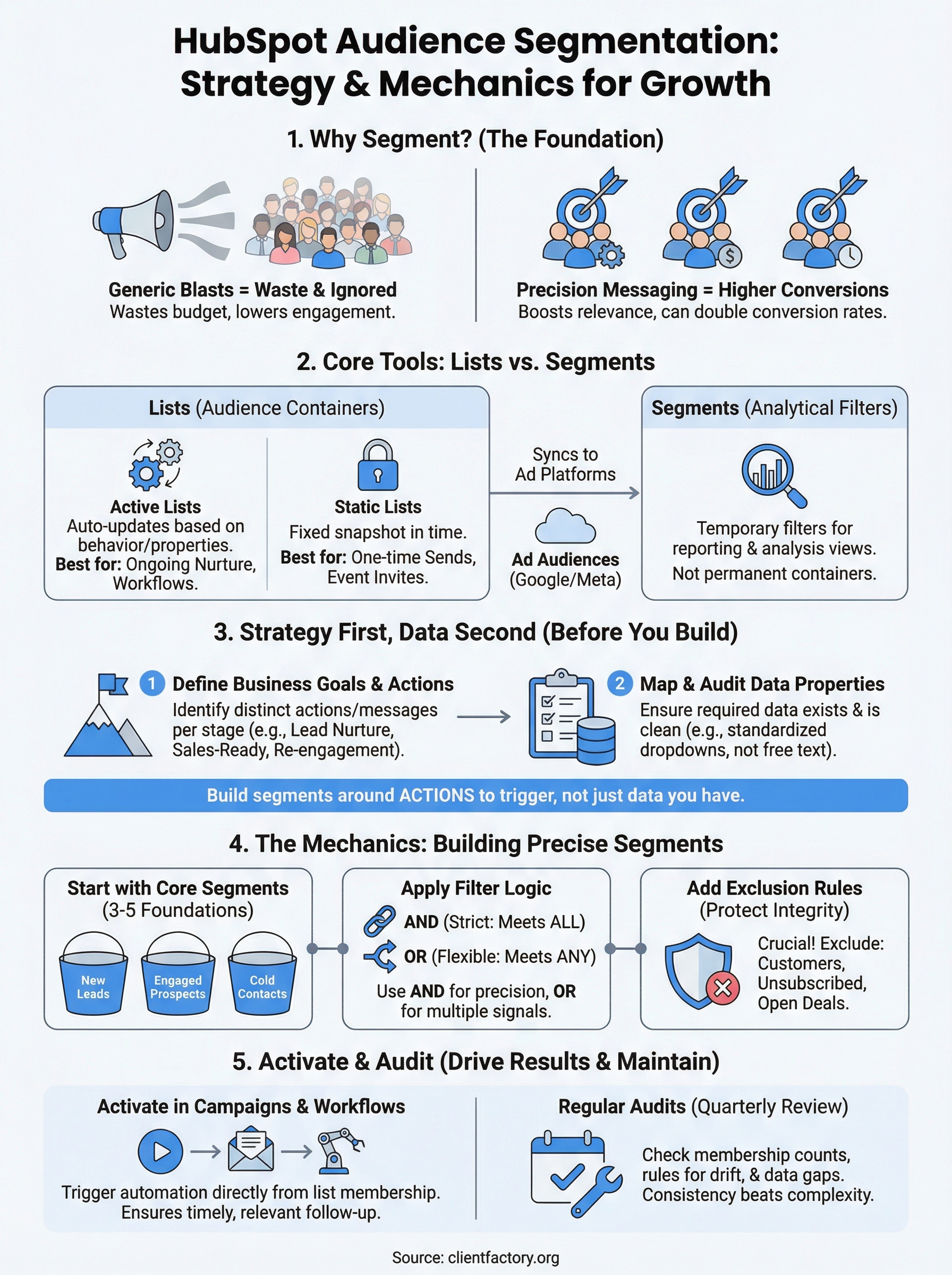
Segmentation in HubSpot works across three core tools: lists, segments, and ad audiences. Lists hold the contacts that match your criteria, segments filter data inside reporting and some campaign tools, and ad audiences sync your HubSpot contacts directly to paid platforms like Google or Meta. Understanding which tool does what is the first step toward building a system that actually works.
How HubSpot stores the data you segment
HubSpot organizes all contact data inside properties, which are fields attached to each contact, company, deal, or ticket record. Every property you collect, whether it’s a form field, a tracking event, or a value your team manually enters, becomes a filter you can use when building a segment. The more structured your property data, the more precise your segments become. If you store job titles as free-text entries, you’ll end up with 40 variations of "Marketing Manager" that you can’t reliably filter into a clean list.
Beyond contact properties, HubSpot also tracks behavioral data like email opens, page views, form submissions, and workflow enrollment history. This behavioral layer is what separates HubSpot from a basic spreadsheet. You can build a segment of contacts who visited your services page but never booked a call, or contacts who clicked a link in three separate emails but still haven’t converted. That kind of filter lets you act on real buying signals rather than guesses.
The quality of your segmentation is only as good as the quality of the data sitting behind it.
The difference between lists and segments in HubSpot
Lists are the primary tool for audience segmentation in HubSpot and they come in two types: active and static. Active lists update automatically as contacts meet or stop meeting the criteria you define. Static lists lock in a group of contacts at a specific point in time and don’t change unless you manually add or remove people. Most of the segmentation work you do will rely on active lists because your contact database is always moving.

Segments, on the other hand, are filtering views used inside HubSpot’s reporting, email tools, and some campaign features. They don’t hold contacts permanently the way a list does, but they let you slice data on the fly to analyze performance across a defined group. Think of lists as your working audiences for campaigns and automation, and segments as your lens for analyzing what is happening inside those audiences.
What separates a useful segment from a useless one
A segment is useful when it maps to a specific action you want to take. If you build a list of contacts in the legal industry but you have no campaign, email, or workflow designed for that group, the list just sits there doing nothing. Every segment you create should answer one question: "What will I do differently for this group?" If you cannot answer that clearly, you do not need the segment yet.
Useful segments are also maintainable. A segment built on five overlapping conditions that someone set up two years ago and nobody understands anymore is worse than having no segment at all. Start with clear, single-purpose filters and add complexity only when you have a specific business reason to do so.
Decide what you will segment for
Before you open HubSpot and start building lists, you need to get clear on what business outcome each segment serves. Jumping straight into filters without a strategy produces a cluttered CRM full of lists nobody uses. Effective HubSpot audience segmentation starts with a decision, not a data point: what do you want to do differently for a specific group of contacts?
Start with your business goals, not your data
Your data should shape how you build a segment, not why you build it. Start by listing the distinct actions or messages your business needs to deliver to different types of contacts. Think about the stages your contacts move through, from cold lead to engaged prospect to paying client to repeat buyer. Each transition point is a segmentation opportunity, because the message that works at one stage actively hurts you at another.
For example, a law firm running paid ads might need three immediate segments: leads who submitted a contact form but have not booked a call, existing clients who qualify for a new service, and cold contacts who went quiet after 60 days. Each group needs a different message and a different next step.
Build segments around the actions you want to trigger, not around the data you happen to have.
Common segmentation goals for service businesses
Once you know your business goals, you can translate them into segment types. Here are the most common segmentation purposes that service businesses and professional practices actually use:
- Lead nurturing: Contacts who opted in but have not converted, sorted by interest level or lead source
- Sales readiness: Prospects who hit specific engagement thresholds, like visiting your pricing page or opening three emails
- Re-engagement: Contacts who went cold after a defined period of inactivity
- Upsell and cross-sell: Existing clients segmented by service type or deal value
- Campaign targeting: Contacts who qualify for a time-specific offer or event invite
Limit your starting segments to what you will actually use
One of the most common mistakes is building too many segments at once. Start with three to five core segments that map directly to campaigns or workflows you already have planned. Every segment you create needs an owner, someone responsible for reviewing it and acting on it. If you cannot assign ownership, hold off on building it until you have the capacity to act on it. Starting small and executing well beats building an elaborate system that collects dust.
Map your data and properties
Before you build a single list, you need to know what data you actually have and how consistently it’s being collected. Most HubSpot portals accumulate properties over time without any real system, and you end up with duplicate fields, inconsistently filled data, and filters that return incomplete results. Taking 30 minutes to audit your properties before you start building saves you hours of troubleshooting later.
Audit what properties you already have
Go to Settings > Properties in HubSpot and review your contact properties. Look for fields that overlap, like "Industry" and "Contact Industry" sitting side by side, and decide which one your team will use going forward. Check the most important fields for completion rates by running a contact report filtered by contacts where a property is unknown. If a field you need for segmentation is blank for 60% of your database, it cannot drive reliable segments yet.
Pay close attention to how values are formatted inside text properties. Free-text fields like job title or company size are common culprits. If ten people entered job titles manually, you might have "Attorney," "attorney," "Atty," and "Lawyer" all meaning the same thing. For segmentation purposes, dropdown or radio-select properties are almost always better than open text because they force consistency.
Clean, structured property data is what separates segments that work from segments that mislead you.
Identify the gaps before you build
Once you know what data you have, map it against the segments you decided to build in the previous step. For each segment, list every property or behavior it requires and check whether that data exists and is populated reliably. Use this simple mapping table before you start building in HubSpot:

| Segment Goal | Required Property or Behavior | Current Status |
|---|---|---|
| Sales-ready leads | Pricing page visit + form submission | Tracking active, form exists |
| Cold re-engagement | Last activity date | Property exists, 80% populated |
| Industry-specific campaign | Industry (dropdown) | 45% blank, needs enrichment |
| Existing client upsell | Associated deal + close date | Populated for all closed deals |
Fill in this table for each segment you plan to build so you know exactly where data gaps exist before you start creating lists. For properties that are missing or underpopulated, your options are to add them to intake forms, run a manual enrichment effort on priority contacts, or use a HubSpot workflow to set values automatically when contacts meet certain conditions. HubSpot audience segmentation only performs as well as the property data feeding it, so closing these gaps is not optional if you want reliable results.
Choose lists, segments, and audiences
Once you know what segments you want to build and what data supports them, you need to pick the right HubSpot tool for each use case. HubSpot gives you three distinct tools: active lists, static lists, and ad audiences. Each one serves a different purpose, and using the wrong one for a given goal creates maintenance problems and unreliable targeting down the line. Choosing correctly from the start keeps your HubSpot audience segmentation system clean and functional.
Active lists vs. static lists
Active lists automatically add and remove contacts as they meet or stop meeting your criteria. If a contact’s behavior or property changes, HubSpot updates their list membership without any manual work on your part. Static lists capture a group of contacts at a single point in time and do not change unless you edit them manually.

Use active lists for ongoing campaigns and automation, and static lists for one-time sends or historical snapshots you need to preserve.
The table below shows the right tool for each scenario:
| Use Case | List Type | Why |
|---|---|---|
| Ongoing lead nurture sequence | Active | Membership updates as new leads qualify |
| One-time promotional email | Static | Locks in the audience at send time |
| Workflow enrollment trigger | Active | Enrolls contacts the moment they qualify |
| Event invite to a defined group | Static | You need a fixed list tied to a specific date |
| Re-engagement campaign | Active | Automatically catches contacts who go cold |
| Historical benchmark report | Static | Preserves the original contact group |
When you build an active list, set your criteria to be as specific as possible so contacts don’t cycle in and out unpredictably. A list with vague rules creates noise in your workflows and inflates your email sends with contacts who are not actually ready for that message.
When to bring ad audiences into the mix
Ad audiences in HubSpot sync your list membership directly to paid platforms like Google Ads or Meta, so the people in your lists see your ads without you manually uploading a CSV. This connection lets you run retargeting campaigns that stay current as contacts move through your funnel.
You should create ad audiences when you have an active paid advertising campaign that targets a specific segment. For example, if you have an active list of leads who visited your pricing page but never booked a call, syncing that list to a Google Ads audience lets you serve them a direct offer while your email sequence is running. Both channels reinforce the same message to the same group at the same time, which increases your chances of converting them.
Build your first core segments
With your data mapped and your list types chosen, you are ready to build. Resist the urge to create 20 lists on day one. Your first three to five segments should cover the most critical stages of your funnel, the points where the right message has the biggest impact on whether a contact converts or goes cold. HubSpot audience segmentation works best when each segment you build connects directly to a campaign or workflow that is already ready to run.
Start with three foundational lists
Every service business needs at minimum three core active lists before anything else: new unworked leads, engaged prospects who show buying signals, and cold contacts who have gone quiet. These three segments cover the full top-of-funnel lifecycle and give you an immediate foundation to act on. Here is how to build each one inside HubSpot using Contacts > Lists > Create list > Active list:
| Segment Name | Filter Logic | Purpose |
|---|---|---|
| New Unworked Leads | Lifecycle stage = Lead AND Create date is less than 14 days ago AND No associated deal | Route to sales or enter nurture sequence |
| Engaged Prospects | Email opened count >= 3 OR Pricing page viewed >= 1 AND Lifecycle stage = Lead | Trigger high-intent follow-up |
| Cold Contacts | Last activity date is more than 60 days ago AND Lifecycle stage = Lead or Subscriber | Enter re-engagement sequence |
Build each list by navigating to Contacts > Lists, clicking "Create list," selecting "Active list," and then adding filters one at a time using the criteria above. Save each list with a clear naming convention like [Stage] - [Segment Name] - [Date Created] so your team can identify the purpose at a glance.
Use the right filter logic inside each list
HubSpot lets you combine filters using AND logic (contact must meet all conditions) or OR logic (contact meets at least one condition). For high-precision segments like your engaged prospects list, use AND logic so you only capture contacts who meet every condition, not just one. OR logic is useful when a buying signal can come from multiple sources, like a page view or an email click, and you want to capture any contact who shows at least one of those behaviors.
The moment you mix AND and OR logic carelessly, your list membership becomes unpredictable and your campaign targeting breaks down.
After saving each list, click into the list membership count and spot-check five to ten contacts manually. Verify that the contacts you see actually match the criteria you set before you attach any workflow or campaign to the segment.
Add rules that keep segments accurate
Building the list is only half the job. Without the right filter rules and suppression logic, your segments drift over time and start including contacts who no longer belong in them. A lead who became a client six months ago should not still be receiving your nurture emails, and a contact who unsubscribed should never appear in an active sending list. HubSpot audience segmentation stays reliable only when you build rules that actively protect each segment’s boundaries.
Use exclusion filters to protect segment integrity
Every active list you build needs at least one exclusion condition. Exclusion filters remove contacts who meet your core criteria but should not receive the associated campaign for a specific reason. HubSpot lets you add AND conditions with "is none of" or "is unknown" logic to block contacts from qualifying when certain conditions are true.
A segment without exclusions is a segment that gradually fills with the wrong people.
Here are the most common exclusion rules you should add to every core active list:
- Lifecycle stage is Customer: Keeps existing clients out of prospect-facing campaigns
- Email subscription status is Unsubscribed: Prevents compliance issues on email lists
- Contact owner is known (for unassigned lead lists): Ensures the list only catches truly unworked contacts
- Associated deal stage is Closed Won: Removes contacts your sales team already converted
Add each exclusion as an additional AND filter row inside your list criteria. HubSpot processes all AND conditions together, so a contact must meet every positive condition and clear every exclusion to stay in the list.
Set property-based rules that reflect real contact movement
Your contacts change. They open emails, get assigned to sales reps, and move through deal stages. Your list rules need to mirror that movement so contacts fall out of one segment and qualify for the next one automatically.
Build rules around time-based and behavior-based properties rather than static values wherever possible. For example, instead of relying on a cumulative metric, set your engaged prospects list to require "Email opened in the last 30 days" rather than "Email opened count greater than 3." The time-bound rule reflects current engagement, not historical activity that may no longer be relevant. When a contact goes cold again, they drop off the list automatically and your campaign targets only the people who are actively responding to your messaging right now.
Activate segments in campaigns and automation
Your segments only produce results when something actually runs against them. A well-built list sitting inside HubSpot with no campaign, workflow, or ad audience connected to it is just organized data with no payoff. This step is where your HubSpot audience segmentation work starts generating revenue, because it turns filtered contact groups into targeted actions that move people through your funnel.
Connect active lists to email campaigns
HubSpot’s email tool lets you set any active or static list as the recipient group for a marketing email. When you use an active list, every contact who qualifies by the time the email sends receives it automatically, which means you do not have to manually update your audience before every send. To connect a list to a campaign, go to Marketing > Emails, create or open an email, and select your active list in the "Send to" field under the Recipients tab.
Use your segmented lists to control not just who receives an email but also who gets excluded from it. HubSpot’s "Don’t send to" field on the same Recipients tab accepts any list, so you can suppress existing clients, recent converters, or contacts already enrolled in a competing sequence. This exclusion layer keeps your messaging coherent across channels and prevents the same contact from receiving contradictory campaigns at the same time.
Connecting the wrong list to a campaign is harder to fix than taking an extra five minutes to verify your list membership before you hit send.
Trigger workflows from list membership
Workflows are HubSpot’s automation engine, and list membership is one of the most reliable triggers you can use to start one. To set this up, go to Automation > Workflows, create a contact-based workflow, and select "Contact is member of list" as your enrollment trigger. Choose your active list and HubSpot will enroll any contact who joins that list, including contacts who qualify after the workflow goes live.

Here is a simple workflow structure for a sales-ready prospect segment:
| Step | Action | Timing |
|---|---|---|
| Enrollment trigger | Joins "Engaged Prospects" active list | Immediately |
| Step 1 | Send internal notification email to contact owner | Immediately |
| Step 2 | Create a task: "Follow up with engaged lead" | Same day |
| Step 3 | Send targeted email with a direct call-to-action | Day 1 |
| Step 4 | If no meeting booked, send follow-up email | Day 4 |
Set re-enrollment to off unless you have a specific reason to re-trigger the workflow when a contact leaves and re-enters the list. Allowing re-enrollment on a nurture sequence means contacts who churn in and out of your active list will receive the same emails multiple times, which damages your sender reputation and frustrates your prospects.
Audit and improve your segmentation system
Your HubSpot audience segmentation setup is not a one-time project. Contact databases shift, businesses add new services, and campaigns change, which means the lists you built three months ago may no longer reflect reality. Running a regular audit keeps your segmentation accurate, prevents the wrong people from receiving the wrong messages, and catches list bloat before it corrupts your campaign performance.
Run a quarterly segmentation review
Set a recurring task every 90 days to review your core active lists. Each review should answer four specific questions for every list you own before you touch any settings or filters. Work through this checklist inside HubSpot by pulling up each list, checking its membership count, and reviewing the associated campaign or workflow it feeds:
| Audit Question | What to Check | Action if the Answer is No |
|---|---|---|
| Is this list still feeding an active campaign? | Check linked workflows and email sends | Archive the list or reassign it |
| Is the membership count reasonable? | Compare to last quarter’s count | Review filter logic for drift |
| Are exclusion filters still working? | Spot-check 5 members who should be excluded | Add or update exclusion rules |
| Is the data property still populated? | Run a report on the key property | Fix the intake form or workflow |
A list whose membership count doubled without a corresponding spike in lead volume is almost always a sign that a filter rule broke or a property stopped populating correctly.
Fix the segments that are breaking
When an audit turns up a problem, trace it back to the property or behavior that feeds the filter. Go to Contacts > Properties, pull up the specific property your list uses, and run a property-based report to see how many contacts have a blank or inconsistent value. If the field is underpopulated, check whether the form or workflow that should set it is still active and correctly configured.
For lists that grew unexpectedly, open the list, click on the filter criteria, and remove each condition one at a time in a test view to isolate which rule is too broad. A common culprit is a time-based filter like "Last activity date is less than 90 days ago" that was never updated after a workflow changed the way activity is logged. Once you identify the broken rule, tighten the condition or replace it with a more specific property that reflects the behavior you actually want to capture, then spot-check ten contacts to confirm the revised list returns the right people.
Keep it simple and keep it updated
HubSpot audience segmentation rewards consistency more than complexity. The businesses that get the most out of their segmentation systems are the ones that maintain a small set of well-defined lists, connect each one to a real campaign or workflow, and review them on a schedule rather than letting them drift for months. You do not need 50 lists to run effective targeting. You need five lists that are clean, purposeful, and actively maintained.
Start with the core segments this guide covers, run your first campaigns, and then let your results tell you what to add next. Every new segment you create should earn its place by connecting directly to an action that moves contacts closer to becoming clients. When your system grows based on what works, it stays manageable. If you want help building a segmentation strategy that actually drives client acquisition, book a free funnel audit and we’ll show you exactly where to start.