

Most leads aren’t ready to buy when they first land in your CRM. They need follow-up, relevant content, and well-timed nudges before they ever pick up the phone or fill out a contact form. That’s exactly what HubSpot lead nurturing workflows are built for, and when set up correctly, they can turn a cold list into a steady pipeline of booked consultations and signed clients.
The problem? Too many businesses activate HubSpot, build a few email sequences, and call it a day. No segmentation. No behavioral triggers. No strategy behind the automation. The result is a nurturing system that feels robotic to prospects and produces underwhelming conversion rates for the business. At Client Factory, we build and optimize lead nurturing funnels daily for service businesses and law firms, and we see the same fixable mistakes across nearly every account we audit. HubSpot has the tools, most teams just aren’t using them well.
This guide walks you through how to build automated lead nurturing workflows in HubSpot from scratch. You’ll learn how to segment your contacts, set up triggers and enrollment criteria, write emails that actually move people forward, and measure what’s working. Whether you’re starting fresh or trying to fix a workflow that’s underperforming, this is the playbook to get it right.
What HubSpot lead nurturing means in practice
HubSpot lead nurturing is the process of sending the right message to the right contact at the right time, automatically, based on where that person is in their decision process. It is not a drip campaign where every contact gets the same five emails in the same fixed order regardless of what they do. Real nurturing in HubSpot responds to contact behavior, lifecycle stage changes, and data already sitting in your CRM. The platform gives you the tools to build sequences that branch, pause, skip, or accelerate based on how a lead actually behaves, which is what separates a system that converts from one that just generates unsubscribes.
How nurturing differs from a broadcast email
Most businesses start with HubSpot’s marketing email tool and send one-off campaigns to large segments of their list. That is not nurturing. Broadcast emails go out to a segment at a fixed moment in time, with no relationship to where an individual contact is in their journey. Nurturing workflows, by contrast, run continuously in the background and enroll contacts based on specific trigger conditions you define, such as submitting a form, visiting a pricing page multiple times, or reaching a lead score threshold. The difference in results is measurable. A contact who receives a relevant email two minutes after downloading a guide converts at a far higher rate than one who waits until your next scheduled send.
Timing and context are the two variables that separate effective nurturing from inbox noise.
The three types of nurturing workflows you need
HubSpot supports several workflow types, but for service businesses and law firms, three categories do the heaviest lifting. Lifecycle-based workflows move contacts forward as they progress from subscriber to lead to marketing-qualified lead, triggering different content and follow-up actions at each stage. Behavioral workflows fire based on actions a contact takes inside your funnel, like clicking a specific link, watching a video, or returning to your site multiple times in a short window. Re-engagement workflows target contacts who have gone quiet and attempt to pull them back into an active conversation before they go permanently cold.

Knowing which type applies to which situation keeps your automation focused on outcomes rather than activity. Building all three gives you full pipeline coverage, from the moment a contact enters your database to the moment they either become a client or opt themselves out.
What behavioral triggers actually do inside HubSpot
Behavioral triggers are what make HubSpot automation feel personal rather than mechanical. When a contact clicks a specific link in your email, HubSpot can automatically update a contact property, adjust a lifecycle stage, or enroll that person in a completely different workflow without any manual work on your end. This lets you build logic that mirrors how a real salesperson would respond to buying signals. If someone clicks your scheduling link but never books, that action alone is worth an immediate follow-up email and an internal notification to your sales team.
Your workflow logic should reflect how your best salesperson thinks, not just what is technically simple to automate. When you design triggers with that standard in mind, the entire system starts producing the results that lead nurturing is actually supposed to deliver.
What you need before you build workflows
Jumping into HubSpot’s workflow builder before you have the right foundation in place wastes time and produces broken automations. Before you touch a single enrollment trigger, confirm that your HubSpot account, contact data, and team roles are in the right shape to support what you are building. Skipping this step is the main reason HubSpot lead nurturing setups fail within the first 90 days of launch.
Confirm your HubSpot plan supports workflows
Workflows live inside HubSpot’s Marketing Hub or Sales Hub at the Professional tier or above. If your account is on a Starter plan, you do not have access to workflow automation. Log into your HubSpot account, go to Settings, and check your subscription under Account and Billing. You need at least one seat at the Professional level to build contact-based automated workflows.
Confirm your plan access before mapping a single trigger. Upgrading mid-project forces you to rebuild work you have already done.
Define your contact properties and lifecycle stages
Your workflows can only act on data that already exists in your CRM. Review your contact properties and make sure you have fields for lead source, service interest, and location if those variables matter to your segmentation. HubSpot’s default lifecycle stages give you a solid starting framework, but you may need custom properties specific to your service business to build meaningful segments. Go to Contacts, select Properties, and audit what you have before building anything.
Here is a checklist of properties to confirm before you start:
- Lead source (how they entered your database)
- Service or practice area interest
- Last activity date
- Lifecycle stage
- Lead score (if you plan to use scoring)
Identify who owns workflow review and updates
Workflows need a named owner, someone on your team who monitors performance, updates content, and approves enrollment criteria changes. Without a designated owner, automations drift and contacts fall through gaps with no one catching the problem. Assign that person before you go live, and make sure they hold Admin or Marketing access in HubSpot so they can edit workflows and pull performance reports without waiting on another team to act.
Step 1. Map your funnel and define workflow goals
Before you open HubSpot’s workflow builder, you need a clear picture of how a contact moves from first touch to closed client. Skipping the mapping step produces workflows that overlap, contradict each other, or enroll the same contact in four sequences at once. Grab a whiteboard or a simple document and draw out every stage a contact passes through in your specific funnel, from initial opt-in to signed agreement. This map becomes the blueprint every workflow references.
Your workflow goals must match your funnel stages. One workflow built for the wrong stage will push contacts in the wrong direction and kill conversion rates before you even realize it.
Define the stages contacts move through
Your funnel most likely moves contacts through four to six stages, and each stage represents a different mindset and a different conversation. Label each stage clearly so that every workflow you build later has an obvious start point and an obvious endpoint. A law firm funnel, for example, might look like this:
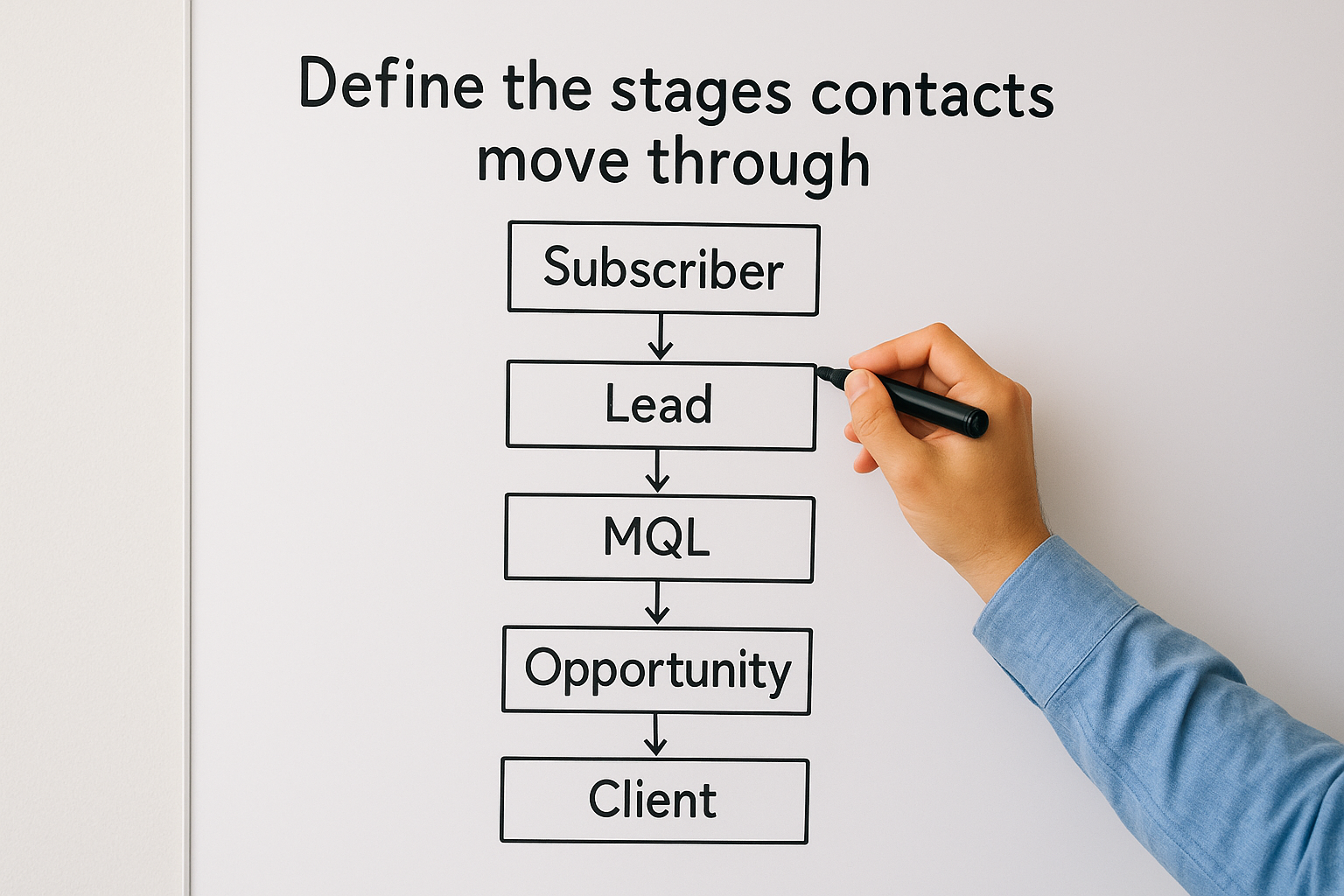
- Subscriber: opted in but not yet identified as a qualified lead
- Lead: completed a high-intent action such as downloading a case results guide
- MQL: reached a lead score threshold or requested a consultation
- Opportunity: actively in a sales conversation
- Client: signed and onboarded
Listing stages this way forces you to define what a contact must do to move forward, which is exactly what your HubSpot lead nurturing enrollment triggers will use later.
Assign a single goal to each workflow
Each workflow you build should accomplish one specific, measurable outcome and nothing else. Trying to move a contact from subscriber to booked consultation inside a single workflow produces a sequence that is too long, too generic, and too easy to quit halfway through. Instead, map one workflow to one stage transition, such as moving a lead to MQL status by getting them to book a call.
Write your goal in this format before you build anything:
"This workflow moves [contact type] from [current stage] to [next stage] by [specific action] within [timeframe]."
Example: "This workflow moves new subscribers from subscriber to lead by getting them to download our practice area guide within 7 days."
Step 2. Set up clean CRM data for automation
Your workflows are only as reliable as the data driving them. HubSpot lead nurturing automation makes decisions based on contact properties, and if those properties are incomplete, inconsistent, or outright wrong, your workflows will enroll the wrong people, skip the right ones, or fire at completely the wrong time. Spend time cleaning your CRM data before you activate a single enrollment trigger and you will save yourself hours of troubleshooting after launch.
Audit and standardize your existing contact data
Pull a full contact export from HubSpot and look at your most critical properties. Blank fields, inconsistent formatting, and duplicate contacts are the three problems that break automation fastest. A lead source field with 14 different spellings for "Google Ads" will prevent any workflow that filters by lead source from working correctly.
Clean data at the start is far easier to maintain than dirty data you try to fix while workflows are already running.
Run through this checklist before you build anything:
- Lifecycle stage: Every contact should have one assigned. Contacts with no lifecycle stage cannot be properly enrolled or excluded.
- Lead source: Standardize all values to a controlled list. Remove free-text entries and replace them with dropdown properties.
- Email validity: Filter for contacts with bounced email status and suppress them from all active workflows.
- Duplicate contacts: Use HubSpot’s native duplicate management tool under Contacts to merge records sharing the same email address.
- Last activity date: Confirm this field is populating correctly so re-engagement workflows have accurate data to filter from.
Map required properties to your forms and landing pages
Every new contact entering your CRM should arrive with the minimum data your workflows need to function. Go into each active form in HubSpot and confirm it collects lead source, service interest, and any other field your enrollment triggers depend on. Set required fields on forms for the properties your highest-priority workflows use so no new contact can submit without providing that data. If a workflow needs to know what service a lead is interested in, that answer should exist in the CRM the moment the contact is created, not two weeks later after a manual follow-up.
Step 3. Build segmentation and lead scoring
Segmentation and lead scoring determine which contacts enter which workflows and when. Without these two systems in place, your HubSpot lead nurturing automation has no way to distinguish a cold subscriber from someone who has visited your pricing page three times this week. Set these up correctly and every workflow you build from here on will enroll exactly the right people at exactly the right moment.
Segment your contacts before you build active lists
HubSpot uses active lists to drive dynamic workflow enrollment. An active list automatically adds or removes contacts as they meet or stop meeting your defined criteria, which means your segments stay current without any manual updates. In HubSpot, go to Contacts, select Lists, and click Create List. Choose Active List, then set your filters using the contact properties you cleaned up in Step 2.
Segment by behavior first and by demographics second. A contact who visited your service page twice tells you far more than one who lives in a specific zip code.
Build at least these three foundational segments to start:
- High intent: Contacts who visited a key page (pricing, contact, or consultation) at least twice in the last 30 days
- Content engaged: Contacts who opened three or more emails in the last 60 days but have not requested a consultation
- Cold: Contacts with no activity recorded in the last 90 days
Configure lead scoring to rank buying intent
Lead scoring in HubSpot assigns positive or negative point values to contact actions and properties so you can rank every lead by how ready they are to buy. Go to Contacts, then click Lead Scoring inside your HubSpot settings. You will see two categories: HubSpot Score (manual, rule-based) and Predictive Score (available at Enterprise). For most service businesses, the manual score gives you more control.

Use this scoring template as a starting framework:
| Action or Property | Points |
|---|---|
| Visited consultation page | +15 |
| Downloaded a content offer | +10 |
| Opened 3+ emails in 30 days | +8 |
| Clicked a scheduling link | +20 |
| No activity in 60 days | -10 |
| Unsubscribed from one list | -15 |
Set a threshold score that triggers enrollment into your MQL workflow. A score of 40 or above works as a solid starting point for most service businesses, but adjust based on your actual close data after 60 days of live results.
Step 4. Create your nurture content and emails
Your workflows will only perform as well as the content inside them. HubSpot lead nurturing automation delivers your emails automatically, but it cannot fix messaging that talks about the wrong thing at the wrong stage. Before you build a single workflow step, write every email your sequence needs and confirm that each one matches the mindset of the contact receiving it.
Match content to funnel stage
A subscriber who just opted in needs something different from a lead who already read three of your blog posts and visited your pricing page twice. Early-stage contacts need value and credibility, not a sales pitch. Mid-stage contacts need social proof, case studies, and specific answers to objections. Late-stage contacts need a clear, low-friction path to book a call or submit a form.
Sending a sales-heavy email to a cold subscriber is the fastest way to earn an unsubscribe before the relationship has a chance to develop.
Use this table to match your content type to each stage:
| Funnel Stage | Content Type | Primary Goal |
|---|---|---|
| Subscriber | Educational guide, checklist, short video | Build trust and establish relevance |
| Lead | Case study, FAQ, webinar replay | Address objections and deepen interest |
| MQL | Testimonial, offer, consultation invite | Convert to a booked call |
| Re-engagement | "Still interested?" email, new resource | Reactivate a dormant contact |
Write emails that drive a single action
Each email in your sequence should push the contact toward one specific next step and nothing else. Multiple links and multiple calls to action in a single email split attention and reduce click-through rates. Keep your emails short, between 150 and 250 words, with one clear link that either moves the contact to the next piece of content or books a call.
Use this template for mid-funnel emails:
Subject: [Specific result your client got] in [timeframe]

Hi [First Name],

[One-sentence description of a problem your prospect recognizes.]

[Client name] came to us with the same challenge. [Two sentences describing the outcome.]

If that situation sounds familiar, this [case study / short video / guide] is worth two minutes of your time:

[CTA link text]

[Your name]
Personalize the subject line using HubSpot’s contact property tokens so the email references something specific to that contact’s situation rather than a generic opener.
Step 5. Build HubSpot workflows that run themselves
With your content written and your segments defined, you are ready to build inside HubSpot’s workflow tool. Go to Automation, then Workflows, and click Create Workflow. Choose "From scratch" and select "Contact-based" as your workflow type. Every HubSpot lead nurturing workflow you build should be contact-based unless you have a specific deal or company automation need, which is a separate use case entirely.
Set your enrollment triggers correctly
Your enrollment trigger is the condition that pulls a contact into the workflow automatically. Click "Set enrollment triggers" and select the property, behavior, or list membership that matches the goal you defined in Step 1. For a high-intent workflow, set the trigger to "Contact is member of list: High Intent," which you built in Step 3. For a content-engagement workflow, trigger on a specific email click or page view event so only contacts who took that exact action enter the sequence.
Use "re-enrollment" settings carefully. Allowing contacts to re-enroll every time they meet the trigger criteria makes sense for behavioral workflows but will produce duplicate sequences for lifecycle-based ones.
Check the box to enroll existing contacts who already meet the criteria if you want the workflow to backfill your current database, not only catch new contacts going forward.
Build your workflow logic with branches and delays
Add your first email as an action step, then set a time delay before the next step. For most service business nurtures, a two-to-three day delay between emails gives contacts enough space to engage without going cold. After each delay, add an If/Then branch that checks whether the contact opened the previous email or clicked the link. Contacts who clicked move into a higher-intent path. Contacts who did not get a follow-up that uses a different subject line and angle.
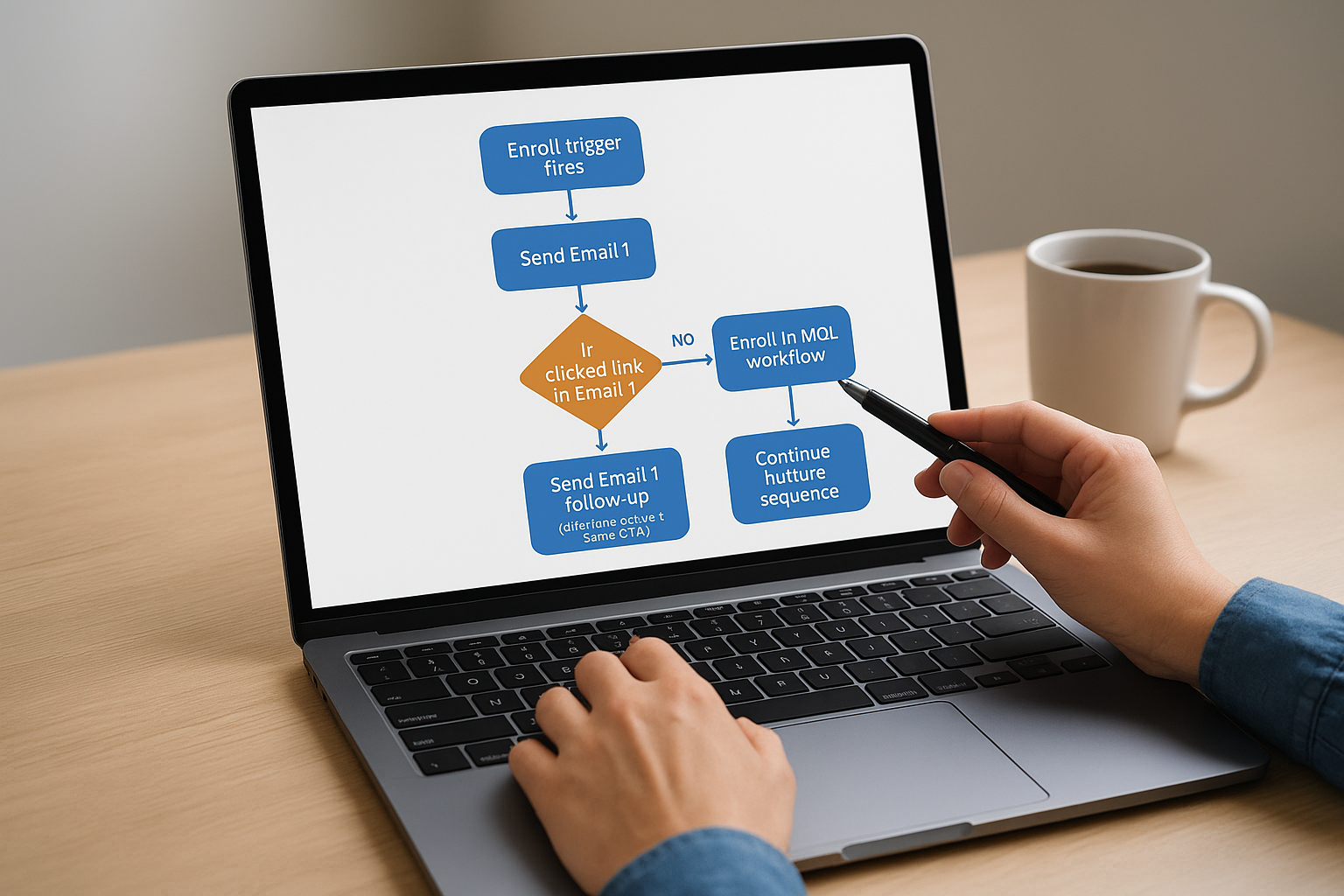
Use this branching structure as your default template:
Enroll trigger fires
  Send Email 1
  Wait 2 days
  IF clicked link in Email 1
    Enroll in MQL workflow
  ELSE
    Send Email 1 follow-up (different subject, same CTA)
    Wait 3 days
    Continue nurture sequence
Turn on the workflow only after you have reviewed every branch, confirmed all delays are set, and tested enrollment using a contact record you control.
Step 6. Set handoffs, suppression, and re-engagement
A workflow that converts a lead into a consultation request needs to stop running the moment that conversion happens. Without proper handoff logic and suppression rules, contacts will keep receiving nurture emails after they have already booked a call, which makes your business look disorganized. This step covers three system-level settings that determine whether your HubSpot lead nurturing setup closes loops cleanly or leaks contacts through the cracks.
Handle sales handoffs without dropping contacts
When a contact books a call or submits a contact form, your workflow should immediately unenroll them and notify your sales team. Add an "If/Then branch" after each email that checks for a consultation form submission or a lifecycle stage change to Opportunity. If that condition is true, end the workflow for that contact and trigger an internal notification action to alert the responsible salesperson with the contact’s name, lead score, and most recent activity.
A contact who books a call and then receives another nurture email the next morning will question whether anyone inside your business is paying attention.
Suppress contacts who should not be in the workflow
Suppression lists prevent the wrong contacts from enrolling in workflows they have already completed or should never enter. Inside HubSpot’s workflow settings, go to the Suppression Lists tab and add any active list that should be excluded. At minimum, suppress current clients, contacts already in an active sales conversation, and anyone who has unsubscribed from marketing emails. Audit your suppression lists every 30 days to confirm they still reflect your current CRM state.
Build a re-engagement sequence for cold contacts
Contacts who go quiet after 90 days of no activity need a separate, short workflow designed to either pull them back in or remove them from your active database. Keep this sequence to three emails maximum and make each one low pressure. Here is a simple template for your first re-engagement email:
Subject: Still relevant for you, [First Name]?

Hi [First Name],

It has been a while. If [specific problem] is still something
you are working through, this [resource] might be useful:

[CTA link]

If not, no hard feelings. Just reply "remove" and we
will keep our communication relevant to you.

[Your name]
Contacts who do not engage with any of the three emails should move to a suppression list automatically so they stop inflating your active contact count.
Step 7. Test, measure, and optimize your nurtures
A workflow that goes live and never gets reviewed will slowly drift from useful to irrelevant. HubSpot lead nurturing automation gives you real-time data on every email open, click, and unenrollment, but that data only matters if you build a regular habit of checking it and acting on what you find. Set a review cadence before you launch, not after you notice a problem building in your pipeline.
Track the metrics that signal real performance
HubSpot’s workflow analytics panel shows you enrollment counts, completion rates, and email-level performance for every step in your sequence. Open rate and click-to-open rate are the two numbers that tell you whether your subject lines and email body are doing their job. A low open rate means your subject line is not compelling enough. A low click-to-open rate means your email body is not connecting the message to the call to action.
If your click-to-open rate drops below 5%, rewrite the email body before you adjust anything else in that sequence.
Track these four metrics for every active workflow at least once every 30 days:
| Metric | What It Signals | Action Threshold |
|---|---|---|
| Enrollment rate | How well your trigger criteria match real intent | Review trigger if under 10 contacts per week |
| Open rate | Subject line effectiveness | Rewrite if below 25% |
| Click-to-open rate | Email body and CTA quality | Rewrite if below 5% |
| Goal completion rate | Whether the workflow drives the intended outcome | Investigate if below 10% |
Run A/B tests on subject lines and send timing
Your lowest-performing emails deserve a structured test, not a gut-feel rewrite. HubSpot’s email tool lets you run A/B tests on subject lines directly inside a workflow email. Test one variable at a time, either the subject line or the send time, but not both simultaneously. Use a 50/50 contact split and let the test run for at least 500 contacts before you apply the winning version.
Work through your three worst-performing emails first, then move through the rest of the sequence over a 90-day period. Replacing underperforming emails one at a time gives you clean data on what each change actually did to your results, rather than making several changes at once and having no way to separate the cause from the effect.
Wrap up and next steps
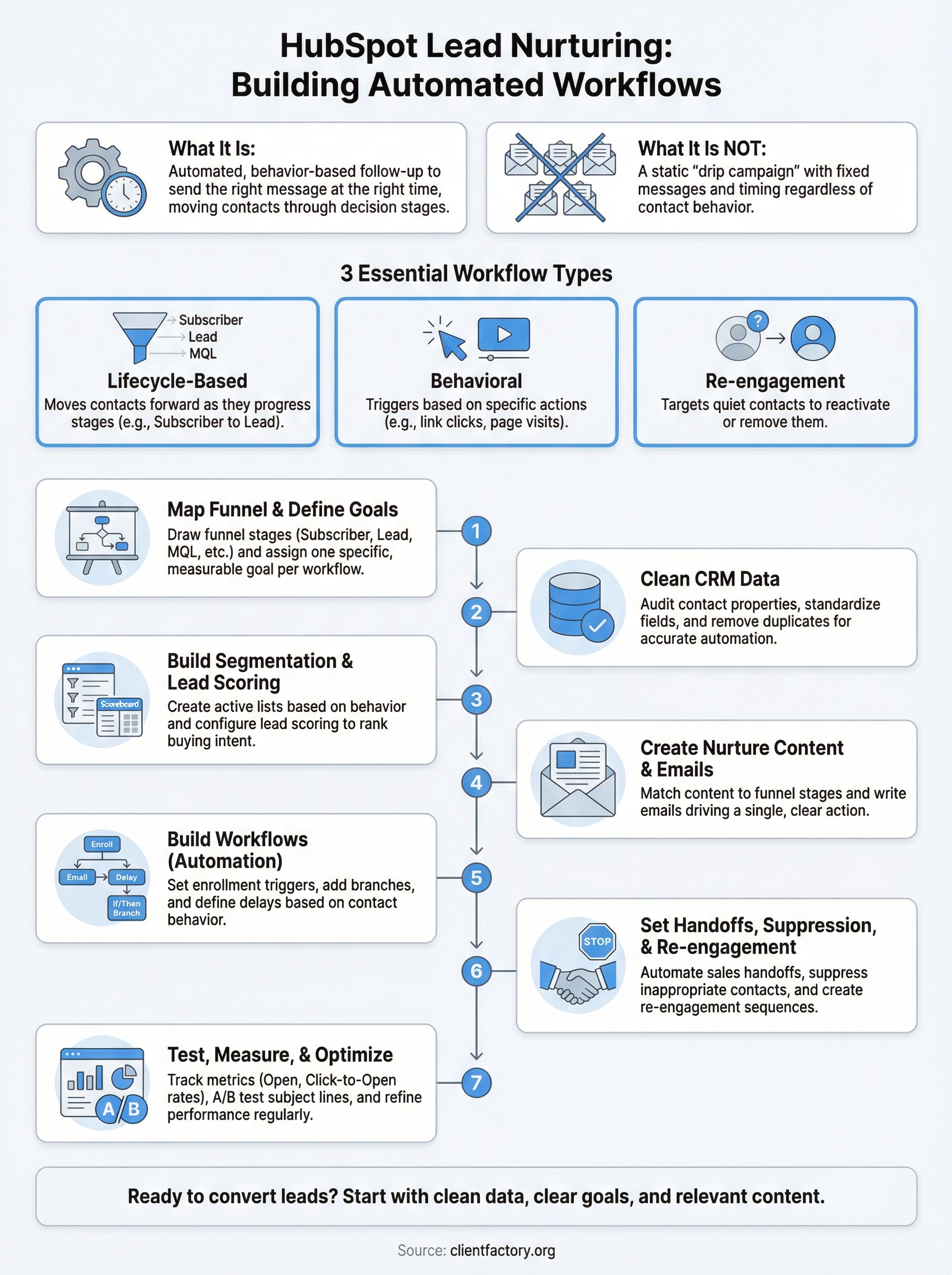
HubSpot lead nurturing works when you build it on clean data, clear goals, and content that matches what your contacts actually need at each stage. This guide walked you through every step, from mapping your funnel and cleaning your CRM to setting suppression rules and running A/B tests. Each piece connects to the next, and skipping any step leaves gaps that underperforming workflows fall into.
Your immediate next steps are straightforward. Audit your current contact properties, map your funnel stages on paper, and write out the goal for your first workflow before you open HubSpot’s builder. Start with one workflow, prove the logic works, then expand. If you want a second set of eyes on your current funnel before you build, book a free conversion audit with the Client Factory team and we will show you exactly where your biggest gaps are and how to close them.