

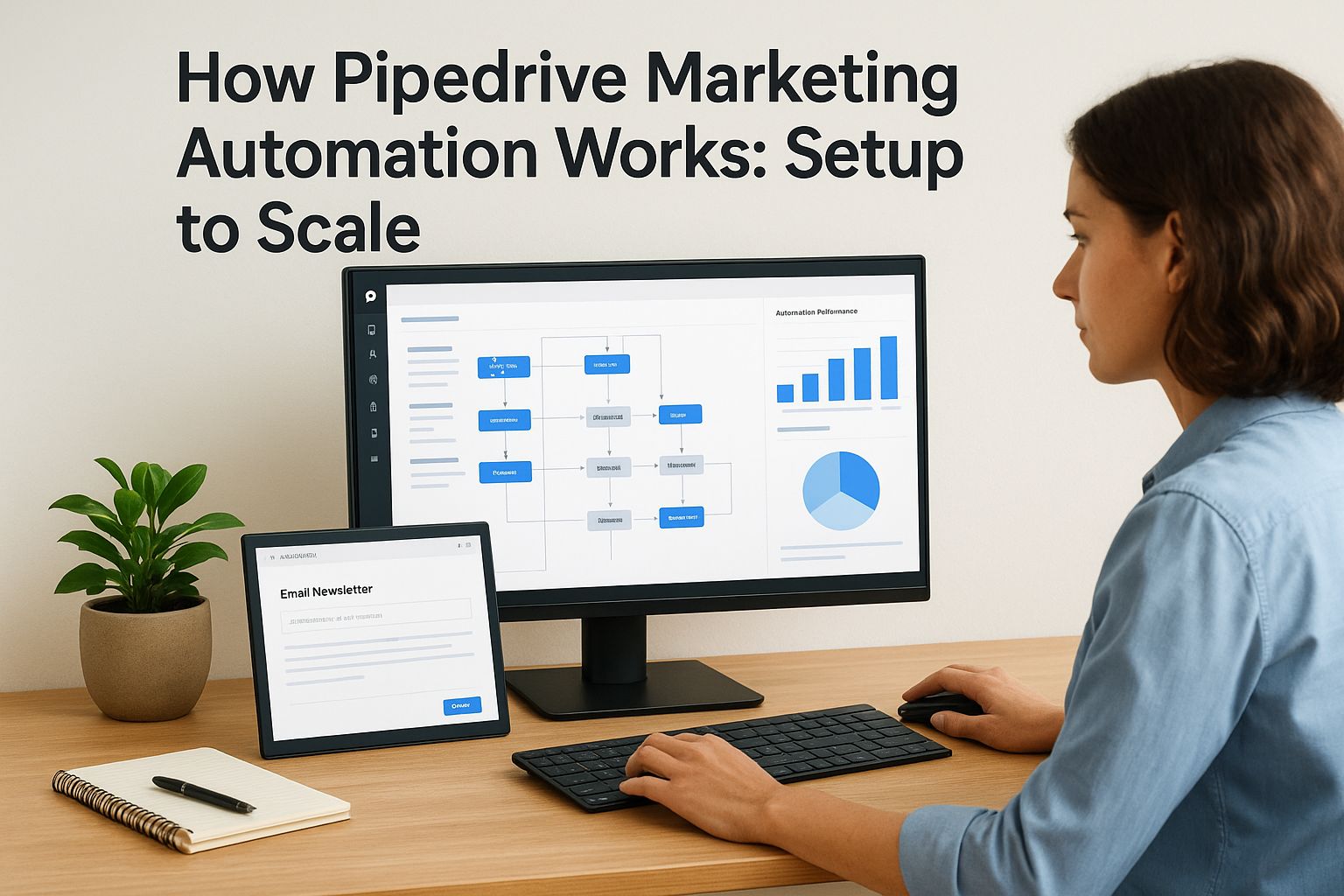
Your sales pipeline is growing but your marketing team is drowning in manual tasks. Every new lead needs a welcome email. Follow-ups slip through the cracks. You’re copying contact data between platforms. Your team spends hours on work that should take minutes. This creates bottlenecks that kill momentum and leave qualified prospects waiting too long for responses.
Pipedrive marketing automation solves this by connecting your CRM to email campaigns, web forms, and analytics. You set up workflows once and they run automatically. New leads get instant responses. Your team focuses on strategy instead of data entry. The system tracks everything from first click to closed deal.
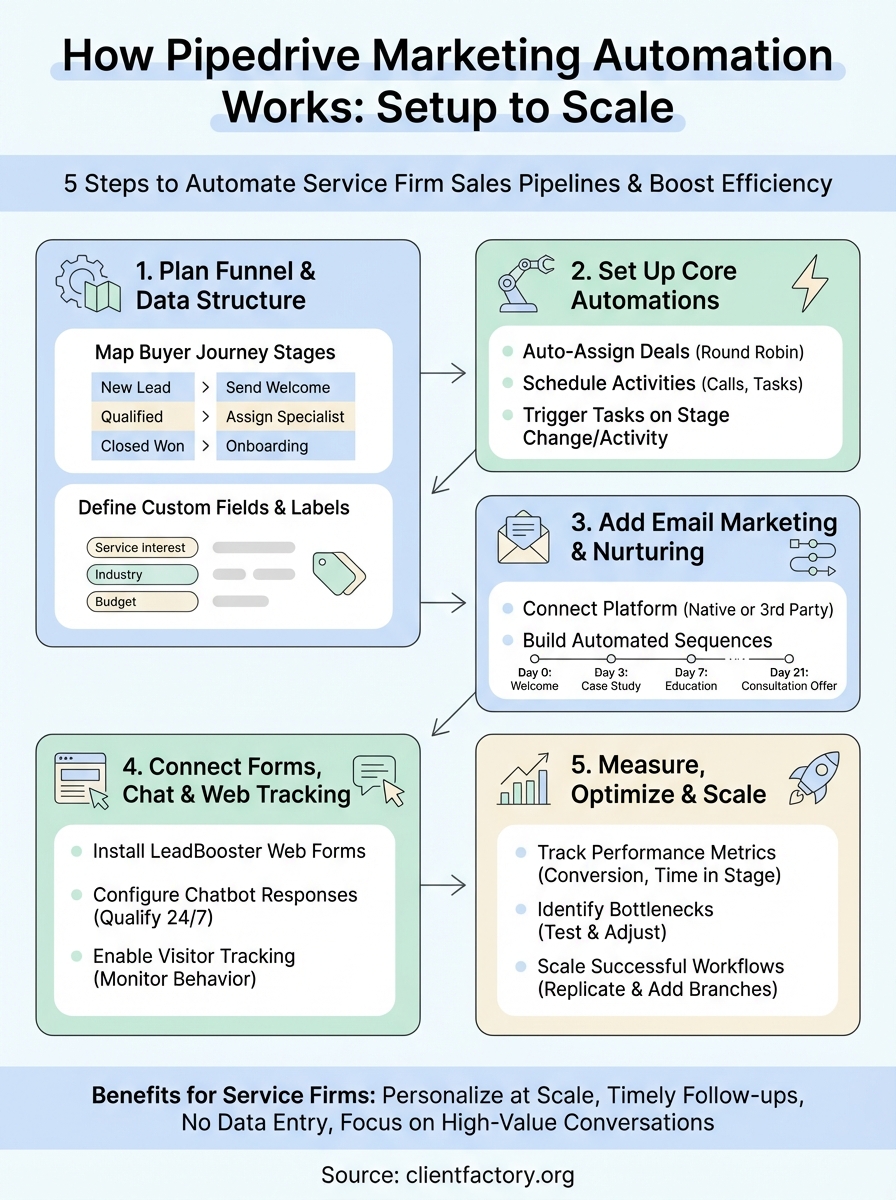
This guide walks you through five practical steps to implement Pipedrive marketing automation. You’ll learn how to plan your funnel structure, configure native automations, integrate email tools, connect lead capture forms, and measure results. Each section includes specific workflows and integration options. By the end, you’ll know exactly how to build a system that scales your client acquisition without adding overhead.
What Pipedrive marketing automation means for service firms
Pipedrive marketing automation connects your CRM data to your marketing actions without requiring separate platforms or technical expertise. Your contacts automatically move through stages based on their behavior. When someone fills out a consultation form, the system creates a deal, assigns it to the right team member, sends a personalized email, and schedules a follow-up task. No manual data entry or switching between tools is needed to make this happen.
What automation looks like in practice
Your automation workflows trigger based on specific conditions. A new lead enters your pipeline and receives a welcome email within seconds. After three days with no response, the system sends a follow-up message with case studies relevant to their industry. If they click a link, their deal stage updates automatically and your sales rep gets a notification. Every interaction gets logged in one place where your entire team can see it.
Service firms handle complex sales cycles with multiple touchpoints. Automation ensures no prospect falls through the cracks between initial contact and signed contract. You can build workflows that nurture leads over weeks or months without constant manual oversight. The system remembers where each conversation left off and prompts the next action at the right time.
Why service firms benefit most
Service businesses sell expertise and relationships rather than products. Your sales process depends on timely follow-ups and personalized communication at scale. Pipedrive marketing automation gives you both. You maintain the personal touch while handling more prospects than your team could manually manage.
Automation frees your team to focus on high-value conversations instead of administrative tasks.
Your firm can segment contacts by service interest, industry, or engagement level and send targeted content automatically. Law firms can nurture potential clients with relevant legal insights. Consulting firms can share case studies that match prospect challenges. Each message feels personal because it’s triggered by specific behaviors and tailored to individual needs. The automation handles the timing and delivery while you control the strategy and content.
Step 1. Plan your funnel and data structure
Your automation works only as well as the data structure behind it. Before you build any workflows, you need to define how contacts move through your pipeline and what information you track at each stage. This planning phase prevents messy data and broken automations later. Map your entire buyer journey from first contact to closed deal before you touch any settings in Pipedrive.
Start by documenting your current sales process. Write down every interaction point between marketing and sales. Note when prospects receive content, when they request consultations, and what triggers a sales conversation. This becomes your automation blueprint. Your team already follows these steps informally. Now you’re making them systematic.
Map your buyer journey stages
Your pipeline stages should reflect real decision points in your sales process, not arbitrary labels. Service firms typically need four to six stages. Use names that describe what the prospect is doing rather than what you’re doing. “Researching options” makes more sense than “initial contact” because it frames the stage from the buyer’s perspective.
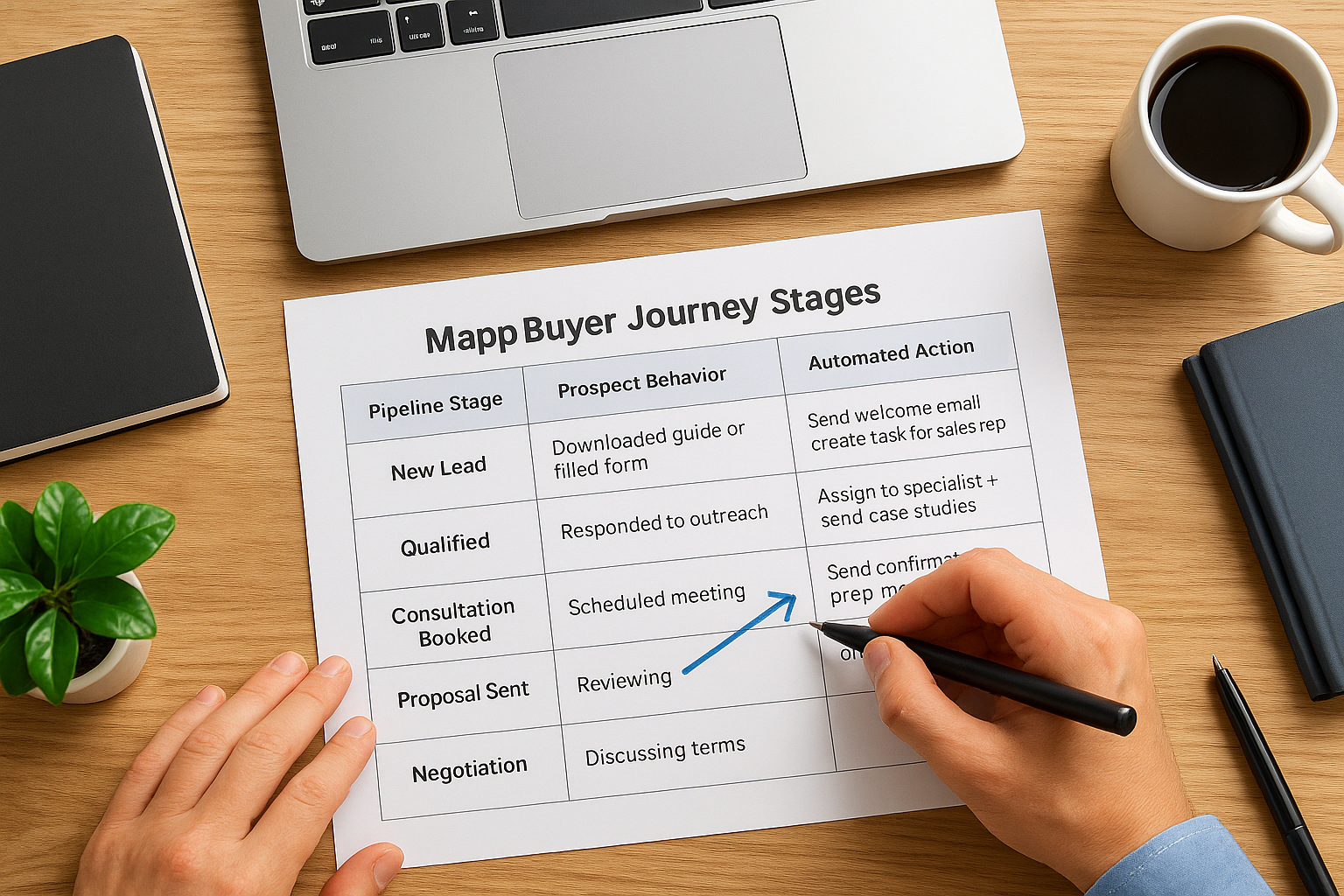
Create a simple table that maps each stage to specific prospect behaviors and automated actions. This becomes your reference guide when building workflows:
| Pipeline Stage | Prospect Behavior | Automated Action |
|---|---|---|
| New Lead | Downloaded guide or filled form | Send welcome email + create task for sales rep |
| Qualified | Responded to outreach | Assign to specialist + send case studies |
| Consultation Booked | Scheduled meeting | Send confirmation + prep materials |
| Proposal Sent | Reviewing options | Follow-up sequence after 3 days |
| Negotiation | Discussing terms | Alert manager + send additional resources |
| Closed Won | Signed agreement | Onboarding workflow triggers |
Each stage transition happens either manually by your sales team or automatically based on specific triggers you define.
Define custom fields and labels
Pipedrive marketing automation needs structured data to route contacts correctly. Custom fields let you capture information that drives your workflows. Service firms should track at minimum: service interest, industry, company size, budget range, and lead source. These fields determine which automated sequences each contact receives.
Create fields with dropdown options rather than free text when possible. This prevents data inconsistencies that break automation rules. For example, use a dropdown for “Service Interest” with options like “Legal Consultation,” “Tax Advisory,” or “Business Consulting” instead of letting sales reps type whatever they want.
Clean, structured data is the foundation of every successful automation system.
Labels add another layer of segmentation without cluttering your main fields. Use labels for temporary statuses or campaign tracking. You might tag contacts with “Webinar Attendee” or “Case Study Downloaded” to trigger specific follow-up sequences. Labels work well for behavior-based automation triggers that don’t need permanent custom fields.
Build your lead scoring framework
Lead scoring assigns numerical values to prospect behaviors and characteristics. Your automation can then prioritize contacts based on their total score. Service firms score leads differently than product companies because relationship signals matter more than product interactions.
Assign points for actions that indicate buying intent: +15 for booking a consultation, +10 for downloading a pricing guide, +5 for opening three emails in a week. Deduct points for disengaging behaviors: subtract 5 points if someone hasn’t opened an email in 30 days. Your automation workflows can then route high-scoring leads to senior team members while nurturing lower-scoring contacts with more educational content.
Step 2. Set up core automations in Pipedrive
Pipedrive’s native automation features live in the Automations section under Settings. You create workflows by defining triggers and actions that run automatically when specific conditions are met. Your first automations should handle repetitive tasks that currently slow your team down. Focus on deal creation, assignment, and follow-up scheduling before building more complex sequences.
Access the Automations builder by clicking your profile icon, selecting Company settings, then Automations. Click “Create workflow” to start. Each workflow needs a clear trigger event (what starts the automation) and one or more actions (what happens next). Pipedrive supports triggers like deal stage changes, new contact creation, activity completion, and custom field updates.
Create your first workflow automation
Your most valuable first workflow assigns incoming leads to available team members and schedules their first outreach activity. This eliminates the delay between lead capture and sales contact. Set the trigger to “Deal created” and add a filter for “Pipeline equals Prospect Pipeline” to target only new leads.

Add three actions to complete this workflow. First, use “Update deal” to set the expected close date 30 days from creation. Second, add “Assign deal owner” with rotation rules that distribute leads evenly across your sales team. Third, create a “Schedule activity” action that adds a call task due within 24 hours with the note “Initial qualification call.”
Here’s the complete workflow structure:
Trigger: Deal created in Prospect Pipeline
Action 1: Update deal > Set expected close date > 30 days from now
Action 2: Assign deal owner > Round robin > Sales team filter
Action 3: Create activity > Call > Due tomorrow > Assigned to deal owner
Test your workflow by creating a test deal in your prospect pipeline. Watch the automation assign it, update fields, and create the task. Delete the test deal afterward to keep your pipeline clean.
Automate deal rotation and assignment
Your assignment rules determine which team members receive new leads based on criteria you define. Round robin distribution works for most service firms because it spreads the workload evenly and prevents any single salesperson from getting overwhelmed. Access assignment settings within your workflow actions by selecting “Assign deal owner” and choosing your distribution method.
Create separate assignment rules for different lead types or service categories. Legal consultation requests go to attorneys while tax advisory leads route to CPAs. Use the “Assign based on condition” option to check custom field values before assigning. This ensures prospects connect with specialists who understand their specific needs.
Automated assignment eliminates the manual sorting that creates response delays and frustrated prospects.
Set up activity and task triggers
Activity automation keeps your pipeline moving by creating follow-up tasks when specific events occur. Configure these workflows to run when deals move between stages or when scheduled activities are marked complete. Your pipedrive marketing automation can then maintain momentum without manual oversight from sales managers.
Build a workflow that triggers when a consultation activity is marked done. Add an action to create a proposal preparation task due in two days with a checklist of required information. Add a second action to send an internal notification to your proposals team. This coordination happens instantly instead of requiring back-and-forth messages between departments.
Stack multiple activity triggers to build complete follow-up sequences. When a proposal is sent (custom field update), create a task to follow up in three days. When that follow-up task completes without a response, create another task for five days later with escalation to a senior team member. Your automation maintains the cadence your team designed without anyone needing to remember timing.
Step 3. Add email marketing and lead nurturing
Email automation transforms your Pipedrive CRM from a contact database into an active engagement system. Your pipedrive marketing automation needs an email component to nurture leads who aren’t ready to buy today but might convert in weeks or months. The right setup sends personalized messages based on prospect behavior without requiring your team to manually craft and send each email.
Connect your email platform
Campaigns by Pipedrive provides built-in email marketing without leaving your CRM. You create email templates using the drag-and-drop builder, segment contacts based on custom fields or pipeline stages, and track opens and clicks directly in contact records. This native integration eliminates data syncing issues but limits advanced automation features like complex branching logic or sophisticated A/B testing that standalone email platforms offer.
Third-party integrations give you more powerful automation capabilities at the cost of managing multiple platforms. Mailchimp, Brevo, and Klaviyo connect to Pipedrive through tools like Outfunnel or Zapier. These connections sync contacts bidirectionally and push email engagement data back into your CRM. Choose third-party tools when you need advanced segmentation, extensive template libraries, or SMS integration alongside email.
Set up your connection by navigating to Marketplace in Pipedrive, searching for your chosen email platform, and clicking Install. Follow the authentication prompts to link your accounts and configure field mapping. Map your Pipedrive custom fields to corresponding email platform fields so contact data stays consistent across both systems.
Build automated email sequences
Email sequences nurture prospects through multiple touchpoints over days or weeks. Your first sequence should welcome new contacts and establish expectations. Create a five-email sequence that sends immediately upon contact creation, then follows up on days 3, 7, 14, and 21. Each message provides progressively deeper information about your services while asking for a specific next action.

Structure your welcome sequence like this:
Email 1 (Day 0): Welcome + overview of services + link to resource library
Email 2 (Day 3): Client success story relevant to their industry
Email 3 (Day 7): Educational content addressing common pain points
Email 4 (Day 14): Case study with measurable results
Email 5 (Day 21): Direct consultation offer with scheduling link
Automated sequences maintain consistent communication while your sales team focuses on ready-to-buy prospects.
Trigger emails from deal activity
Behavior-triggered emails respond to specific actions prospects take in your pipeline. Configure these triggers in your email platform’s automation builder by setting conditions based on Pipedrive data. When a deal moves to “Proposal Sent” stage, trigger an email that summarizes proposal highlights and addresses common objections. When a scheduled consultation is marked complete, send a recap email with next steps and additional resources.
Build a consultation follow-up trigger that checks for completed consultation activities. The automation waits 2 hours after activity completion, then sends an email thanking them for their time and attaching a summary of discussion points. Include a direct scheduling link for the next meeting and set a task for your sales rep to follow up if no response arrives within 5 days. These stacked triggers ensure no opportunity goes cold because someone forgot to send a follow-up message.
Step 4. Connect forms chat and web tracking
Your pipedrive marketing automation captures leads only after they fill out a form or start a conversation. Web forms, chatbots, and visitor tracking complete the picture by identifying prospects before they convert and feeding behavioral data into your automated workflows. These tools connect directly to Pipedrive and create contacts or deals automatically when specific engagement thresholds are met.
Install web forms through LeadBooster
LeadBooster adds web forms to your site that sync instantly with Pipedrive. Access LeadBooster from your Marketplace and click Install to add it to your account. Create a new form by clicking “Add web form” and selecting which fields to include. Map each form field to the corresponding custom field in Pipedrive so data flows to the right place without manual entry.
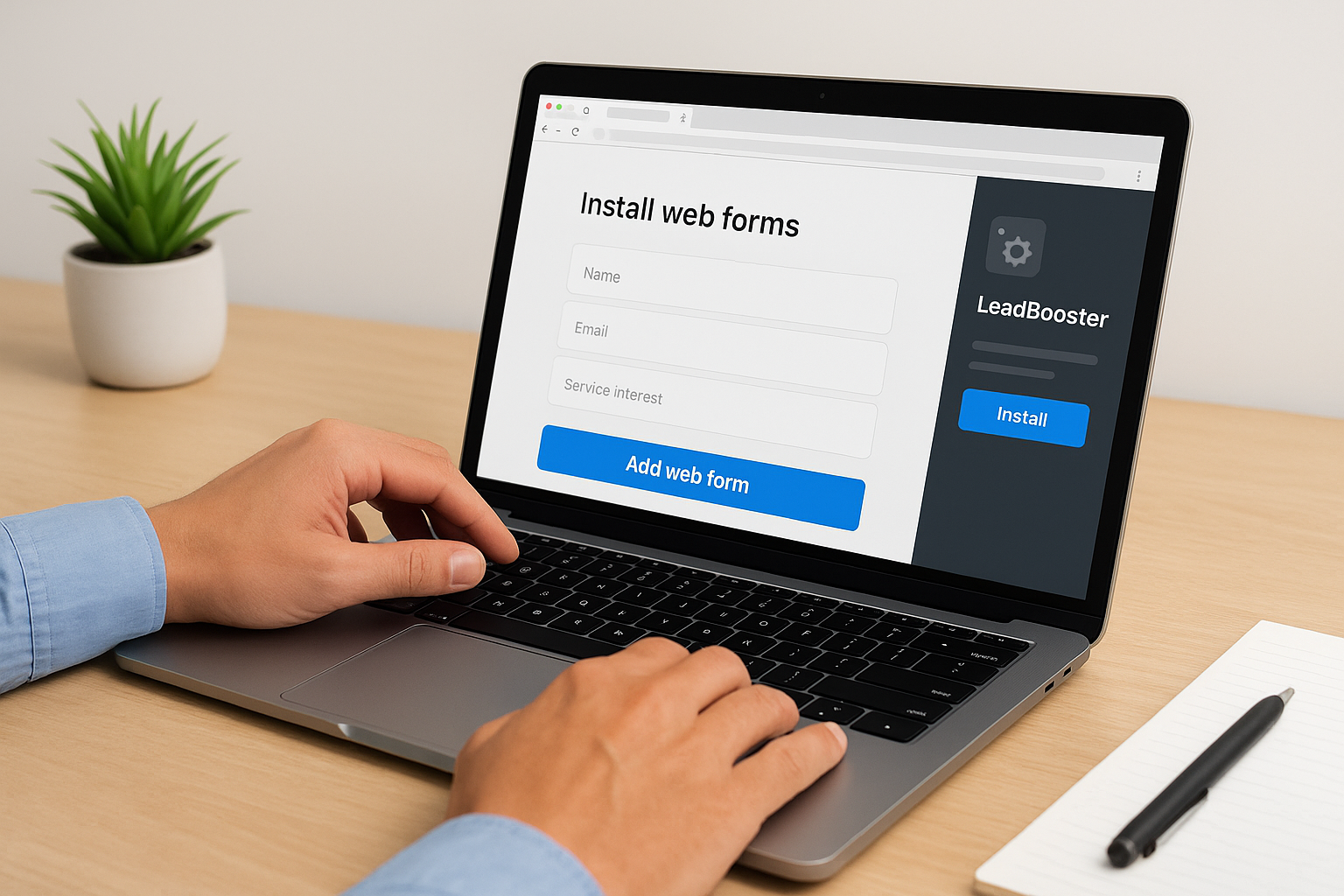
Embed your form by copying the generated code and pasting it into your website’s HTML. Place forms on high-traffic pages like your services overview, contact page, and resource downloads. Configure form submission to trigger your automated welcome workflow so new contacts receive immediate acknowledgment and enter your nurture sequence.
Here’s a basic form embed code structure:
<div id="leadbooster-form-[form-id]"></div>
<script src="https://leadbooster.pipedrive.com/form.js"></script>
<script>
  window.pipedriveLeadboosterConfig = {
    base: 'leadbooster.pipedrive.com',
    formId: '[your-form-id]'
  };
</script>
Configure chatbot responses
Chatbot automation handles initial conversations and qualifies leads before routing them to your team. Set up your chatbot within LeadBooster by defining qualification questions that collect name, email, service interest, and urgency level. Create branching logic that adapts responses based on visitor answers and routes qualified prospects to immediate consultation scheduling.
Chatbots qualify leads 24/7 while your team focuses on conversations with ready-to-buy prospects.
Design your chatbot flow to ask three qualifying questions maximum before offering a next step. Too many questions cause abandonment. Your first message should welcome visitors and ask their primary need. Based on their response, the bot either schedules a meeting, shares resources, or transfers to a live representative during business hours.
Enable visitor tracking on your website
Web tracking identifies companies visiting your site before they fill forms. Install the Pipedrive tracking script in your website’s header to monitor page visits and time spent on key pages. The system creates contact records for identified visitors and logs their browsing behavior as notes in Pipedrive. Your sales team then reaches out to engaged visitors who haven’t converted yet but show buying signals through repeated visits to pricing or services pages.
Step 5. Measure optimize and scale automation
Your pipedrive marketing automation generates data with every action it takes. You need to track which workflows convert leads, where prospects drop off, and how fast deals move through your pipeline. Built-in reports show automation performance alongside manual sales activities so you can compare results directly. Navigate to Insights in Pipedrive to access reporting dashboards that measure automation impact on revenue.
Track automation performance metrics
Start by monitoring five core metrics that reveal automation effectiveness. Conversion rate between pipeline stages shows which automated transitions work and which need adjustment. Time in stage identifies where prospects stall, indicating your nurture sequences may need additional touchpoints or different messaging. Email engagement rates (opens and clicks) reveal whether your automated content resonates with recipients.
Create a custom dashboard that combines these metrics in one view. Add reports for deal velocity (days from creation to close), automation completion rates (how many workflows finish versus getting interrupted), and lead source attribution to see which channels feed your best automated sequences. Review this dashboard weekly for the first month after launching automation, then shift to monthly reviews once workflows stabilize.
Consistent measurement separates guesswork from strategic optimization.
Identify and fix workflow bottlenecks
Your automation breaks down when deals stop advancing or prospects disengage at predictable points. Run a pipeline bottleneck report by filtering deals stuck in one stage for more than your average time. Look for patterns like specific service types that consistently stall or automated emails with low click rates that fail to generate responses.
Fix bottlenecks by testing variations of your automated messages. Send different subject lines to segment groups and track which version generates more opens. Adjust your follow-up timing by adding or removing days between automated touches. Test shorter email copy against longer educational content to discover what your audience prefers. Document every change so you know which adjustments improved performance.
Scale successful automations
Once you identify workflows that convert consistently, replicate their structure for other service lines or prospect segments. Copy your highest-performing nurture sequence and adapt the content for a different industry vertical. Maintain the same timing and number of touchpoints while customizing examples and case studies to match the new audience.
Add conditional branches that route prospects based on behavior. When someone clicks a specific service link in an email, split them into a specialized sequence for that offering. Contacts who don’t engage with your initial sequence can transfer to a re-engagement campaign with different messaging angles. Your automation becomes more sophisticated as you layer these conditional paths without requiring more manual work from your team.
Move forward with Pipedrive automation
Your pipedrive marketing automation system is ready to implement. Start with one workflow this week and add complexity as your team gains confidence. The ROI appears within days when qualified prospects receive faster responses and your sales team stops doing manual data entry. Building effective automation takes planning but delivers predictable lead flow and measurable growth. Partner with experts who specialize in client acquisition automation to accelerate your implementation timeline and avoid costly setup mistakes.