

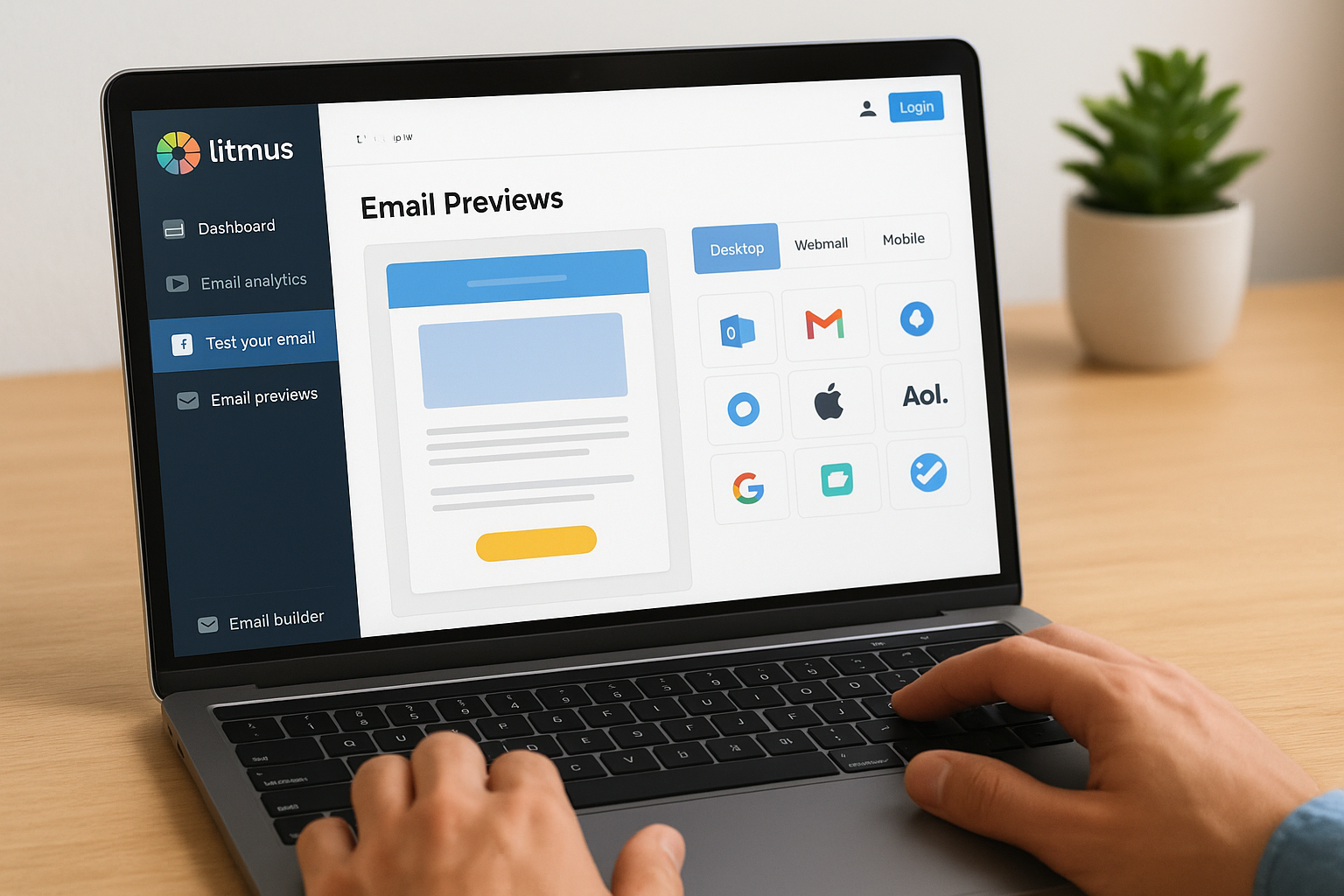
You hit send on your email campaign and assume it looks perfect. Then a subscriber opens it on Outlook 2016 and your carefully designed layout breaks. Your call to action button disappears. Your images stack wrong. What looked flawless in your inbox becomes unreadable in theirs.
Litmus email testing solves this problem by showing you exactly how your emails render across 90 email clients and devices before you send. You can spot broken layouts, missing images, and rendering bugs that would otherwise damage your conversions and reputation.
This guide walks you through the complete Litmus email testing process. You’ll learn how to set up your account, run your first test, interpret the previews, and fix common rendering problems. We’ll also cover how to turn test results into ongoing improvements that boost your email performance. By the end, you’ll know how to confidently send emails that look great everywhere your subscribers read them.
What is Litmus email testing
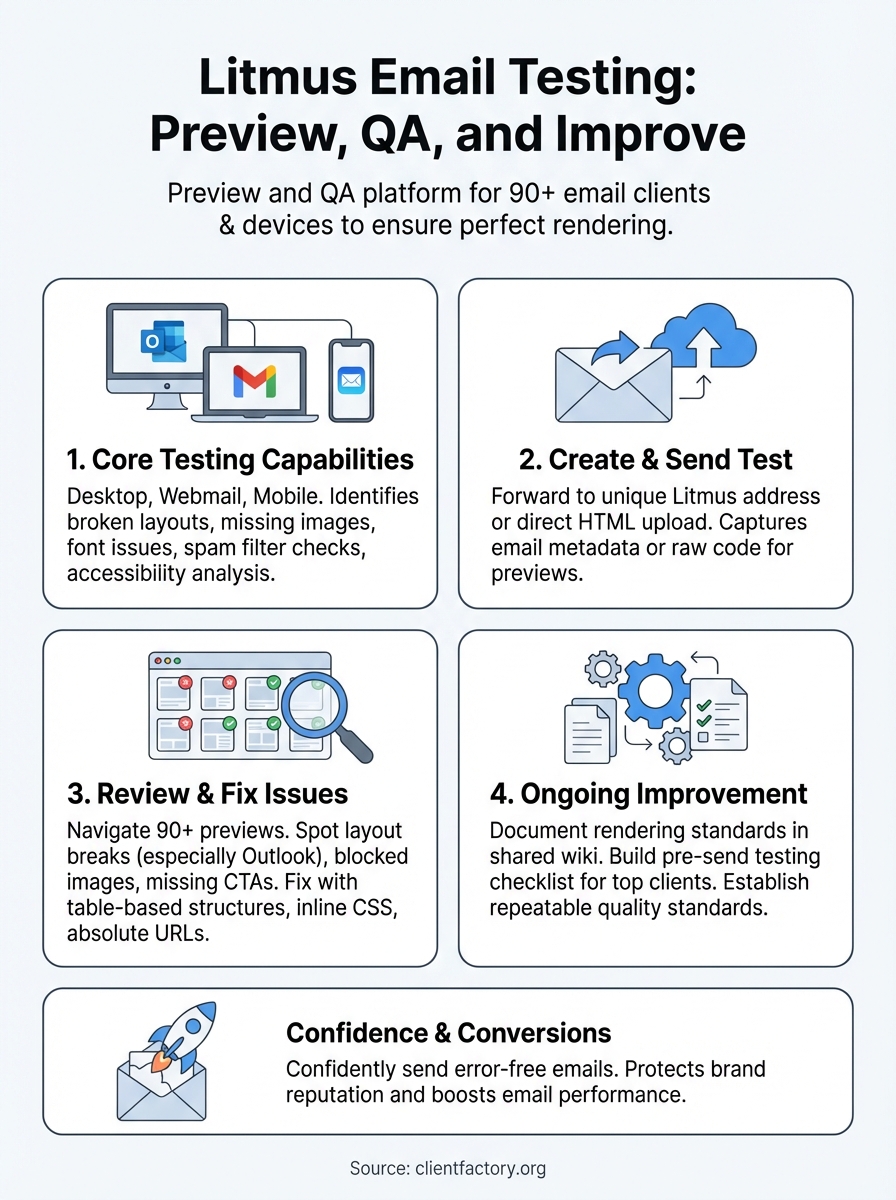
Litmus email testing is a preview and quality assurance platform that shows you how your emails render across more than 90 different email clients and devices. You upload or send your email to Litmus, and within minutes it generates detailed screenshots showing exactly what subscribers see when they open your message on Gmail, Outlook, Apple Mail, mobile devices, and dozens of other platforms. The tool identifies rendering problems that you can’t catch by sending test emails to yourself, because your inbox represents just one environment while your subscribers use many different ones.
Core testing capabilities
The platform tests your emails on desktop email clients like Outlook 2016, Outlook 2019, and Apple Mail 13, webmail platforms including Gmail, Yahoo Mail, and Outlook.com, and mobile devices ranging from iPhones and Android phones to iPads. Each test typically completes within two to five minutes and produces individual screenshots that reveal layout problems, broken images, font rendering issues, text alignment errors, and other display bugs that vary by platform.

Testing before you send helps you catch the rendering bugs that hurt your conversions and brand reputation.
Beyond basic previews, Litmus email testing includes spam filter checks that predict whether your message will land in the inbox or get flagged as spam. You also get accessibility analysis to identify readability problems for subscribers using screen readers or other assistive technologies. These combined features let you fix problems before they reach your audience, saving you from embarrassing mistakes and protecting your sender reputation.
Step 1. Set up your Litmus account
You need a Litmus subscription to access email testing features. Navigate to the Litmus website and click the sign-up button to begin the registration process. The platform requires your business email address, a password, and basic company information including your organization name and team size. After you complete the initial form, Litmus sends a verification email to confirm your account, which typically arrives within one to two minutes.
Choose your subscription plan
Litmus offers three main pricing tiers that determine how many email previews you can run each month. The Basic plan gives you access to email testing with a limited number of previews, while the Plus plan includes unlimited testing along with email analytics and collaboration tools. Their Enterprise plan adds advanced features like custom client configurations and dedicated support. Most marketers start with the Plus plan because unlimited testing lets you iterate on designs without worrying about preview limits eating into your budget.
Your plan choice should match how frequently you send campaigns and how much iteration your design process requires.
Connect your email platform
After you select a plan, you need to integrate Litmus with your email service provider to streamline the testing workflow. The platform supports direct connections with major ESPs including Mailchimp, HubSpot, Salesforce Marketing Cloud, and dozens of others through API integrations. Click the integrations tab in your account settings, select your ESP from the list, and follow the authentication prompts to grant Litmus access. You can also skip the integration and test emails by forwarding them to your unique Litmus testing address, which appears in your account dashboard once you complete setup.
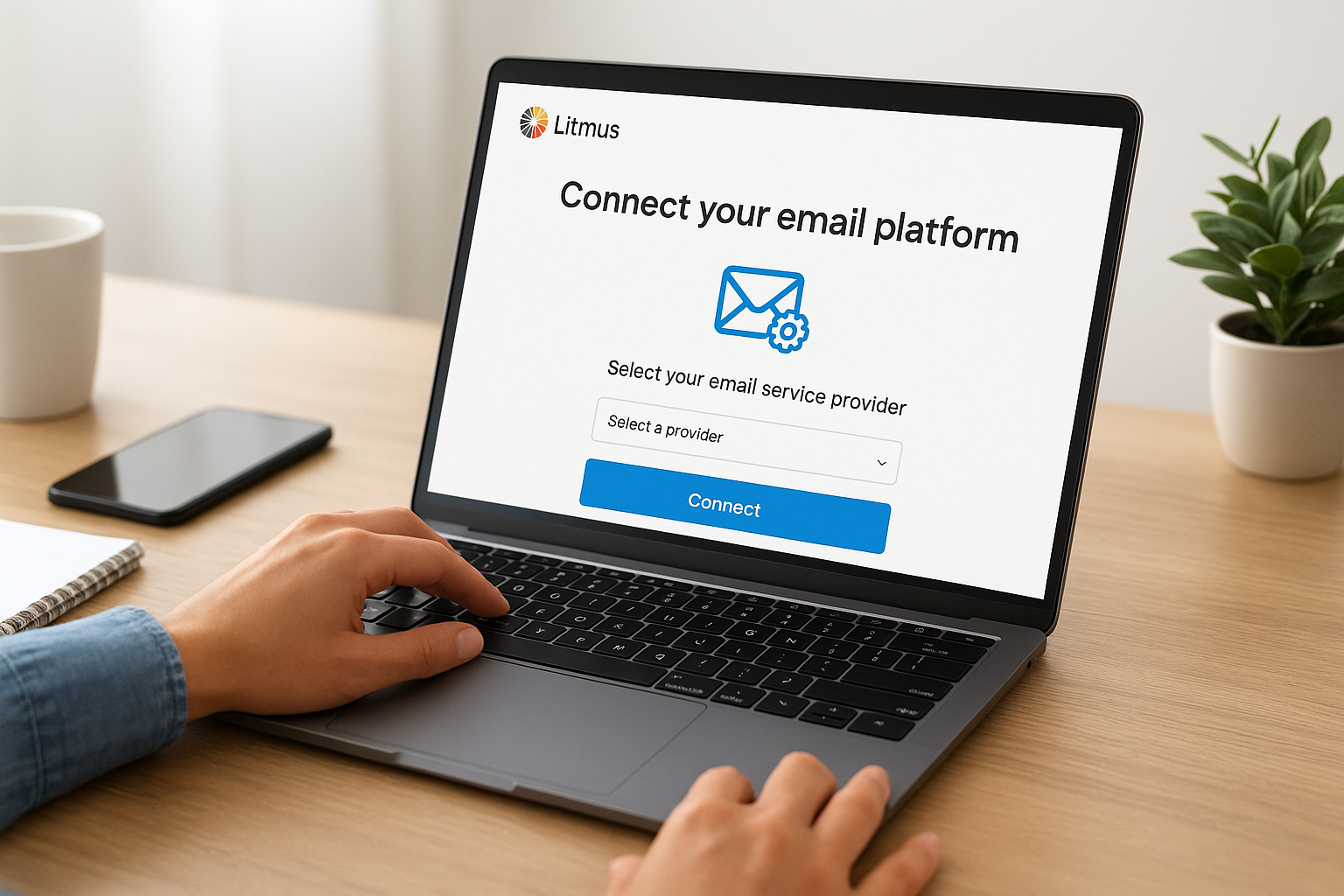
Step 2. Create and send your first email test
After connecting your account, you can run your first Litmus email testing preview using two primary methods. The forwarding method works when you already created an email in your ESP, while the direct upload option lets you test raw HTML code before you commit it to any platform. Both approaches generate the same comprehensive previews across all email clients, so your choice depends on where your email exists in your workflow.
Forward an email to your unique testing address
Your Litmus account includes a unique forwarding address that appears in your dashboard under the “Test Email” section. You find it formatted as something like your-company-123@previews.litmus.com, which remains constant across all your tests. Open your email in your ESP or email client, click the forward option, and send it to this Litmus address exactly as you would send to any recipient. The platform automatically captures your email within 30 seconds and begins generating previews.
The forwarding method preserves all your email’s metadata, including subject lines, preheader text, and from addresses. This matters because some email clients render content differently based on these elements, and you want your test to match what subscribers actually see. You can also forward draft emails directly from your personal inbox if you’re testing a design before uploading it to your marketing platform.
Upload HTML directly through the Litmus interface
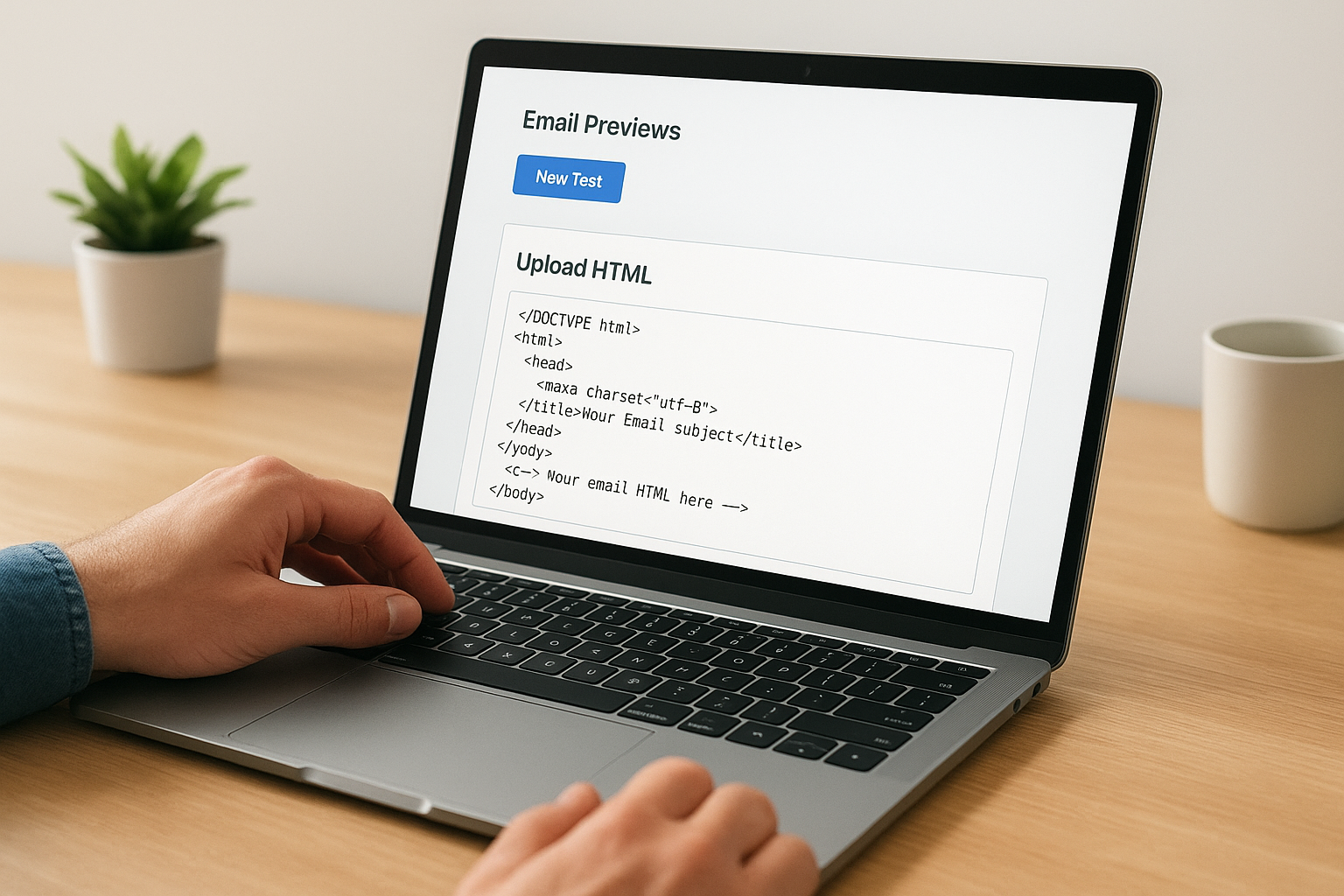
Navigate to the “Email Previews” tab in your Litmus dashboard and click the “New Test” button to access the upload interface. You’ll see options to paste your HTML code directly into a text box or upload an HTML file from your computer. Copy your complete email HTML, including all inline CSS and embedded styles, then paste it into the provided field and click “Generate Previews.”
<!DOCTYPE html>
<html>
<head>
  <meta charset="utf-8">
  <title>Your Email Subject</title>
</head>
<body>
  <!-- Your email HTML here -->
</body>
</html>
The upload method works best when you’re developing custom templates or testing HTML changes before they go into your ESP. You can iterate quickly by making code adjustments and generating new previews without leaving the Litmus platform.
Direct HTML uploads let you catch rendering problems before you invest time building the email in your marketing platform.
Step 3. Review previews and fix rendering issues
Your Litmus email testing results appear within two to five minutes after you submit your test, displaying a grid of thumbnails representing every email client and device you selected. Each thumbnail shows a screenshot of your email exactly as subscribers will see it on that specific platform, with rendering captured at the moment the email loads. Click any thumbnail to expand it into a full-size view where you can examine every element in detail, from your header image to your footer links.
Navigate the preview results interface
The results screen organizes previews into categories like Desktop, Webmail, and Mobile to help you quickly compare how your email performs across different environment types. You can filter previews by operating system, email client version, or device type using the controls at the top of the dashboard. The platform highlights critical rendering failures with warning icons on thumbnails where your email displays significant problems, so you immediately know which clients need attention before reviewing every single preview manually.
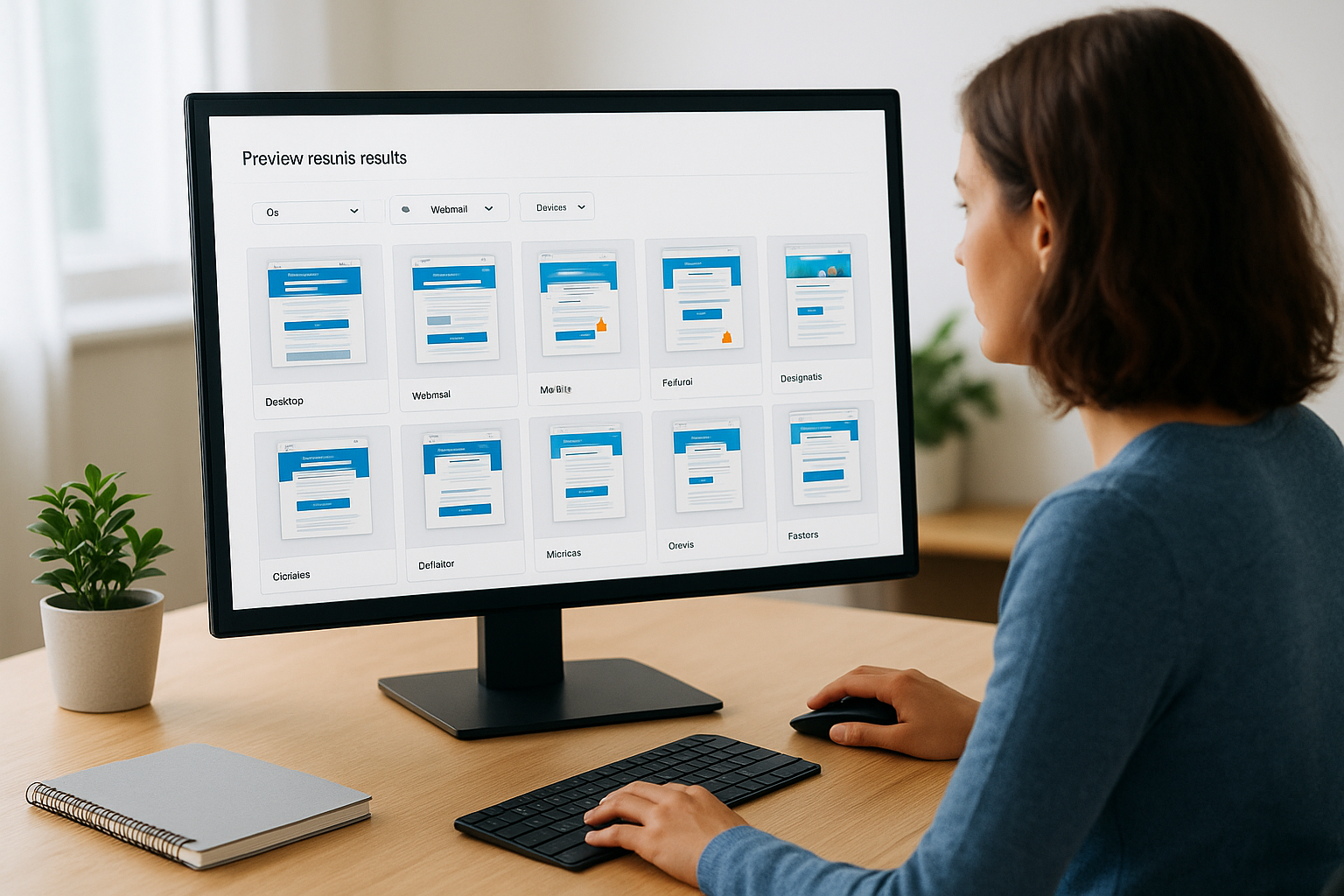
Each expanded preview includes a pixel-perfect screenshot alongside technical details about the testing environment, including screen resolution, email client version, and operating system. You can zoom in to examine text rendering, check if images loaded correctly, and verify that your call-to-action buttons appear clickable. Litmus also provides a side-by-side comparison view where you select two or more previews to spot differences in how various clients handle the same HTML code.
Identify common rendering problems
Start your review by looking for layout breaks where columns stack incorrectly, content overflows containers, or spacing collapses in ways you didn’t intend. Outlook versions frequently display these issues because they render HTML using Microsoft Word’s engine instead of a proper browser engine. You’ll often see images blocked or missing on certain clients, particularly when you forgot to include alt text or used background images that some email clients don’t support.
Check your call-to-action buttons across all previews to confirm they remain visible, properly styled, and positioned where subscribers expect to find them. Gmail sometimes strips out embedded CSS, causing buttons to lose their background colors and borders. Mobile previews reveal whether your text remains readable at small screen sizes and if links are large enough for subscribers to tap accurately without accidentally hitting adjacent elements.
Fix broken layouts and display bugs
When Outlook breaks your layout, replace complex CSS positioning with table-based structures that work reliably across all versions. Use this pattern for button rendering that survives Outlook’s limitations:
<table role="presentation" cellspacing="0" cellpadding="0" border="0">
  <tr>
    <td style="background-color:#0066cc; border-radius:4px; padding:12px 24px;">
      <a href="https://example.com" style="color:#ffffff; text-decoration:none; font-weight:bold;">
        Click Here
      </a>
    </td>
  </tr>
</table>
Add inline CSS styles directly to every HTML element instead of relying on style blocks in your header, because Gmail and some other webmail clients strip out embedded stylesheets. For images that don’t display, verify you’re using absolute URLs pointing to publicly accessible servers, not relative paths or local file references. Include descriptive alt text on every image so subscribers still understand your message even when images don’t load.
Fix the most common rendering problems first, then address platform-specific quirks that affect smaller segments of your audience.
Step 4. Turn Litmus insights into ongoing improvements
Your Litmus email testing results become valuable when you transform isolated fixes into repeatable quality standards that prevent future problems. You avoid the cycle of discovering the same rendering bugs in every campaign by documenting what works across different email clients and building these lessons into your email production workflow. This systematic approach reduces the time you spend on testing while improving the consistency of your email performance across all subscriber segments.
Document your rendering standards
Create a shared document or wiki that records which HTML patterns work reliably across the email clients your subscribers actually use. After you fix a rendering problem in Litmus, add the solution to this reference guide with before and after code examples so your team can apply the same fix to future campaigns. Include screenshots from your Litmus tests showing how the corrected version renders on problematic clients like Outlook 2016 or Gmail mobile.
Your standards document should specify approved button styles, image dimensions, and layout structures that you’ve verified through repeated testing. For example, if you discovered that buttons wider than 280 pixels break on mobile devices, document this limit alongside the table-based button code that consistently works. When new team members join or external developers build templates, they reference these standards to avoid introducing rendering problems you already solved.
Documented standards turn individual testing discoveries into team knowledge that protects email quality as your organization scales.
Build a pre-send testing checklist
Establish a mandatory checklist that requires Litmus email testing on specific email clients before any campaign goes live. Your checklist should prioritize the platforms where 80% of your subscribers open emails, which you identify through your email analytics dashboard. Most organizations test at minimum on Outlook 2016, Gmail webmail, Apple Mail on iOS, and one Android email client, then add others based on their subscriber data.
Run tests at consistent stages in your production workflow, such as after initial design approval and again after final content edits, to catch problems before they multiply. Assign clear ownership so someone on your team verifies that all critical clients pass testing and signs off on the results before scheduling the send. This prevents campaigns from slipping through with known rendering issues because everyone assumed someone else checked the previews.
Final thoughts
Litmus email testing gives you the confidence to send campaigns that display correctly across every email client your subscribers use. You eliminate the guesswork by seeing exact previews before you hit send, catching rendering problems that would otherwise damage your conversions and brand reputation. The platform’s comprehensive testing across 90+ email clients and devices ensures you never surprise subscribers with broken layouts or missing call-to-action buttons.
Your testing workflow becomes more efficient when you document what works, build reusable standards, and make Litmus previews a mandatory step in your campaign checklist. These practices transform testing from a reactive troubleshooting task into a proactive quality control system that improves every email you send. Consistent testing protects your email performance while freeing your team to focus on strategy and content instead of debugging rendering problems.
Need help turning your email campaigns into a consistent client acquisition channel? Client Factory delivers data-driven marketing strategies that convert subscribers into paying clients through optimized funnels and targeted messaging.