

Your landing page can have a killer headline, stunning visuals, and airtight copy, but if your form is clunky, confusing, or asks for too much, none of it matters. The form is where intent becomes action. It’s the exact moment a visitor decides to become a lead or bounce. That’s why landing page form design is one of the most overlooked yet highest-impact elements of any client acquisition funnel.
At Client Factory, we build and optimize conversion funnels for service businesses and law firms every day. We’ve audited hundreds of landing pages, and the pattern is consistent: small changes to form design produce outsized gains in lead volume. A different field layout, a smarter CTA button, a reduced field count, these aren’t minor tweaks. They’re the difference between a 2% and a 10% conversion rate.
This article breaks down 16 specific, proven best practices for designing forms that actually convert. No vague advice. Each recommendation is grounded in real conversion principles we’ve seen work across paid ad campaigns on Google, Facebook, and YouTube. Whether you’re building your first landing page or auditing an underperforming one, these practices will give you a clear framework to follow.
1. Start with a landing page and form audit
Before you change a single field or tweak a button color, you need to know what’s actually broken. Skipping an audit means you’re guessing, and guessing wastes time and ad budget. A structured audit of your landing page form design gives you a clear baseline so every change you make after this is intentional and measurable.
What to do
Review your current form from three angles: structure, friction, and analytics. Pull your form completion rate from your analytics platform. Check how many visitors land on the page versus how many actually submit the form. If that gap is large, you have a friction problem. Then read every label, count the fields, and click through the form yourself on a mobile device.
Use session recording software to watch real users interact with your form. Look for where they pause, where they abandon, and which fields they skip or re-enter. This behavioral data is far more reliable than any assumption you have about what might be wrong.
Why it converts
An audit forces you to look at your form through the eyes of a visitor who has no context about your business. Most form problems are invisible to the people who built them because they’re too close to the product. When you treat the audit as a structured review, you surface real blockers: the confusing placeholder text, the required field nobody wants to fill, and the submit button that communicates nothing useful.
Starting with an audit is the single fastest way to find the highest-leverage fixes before you run a single test.
How to implement it fast
Set aside 60 to 90 minutes for your first audit and work through a consistent checklist. This keeps the process fast and repeatable every time you build or inherit a new form.
- Open the page on both desktop and mobile and fill out the form yourself while timing the experience
- Check your analytics for your current form completion rate and compare it against a 10 to 15 percent benchmark for service business landing pages
- Note every field that feels slow, redundant, or unclear
- Rank each issue by likely impact on completions
That ranked list becomes your testing roadmap for everything that follows.
2. Match form length to offer value
The number of fields on your form should match the perceived value of your offer. A form asking for six fields in exchange for a free checklist will kill your conversion rate. A form asking for only two fields before a paid consultation might leave you with unqualified leads who aren’t serious about working with you.
What to do
Treat your form as a transaction: the visitor gives you information, and you give them something valuable in return. For low-commitment offers like free guides or newsletter signups, keep it to one or two fields at most. For high-value offers like consultations or proposals, you have room to ask three to five fields because the perceived return justifies the extra effort.
Consider the visitor’s mindset too. Someone clicking a free download ad is early in their decision process and will resist anything that feels like an interrogation. Someone booking a strategy call already has intent and expects to answer a few qualifying questions before you meet.
Why it converts
Cognitive load is the enemy of form completions. Every extra field forces the visitor to decide whether the exchange is fair. When your landing page form design matches the weight of the offer, that decision becomes easy and completions follow.
Match the ask to the value, and the friction drops on its own.
How to implement it fast
Run your current offers through a quick field count audit against this scale:
- Low-value offer (free download, newsletter): 1 to 2 fields
- Mid-value offer (webinar, free tool): 2 to 3 fields
- High-value offer (consultation, audit, proposal): 3 to 5 fields
3. Ask for the minimum to qualify leads
The goal of your lead form isn’t to collect every piece of information upfront. Your goal is to get the right person to take the first step toward working with you. That means keeping fields lean while pulling just enough data to identify serious prospects and filter out people who aren’t a genuine fit.
What to do
Identify the two or three data points that genuinely determine whether a lead qualifies for your service. For most service businesses and law firms, that’s a name, a contact method, and one qualifying question. Every field beyond that is information you can collect during the follow-up process.
Ask yourself about each field: "Do I need this before the first conversation?" If the answer is no, cut it. You’ll gather the remaining details during an intake call or intake form once the lead is already in your pipeline.
Why it converts
Visitors read a long form as a warning signal, not a value exchange. When your landing page form design asks for too much upfront, it tells the visitor that your process prioritizes your convenience over theirs. A shorter form removes that friction and makes saying yes feel easy.
Fewer fields eliminate the psychological barrier between a curious visitor and a submitted lead.
How to implement it fast
Go field by field through your existing form and apply this two-column filter before keeping anything:
- Must have now: name, primary contact method, one qualifying question
- Gather later: budget, timeline, company size, detailed project scope
Cut everything from the "gather later" column and move it to your intake process. That single action typically reduces your form from six or seven fields down to three, and that reduction directly increases your completion rate.
4. Use one clear call to action
Multiple competing actions on a single form split your visitor’s attention and reduce the chance they complete any of them. Your landing page form design should point visitors toward one specific next step, nothing more. The moment you add a secondary link, a social follow button, or an alternative offer near the form, you introduce doubt about what they should actually do.
What to do
Remove every clickable element from around your form that isn’t the primary submit button. That includes navigation menus, social links, chat widgets, and secondary CTAs. Your form should exist in a focused environment where the only logical next move is filling it out and clicking submit. Each distraction you eliminate increases the probability of a completed submission.
Why it converts
Visitors make decisions faster when the path is obvious. When your form presents one clear action, the brain doesn’t need to weigh options or evaluate trade-offs. It just moves forward. This is especially true on mobile, where screen space is limited and competing elements crowd the experience. A focused form respects your visitor’s time and reduces the mental effort required to convert.
The fewer decisions a visitor has to make on your landing page, the more often they make the one you actually want.
How to implement it fast
Audit your form area using this quick check:
- Count every clickable element visible on screen while the form is in view
- Remove anything that doesn’t directly support form completion
- Test your page with the navigation hidden to see if conversions improve
5. Write button copy that sets expectations
Your submit button is the final conversion point in your landing page form design, and the words on it carry more weight than most people realize. Generic labels like "Submit" or "Click Here" tell visitors nothing about what happens next. Specific, action-oriented copy removes that uncertainty and gives people a reason to push forward.
What to do
Replace vague button labels with outcome-focused copy that tells the visitor exactly what they receive when they click. Instead of "Submit," write "Get My Free Audit" or "Book My Strategy Call." The button copy should mirror the language of your offer so the connection between the form and the reward is immediate and obvious.
Why it converts
Visitors pause right before clicking a submit button because they’re weighing risk. Clear, specific button copy eliminates that hesitation by confirming the exchange they’re about to make. When the button says exactly what happens next, the visitor feels informed rather than uncertain, and informed visitors convert at a higher rate.
The submit button is a micro-commitment, and people commit more readily when they know exactly what they’re committing to.
How to implement it fast
Run your current button copy through this three-question check before finalizing it:
- Does the copy name the specific action or outcome the visitor gets?
- Does it match the headline and offer on the rest of the page?
- Would a first-time visitor understand it with zero context?
If any answer is no, rewrite the button copy before you run traffic to the page.
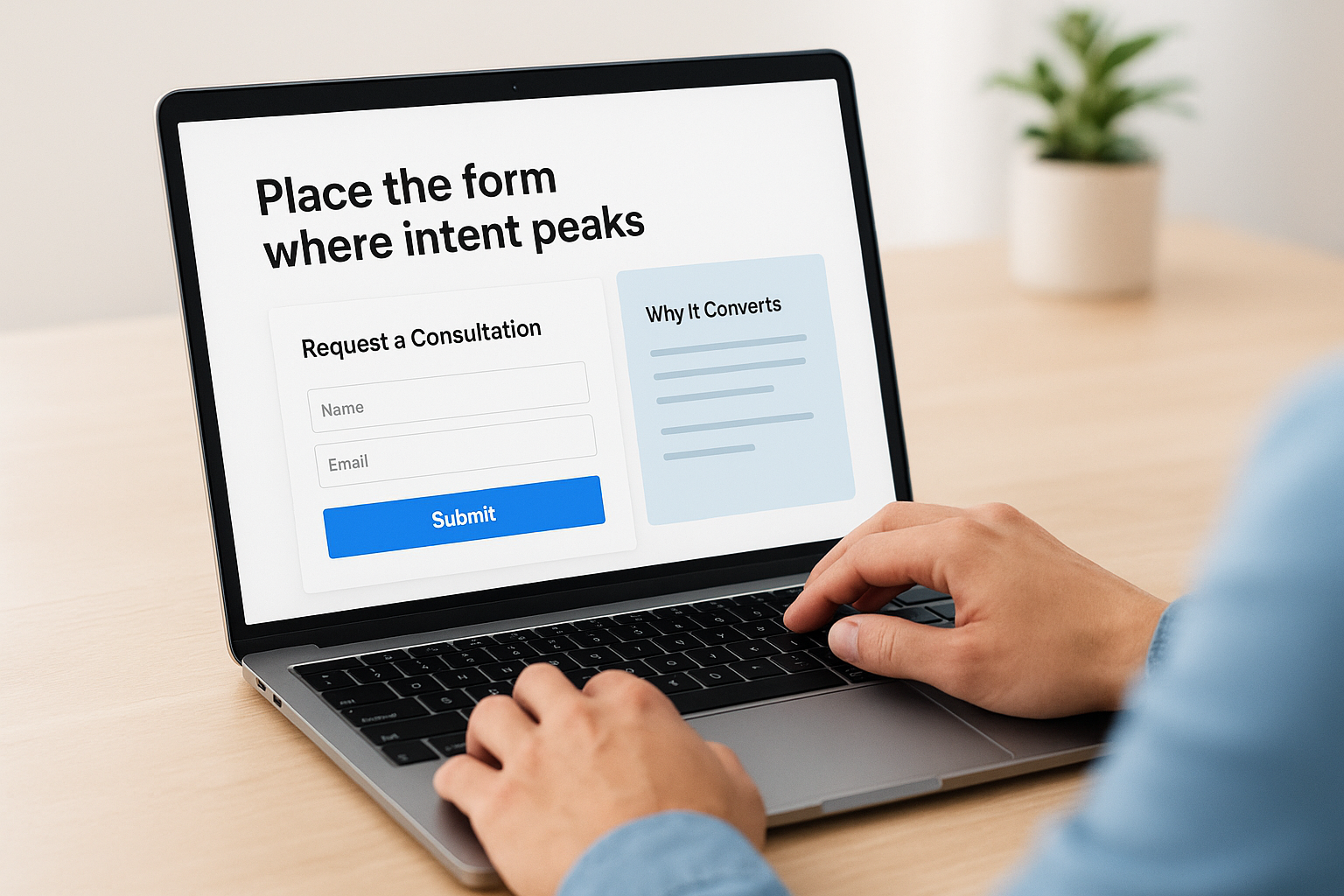
6. Place the form where intent peaks
Form placement on your landing page determines whether visitors even see the form before they decide to leave. Poor placement buries your form below sections that haven’t built enough context yet, or hides it so far down the page that high-intent visitors have to scroll to find it. Your landing page form design only works if the form appears exactly where your visitor’s motivation is highest.
What to do
Put the form above the fold on pages where your traffic arrives with strong, pre-existing intent, such as visitors clicking a direct "Book a Consultation" ad. These visitors already know what they want, so presenting the form immediately captures them at peak motivation. For pages where visitors need more context before committing, place the form after your strongest value statement or social proof block, not before it.
Why it converts
Visitors don’t scroll with patience. Research consistently shows that attention drops sharply as users move down a page. When your form appears at the point where your copy has done its job and intent is highest, the visitor experiences no gap between wanting to act and being able to act.
The form should meet the visitor at the moment they’re ready, not after they’ve had to hunt for it.
How to implement it fast
Test two versions of your page with a simple placement experiment:
- Version A: form above the fold, visible on load
- Version B: form positioned directly after your primary proof or value block
Run both versions with equal traffic and let your completion rate data tell you which placement matches your audience’s decision-making pace.
7. Choose single-step or multi-step wisely
Picking the wrong form structure for your offer is one of the most common landing page form design mistakes that tanks conversion rates before a single visitor even types their name. Both single-step and multi-step forms work, but only when you match the format to the complexity of your offer and the commitment level your visitor is ready to make.
What to do
Use a single-step form when your offer is simple and your visitor arrives with strong existing intent. A one-screen form with two or three fields works perfectly for a free download or a quick callback request. Switch to a multi-step format when you need more information to qualify a lead, such as for consultations or proposals, because breaking questions into logical groups reduces the cognitive burden of answering them.
Choosing the right form structure before you build eliminates rework and gives you a stronger conversion baseline from day one.
Why it converts
Single-step forms convert well on high-intent traffic because they eliminate all delays between motivation and action. Multi-step forms convert better for longer qualification processes because each completed step creates momentum. Visitors who finish step one are psychologically more likely to complete step two because they’ve already invested effort and expect a payoff.
How to implement it fast
Map your offer to the right format using this quick reference:
- Single-step: free resource, newsletter, callback request, short quote form
- Multi-step: consultation booking, proposal request, audit intake, complex service inquiry
Pick the format that fits and build from there.
8. Show progress on multi-step forms
Once you’ve committed to a multi-step format, your next job is making sure visitors know how far they’ve come and how close they are to the finish. A multi-step form with no progress indicator feels like a hallway with no visible end, and visitors abandon it rather than risk wasting more time on an unknown number of steps.
What to do
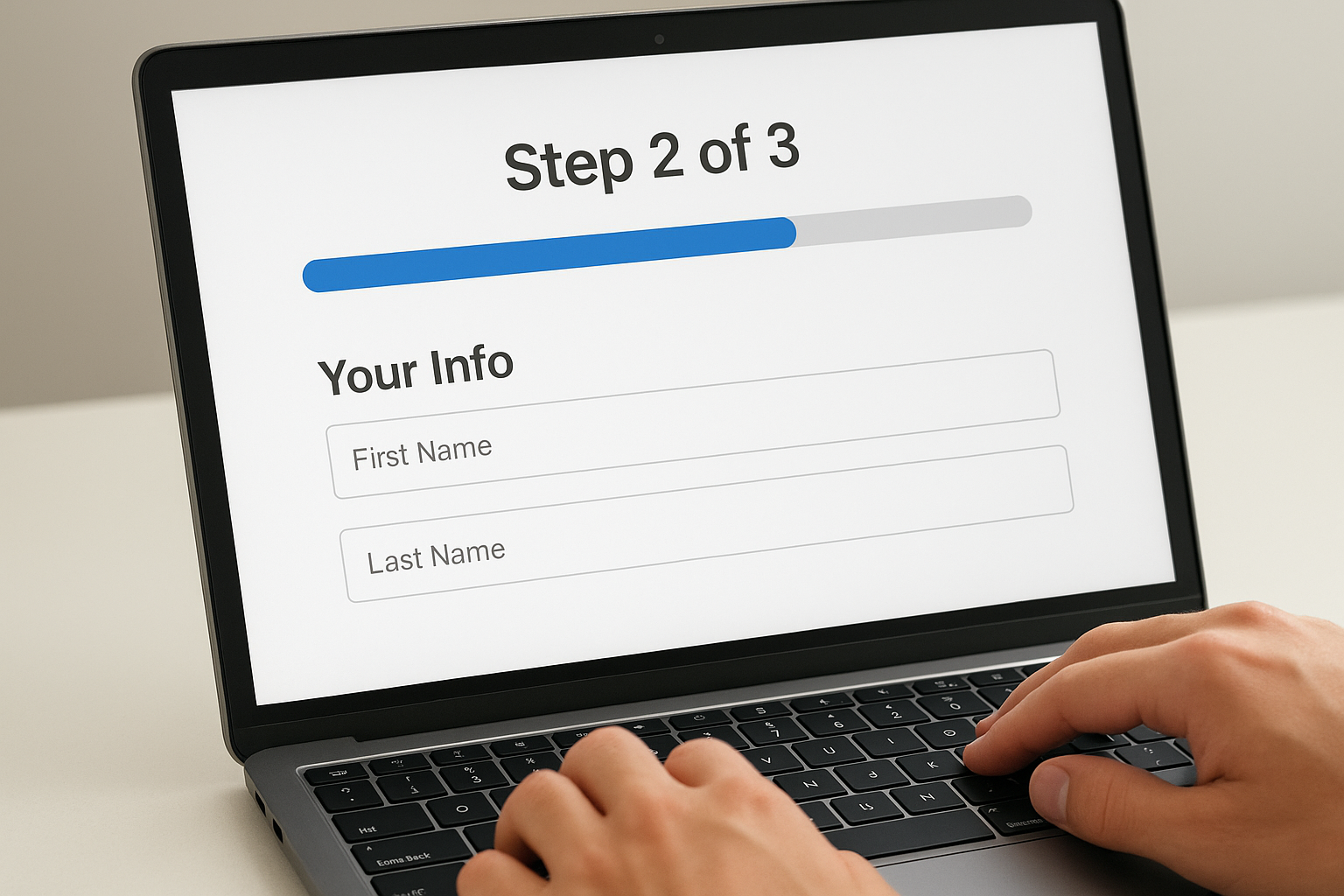
Add a visible progress indicator at the top of every multi-step form, whether that’s a numbered step label like "Step 2 of 3" or a filled progress bar that advances with each completed section. Keep the indicator simple and accurate. If you tell visitors a form has three steps, it must have exactly three steps. Mismatched expectations between what your indicator shows and what the form actually delivers destroy trust at the worst possible moment.
Why it converts
Progress indicators work because they tap into a basic human drive to complete what you’ve started. Once a visitor finishes step one, the progress bar showing 33% complete creates a pull toward finishing. That momentum, combined with the sunk cost of effort already invested, significantly reduces abandonment on steps two and three. Visitors who see measurable progress through your landing page form design are far more likely to push through to submission.
Showing progress turns a multi-step form from an unknown commitment into a manageable, finite task.
How to implement it fast
Build your progress indicator with these two non-negotiable rules:
- Label each step clearly: use plain language like "Your Info" or "About Your Case" so visitors know what’s coming
- Keep step counts honest: never add surprise steps after the form has started
9. Use strong visual hierarchy and whitespace
A form that looks cluttered signals complexity before a visitor reads a single word. Your landing page form design communicates trustworthiness and ease through visual structure alone, and visitors make that judgment in under a second. Giving your form room to breathe through deliberate whitespace and clear visual hierarchy tells visitors that the experience ahead will be simple and worth their time.
What to do
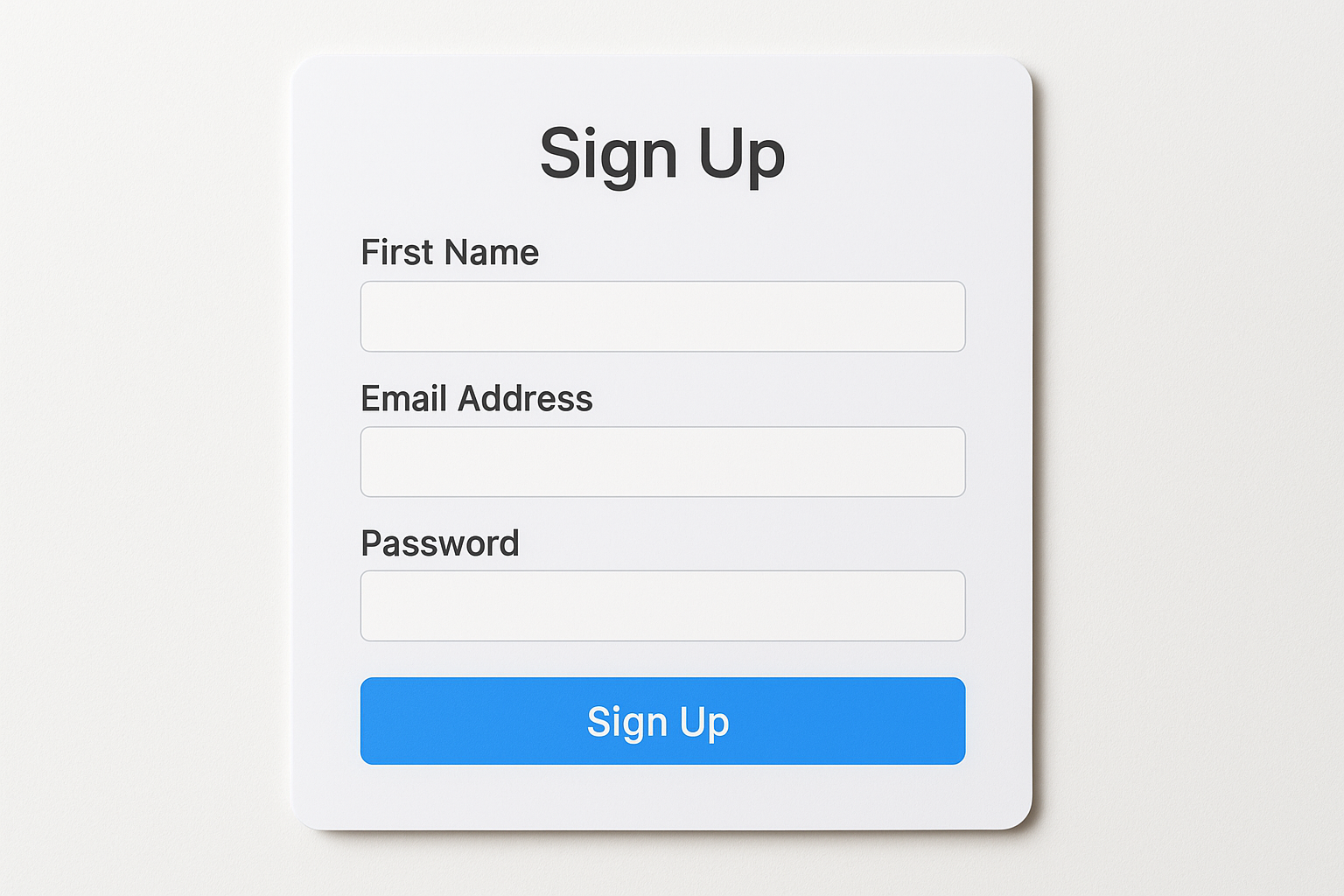
Align all form fields in a single vertical column so the visitor’s eye travels straight down the page without jumping left or right. Use consistent spacing between each field, typically 16 to 24 pixels, so nothing feels compressed. Make your field labels, input boxes, and submit button visually distinct from each other through size and weight rather than through competing colors or decorative elements that pull attention away from the task.
A well-spaced form signals to visitors that completing it will be straightforward, before they’ve typed a single character.
Why it converts
Visual clutter increases perceived effort. When fields are crammed together or surrounded by competing design elements, visitors unconsciously associate the form with a difficult process. Clean hierarchy and open spacing lower that perceived effort and make your form feel shorter and faster than it actually is, even if the field count hasn’t changed.
How to implement it fast
Apply these three spacing rules immediately across your form:
- Set a minimum 16px gap between each field
- Use bold labels above each input, not inside as placeholder text
- Give your submit button extra top margin so it stands apart from the last field
10. Make labels and help text do the work
Labels and help text are the silent guides inside your form. When they’re clear and specific, visitors move through each field without hesitation. When they’re vague or missing entirely, visitors stop, second-guess themselves, and abandon before submitting.
What to do
Place persistent labels above every input field rather than relying on placeholder text inside the field. Placeholder text disappears the moment someone starts typing, leaving them with no reference for what the field requires. Add short help text directly beneath fields that carry any risk of confusion, such as a phone field where you want a specific format or a question field where visitors need context to answer accurately.
Apply this two-part check to every field before publishing:
- Label: Is it visible above the input and written in plain language your visitor would naturally use?
- Help text: Does this field risk confusion? If yes, add one short sentence beneath it that removes that risk immediately.
Why it converts
Visitors abandon forms when they feel uncertain or confused mid-completion. Clear labels and help text remove that uncertainty at the source by answering the visitor’s questions before they arise. Well-labeled landing page form design reduces the number of people who pause, re-read, or leave the page to seek context elsewhere.
Labels and help text are not decoration; they are the instructions that turn hesitation into completed submissions.
How to implement it fast
Open your form and read every label out loud as if you have no prior knowledge of your business. If any label sounds ambiguous or assumes insider knowledge, rewrite it in plain terms. Fix every field that fails that test before you run paid traffic to the page.
11. Design for mobile thumbs first
More than half of your landing page traffic arrives on a phone, and most of those visitors navigate with one thumb. If your landing page form design forces people to pinch, zoom, or tap tiny inputs, they leave before they submit. Building your form for mobile interaction first ensures that the majority of your audience gets the clearest possible path to conversion.
What to do
Size every tap target to at least 44 pixels tall so a thumb hits the right field on the first try. Set your form fields to full width on mobile so visitors don’t need precise taps to activate them. Stack all labels above their inputs rather than beside them, so the layout never compresses horizontally on small screens.
Why it converts
A form that frustrates mobile users creates immediate, irreversible abandonment. Visitors on phones have no patience for inputs that are hard to tap or labels that wrap awkwardly across two lines. When your form works effortlessly on a 375-pixel screen, you remove the single biggest friction point for the bulk of your inbound traffic.
Building for mobile thumbs first means your form works on every device, not just the desktop your team uses to review it before launch.
How to implement it fast
Test your form on an actual phone, not just a browser emulator, before you send traffic to the page. Run through this quick mobile check:
- Tap every field with your thumb to confirm it activates without missing
- Verify your submit button is large enough to hit with one hand without touching surrounding elements
- Scroll through the entire form to confirm no labels or help text get cut off
12. Reduce typing with smart inputs
Every keystroke your visitor has to make is an opportunity to abandon your form. Smart input types eliminate unnecessary typing by pulling from device capabilities and pre-existing data, and a well-built landing page form design uses these tools to make completion feel fast and effortless.
What to do
Replace generic text fields with purpose-specific input types wherever the data allows it. Use tel inputs for phone numbers so mobile keyboards switch to a numpad automatically. Use email inputs to trigger the correct keyboard layout and enable autocomplete. For date fields, use a native date picker rather than asking visitors to type a formatted string that they might enter incorrectly. Enable browser autofill by using standard HTML autocomplete attributes on name, email, phone, and address fields so returning visitors can populate the entire form in two taps.
Why it converts
Typing on a phone is slow and error-prone. When your form requires visitors to manually enter data that their device or browser already knows, you’re adding friction for no reason. Reducing manual input keeps the visitor moving forward without breaking their momentum, and momentum directly drives completions.
The less a visitor has to type, the fewer reasons they have to stop and reconsider whether the form is worth finishing.
How to implement it fast
Go through each field in your current form and apply this quick assignment:
- Phone fields: use
type="tel"andautocomplete="tel" - Email fields: use
type="email"andautocomplete="email" - Name fields: add
autocomplete="name"to trigger saved contact data - Date fields: use
type="date"to surface the native picker
13. Validate in real time and show clear errors
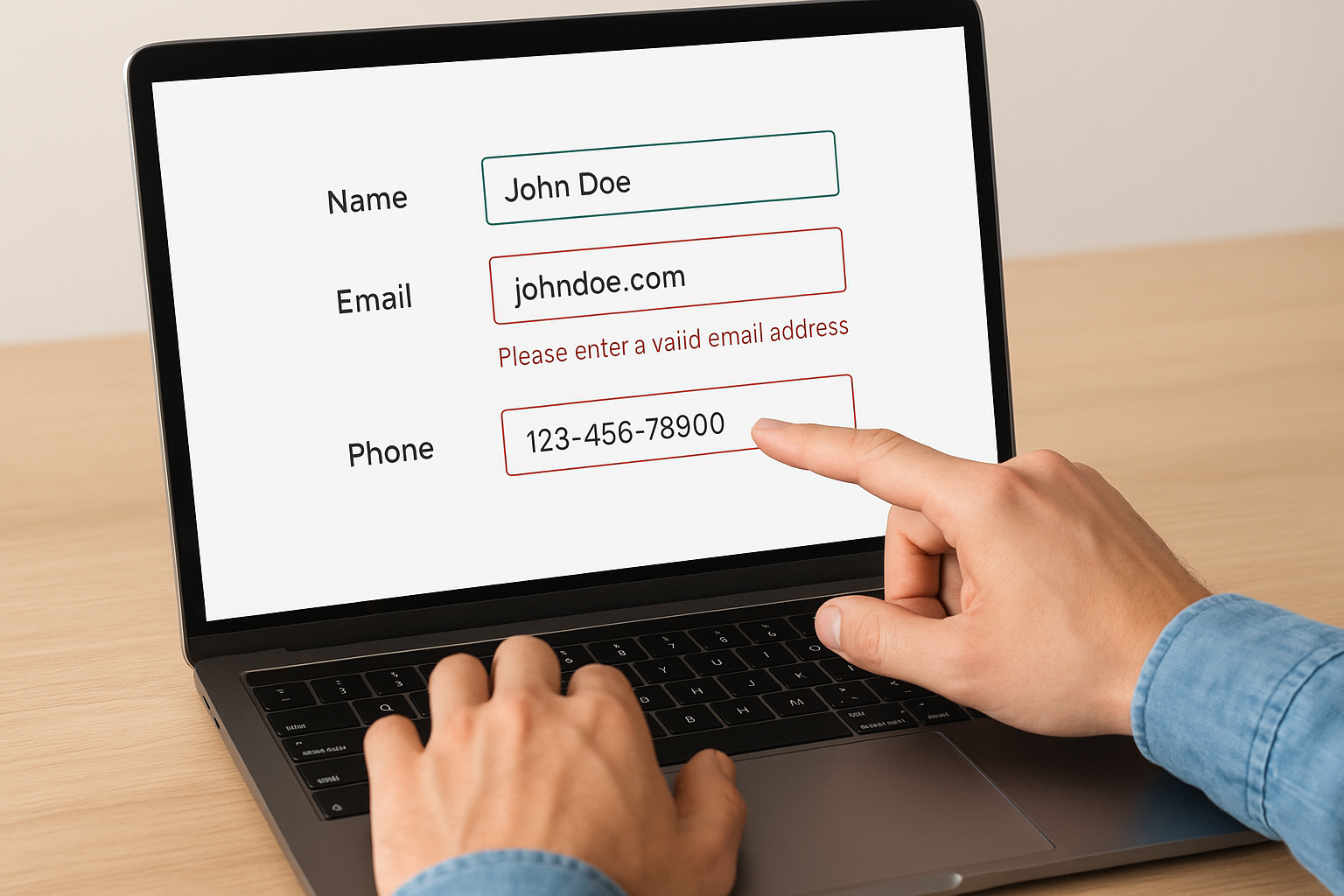
Waiting until a visitor hits submit to tell them something is wrong is one of the most avoidable friction points in landing page form design. When errors appear only after submission, the visitor has to re-scan the entire form to find the problem, and that extra effort causes a significant number of them to abandon instead of fix and resubmit.
What to do
Enable inline validation so each field confirms or flags input the moment a visitor finishes typing and moves to the next field. If someone enters an invalid email format, show the error immediately in red text directly beneath that field, not at the top of the form in a generic summary. Keep error messages specific and instructional: "Please enter a valid email address" tells the visitor what to fix, while "Invalid input" tells them nothing useful.
Why it converts
Real-time validation removes the guesswork from error recovery. When your form catches mistakes at the field level, visitors fix one thing and keep moving rather than hunting through multiple fields for several problems at once. That reduced recovery effort directly lowers abandonment at the submission stage.
Clear, field-level errors turn a frustrating dead end into a one-step correction that keeps momentum intact.
How to implement it fast
Apply these three rules to every validated field before you launch:
- Success state: show a green check or subtle border color change when a field is filled correctly
- Error state: display a short, specific message in red text directly beneath the problem field
- Trigger timing: fire validation on
blur(when the visitor leaves the field), not on every keystroke
14. Build trust with privacy-first form design
Visitors hand over personal information only when they believe you’ll treat it with care. Your landing page form design needs to signal that respect visibly, before a visitor types a single character. Without that signal, even the most qualified prospects hesitate at the last step and leave.
What to do
Add a short, plain-language privacy note directly beneath your submit button, such as "We never share your information. No spam, ever." Keep it to one sentence. Link that sentence to your actual privacy policy so visitors who want more detail can find it without leaving the form. Remove any pre-checked consent boxes that opt visitors into communications they didn’t explicitly choose, since those boxes signal that you’re trying to bypass their decision rather than earn it.
Why it converts
People are more protective of their contact information than ever, and they scan forms specifically for signs that their data is safe. A visible privacy statement near the submit button addresses that concern at exactly the right moment, right before the final commitment. Removing pre-checked boxes reinforces that your process respects the visitor’s autonomy rather than exploiting inattention.
Earning trust at the form level turns hesitation into submission without requiring a single extra persuasion element elsewhere on the page.
How to implement it fast
Apply these two additions before your next campaign launches:
- Place a one-sentence privacy note directly below the submit button in small but legible text
- Link the note to your privacy policy page so the claim is verifiable in one click
15. Use choice fields the right way
Radio buttons, checkboxes, and dropdowns seem like simple additions to a form, but misusing any of them creates confusion and drives abandonment at a point in your landing page form design where the visitor is almost ready to commit.
What to do
Use radio buttons when you have a small set of mutually exclusive options, between two and five choices, because they display all options at once and require a single tap to select. Reserve dropdowns for longer lists where showing every option at once would overwhelm the screen. Avoid checkboxes for required single-answer questions because checkboxes imply optional multi-selection, and that ambiguity makes visitors second-guess what you actually need from them.
Why it converts
When visitors see a dropdown with twelve options for a question that only has three realistic answers, the extra choices create doubt and slow the experience down. Keeping your choice fields simple and appropriately sized removes that doubt and keeps the form moving forward. Visitors who never have to pause and interpret a question are visitors who complete the submission.
Matching the right input type to the question tells visitors exactly how to answer without them having to figure it out on their own.
How to implement it fast
Apply this quick assignment to every choice field in your current form before your next campaign launches:
- 2 to 5 exclusive options: use radio buttons displayed in a single vertical stack
- 6 or more options: use a dropdown with a clear default placeholder like "Select one"
- Multiple selections allowed: use checkboxes with a label that explicitly says "Select all that apply"
16. Test and iterate with clean experiments
The previous 15 practices give you a strong foundation, but your specific audience and offer will always have nuances that general best practices can’t predict. Testing is how you move from "likely to convert" to "proven to convert." Without structured experiments, you’re making changes without knowing what actually caused any shift in your results.
What to do
Run one variable at a time across your form so you know exactly what drove a change in your completion rate. Test your button copy in one experiment, your field count in the next, and your form placement in the one after that. Use your platform’s built-in A/B testing tools or a dedicated testing layer to split traffic evenly between your control and your variation. Give each test enough traffic to reach statistical significance before you call a winner, typically a minimum of 100 conversions per variant.
Why it converts
Clean experiments give you reliable, repeatable data rather than noise. When you change three things at once and your conversion rate improves, you have no idea which change did the work and no ability to build on it. A disciplined testing process turns your landing page form design into a compounding asset where each confirmed win stacks onto the last.
Consistent, clean testing is the only way to know what your audience actually responds to, not what you assume they do.
How to implement it fast
Build a simple test log to track every experiment you run. Record the variable tested, the traffic split, the conversion rate for each variant, and your conclusion. This log becomes your institutional knowledge base that prevents you from retesting ideas that already failed and helps you prioritize the next highest-impact experiment.
Next steps
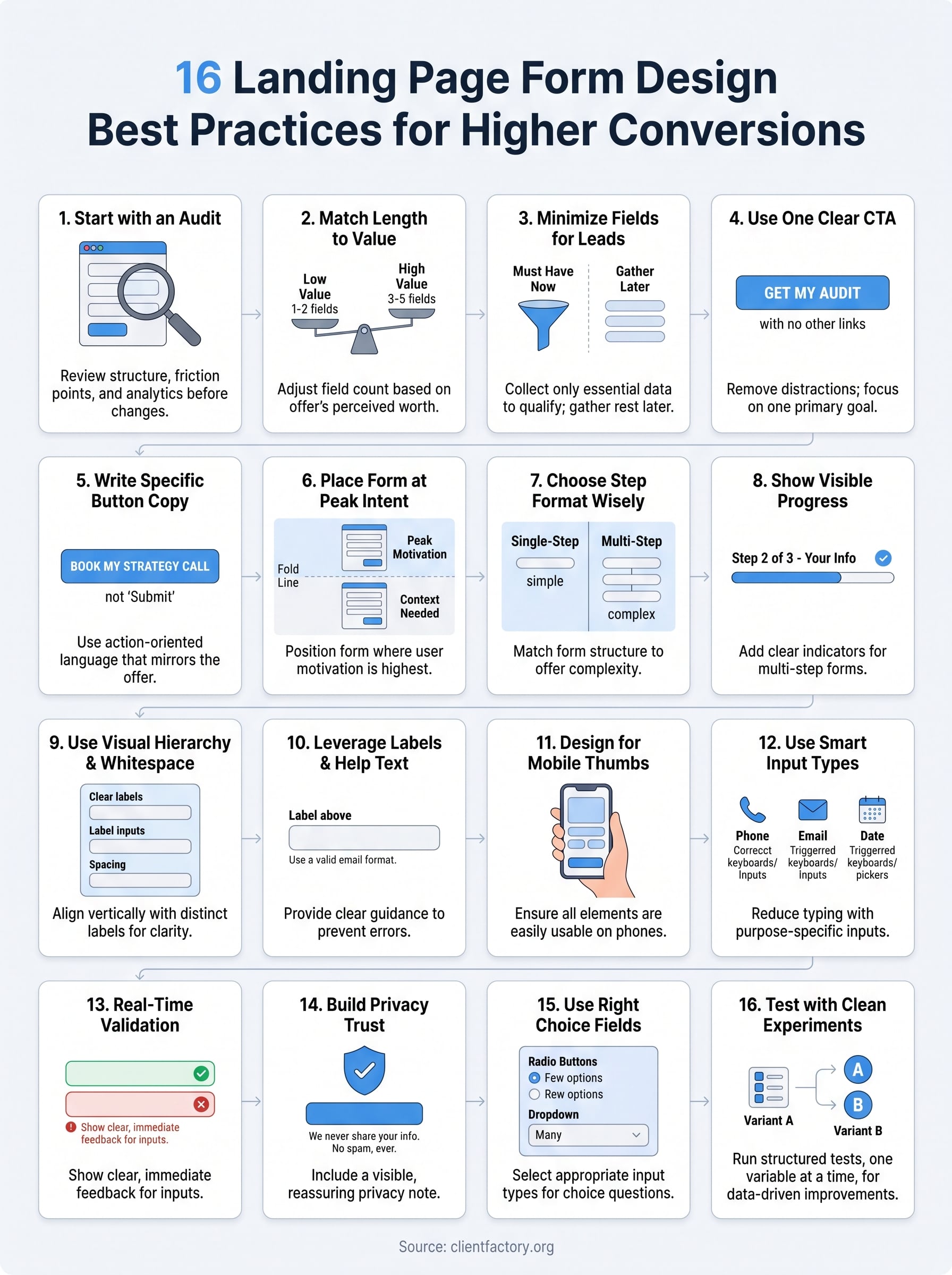
These 16 practices cover every layer of landing page form design, from the initial audit to continuous testing. Each one targets a specific point where visitors stall or leave, and applying even a handful of them will move your completion rate in a measurable direction.
Start with the audit from practice one. That single step tells you which of these practices will have the biggest immediate impact on your specific page, so you’re not guessing where to spend your time. From there, work through the list in priority order, fix one thing, measure the result, and move to the next.
If you want an expert set of eyes on your conversion funnel before you start making changes, book a free conversion audit call with our team at Client Factory. We’ll identify your highest-leverage fixes and give you a clear action plan to increase your lead volume.