


You’re running ads, publishing content, and driving traffic to your site, but do you actually know which efforts are generating real leads? Without Google Analytics lead tracking, you’re essentially flying blind. You might be pouring budget into channels that look busy but produce nothing, while ignoring the ones quietly filling your pipeline.
Google Analytics 4 (GA4) handles lead tracking differently than its predecessor. The event-based model is more flexible, but it also means setup isn’t as straightforward as it used to be. If you’ve been staring at GA4’s interface wondering where your form submissions and conversions went, you’re not alone. Most business owners we work with at Client Factory hit this exact wall, they know their marketing is generating leads, but they can’t see the data to prove it or optimize around it.
This guide walks you through how to set up lead tracking in GA4 from scratch, covering form submissions, conversion events, and the reporting views that actually matter. By the end, you’ll have a clear, working setup that shows exactly where your leads come from and which channels deserve more investment. That’s the kind of clarity that turns a good marketing strategy into a great one.
What counts as a lead in GA4
GA4 doesn’t have a native “lead” object. Instead, leads are defined by the events you track and the conversion flags you assign to them. This is a big shift from Universal Analytics, where you’d set up Goals tied to pageviews or destination URLs. In GA4, every interaction is an event, and you decide which events represent a meaningful lead action for your business.
The most common mistake in google analytics lead tracking is treating all events as equal. Only events that signal real buying intent should be marked as conversions.
Events vs. conversions in GA4
GA4 records everything as an event, from page views to button clicks to video plays. But not every event is a conversion, and not every conversion is a lead. An event becomes a conversion when you toggle it on in GA4’s admin panel. That single flag is what separates a data point from a business outcome. Lead events are the subset of conversions that indicate someone has raised their hand and expressed genuine interest in your product or service.
Think of it as a two-step decision process. First, you define which user actions signal lead intent. Then, you mark those specific events as conversions in GA4 so they surface in your reports, attribution models, and audience segments. Both steps matter, and skipping the second one is why so many businesses end up with event data that never feeds into their marketing decisions.
Common actions that qualify as leads
Not every business has the same lead signals, but most service businesses and law firms share a core set of actions worth tracking. The table below covers the most common ones and how strongly each signals purchase intent:
| Action | Recommended event name | Lead signal strength |
|---|---|---|
| Contact form submission | generate_lead or form_submit |
High |
| Phone number click | phone_click |
High |
| Free consultation booked | schedule_appointment |
High |
| Live chat initiated | chat_start |
Medium |
| Email link click | email_click |
Medium |
| Free resource download | file_download |
Low to medium |
GA4’s built-in generate_lead event is the recommended name for your primary lead conversion because GA4’s reporting surfaces it automatically in several built-in templates. You can use custom event names, but following Google’s recommended event taxonomy keeps your data cleaner and makes it easier to connect GA4 with Google Ads and other Google products down the line.
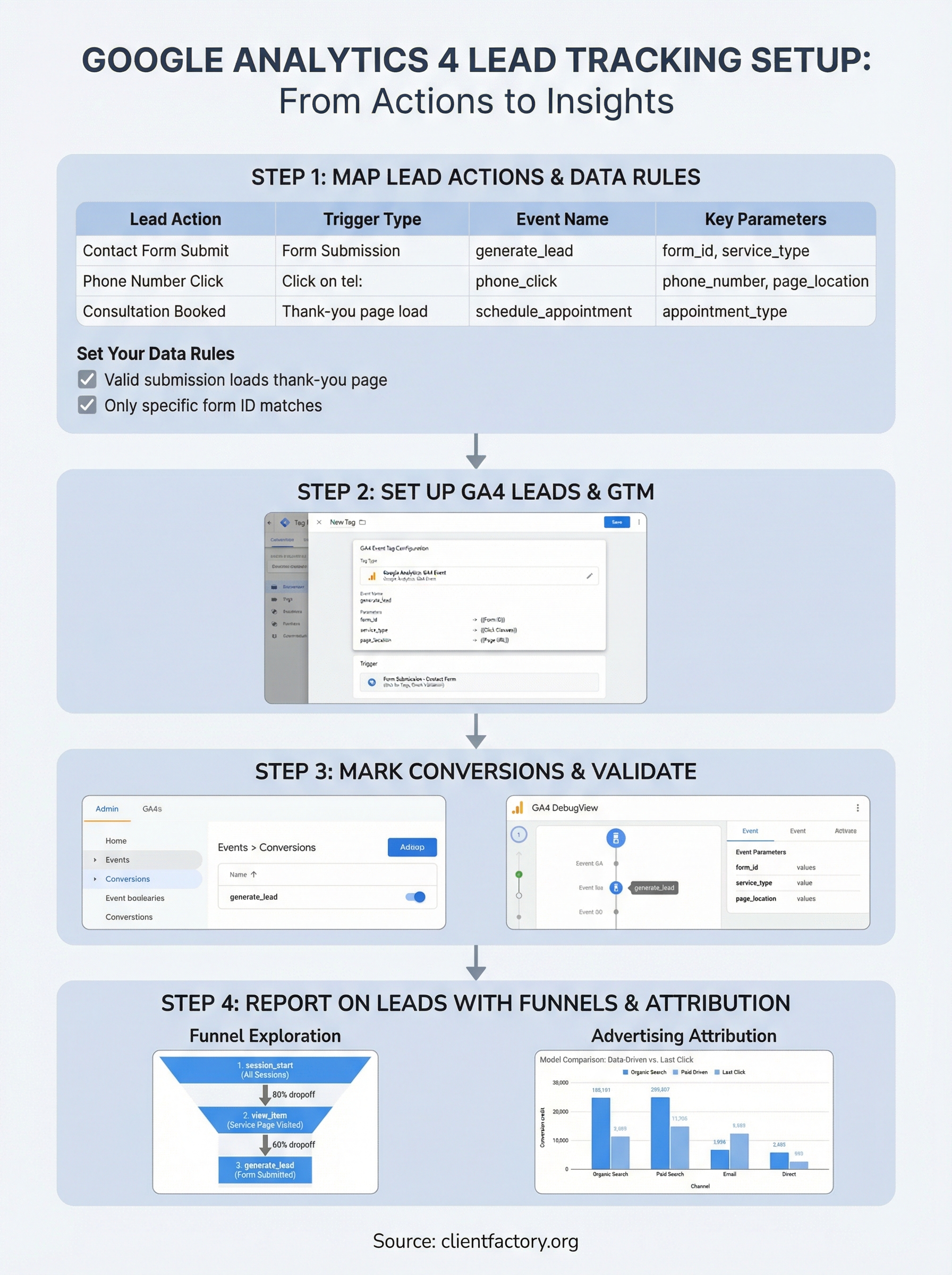
Step 1. Map your lead actions and data rules
Before you touch GA4, you need a clear picture of which user actions represent a real lead for your business. Skipping this step is why so many setups end up tracking noise instead of signal. Take 20 minutes to list every touchpoint where a visitor could raise their hand and express buying intent on your site.
Build a lead action inventory
Your inventory should answer three questions for each action: what the user does, what page or element triggers it, and what data you need to capture alongside it. That last part matters most for google analytics lead tracking because GA4 lets you pass custom parameters with every event, like form type, service category, or lead source.
Map your data requirements before you build anything in GA4. Retrofitting parameters after the fact means losing historical data you can never recover.
Use the template below to document each lead action before you open GA4. Filling this out first saves you from rebuilding your tracking setup twice, which is a costly and avoidable mistake for growing service businesses.
| Lead action | Trigger type | Event name | Key parameters |
|---|---|---|---|
| Contact form submit | Form submission | generate_lead |
form_id, service_type |
| Phone number click | Click on tel: link |
phone_click |
phone_number, page_location |
| Consultation booked | Thank-you page load | schedule_appointment |
appointment_type |
| Chat started | Chat widget open | chat_start |
page_location |
Set your data rules
Data rules define what makes an event valid and worth counting as a lead. For each action, decide the minimum conditions that must be true before GA4 records it. For example, a form submission only counts if the thank-you confirmation page actually loads, not just when someone clicks the submit button. This distinction eliminates false positives and keeps your conversion numbers accurate from day one.
Step 2. Set up lead events in GA4 and GTM
With your lead action inventory ready, you can build the actual tracking. Google Tag Manager (GTM) is the recommended tool for this step because it lets you deploy and update GA4 events without editing your site’s code directly. This step focuses on setting up the generate_lead event for a contact form submission, the most common lead action for service businesses.
Configure the GA4 event tag in GTM
Open GTM and create a new tag using the GA4 Event tag type. Set the event name to generate_lead and connect it to your GA4 Measurement ID. Click “Add Row” under Event Parameters and map the values you documented in your lead action inventory. Your tag configuration for a contact form should look like this:

Tag type:       Google Analytics: GA4 Event
Event name:     generate_lead
Parameters:
  form_id       → {{Form ID}}
  service_type  → {{Click Classes}} or a constant value
  page_location → {{Page URL}}
Trigger:        Form Submission - Contact Form
Use GTM’s built-in Form variables like Form ID and Form Classes rather than hardcoding values, so the same tag works across multiple forms without duplication.
Fire the tag on the right trigger
Your trigger controls exactly when GA4 records the lead event, so precision here directly affects your data quality. Create a Form Submission trigger in GTM, then check both “Wait for Tags” and “Check Validation” to ensure the event only fires after the form successfully submits and the server confirms it.
Set your trigger conditions to match only your contact form using its unique form ID or a specific CSS class. This prevents other forms like newsletter signups or site search bars from inflating your lead conversion totals with data that has nothing to do with real buyer intent.
Step 3. Mark conversions and validate tracking
Once your GTM tags are live, you need to tell GA4 which events count as conversions. Publishing a tag in GTM does not automatically mark the event as a conversion, so this step is what connects your tracking work to the reports and bidding models that actually drive decisions in your google analytics lead tracking setup. Skipping this step means your lead events exist in GA4 but never show up in conversion columns, attribution reports, or Google Ads optimization.
Toggle the conversion flag in GA4
Open GA4 > Admin > Conversions and click “New conversion event.” Type the exact event name you used in GTM, for example generate_lead, and save. GA4 will now flag every instance of that event as a conversion across all your reports. Keep your conversion list tight and only include events that represent real lead intent. Adding low-signal events here pollutes your data and makes optimization harder down the line.
It can take up to 24 hours for a newly marked conversion to appear in standard GA4 reports, but DebugView shows it in real time.
Validate with GA4 DebugView
DebugView is your fastest way to confirm that events are firing correctly without waiting for data to accumulate. Open GA4 > Admin > DebugView, then open your site in a separate tab where you have GTM Preview Mode active. Submit a test form and watch DebugView for the generate_lead event. If it appears with the correct parameters, your setup is working.

Check the parameter values using the inspector panel on the right side of DebugView. Confirm that form_id, service_type, and page_location all display the values you expect. If a parameter is missing or incorrect, go back to GTM and fix the variable mapping in your tag before pushing to production.
Step 4. Report on leads with funnels and attribution
Tracking lead events is only half the job. Turning that data into decisions is what makes your google analytics lead tracking setup worth the work. GA4 gives you two reporting tools that matter most here: Funnel Explorations and the Advertising Attribution report. Both are found under the Explore and Advertising tabs in the left navigation.
Build a funnel exploration for your lead path
Open GA4 > Explore > Funnel Exploration and create a new funnel with the steps that reflect your actual lead path. A typical setup for a service business looks like this:
Step 1: session_start       (all sessions)
Step 2: view_item or page_view (service page visited)
Step 3: generate_lead       (form submitted)
This tells you exactly where visitors drop off before completing the form. If 80% of sessions never reach your service page, you have a traffic quality problem. If they reach the page but don’t submit, you have a conversion rate problem. Each diagnosis points to a different fix.
Segment your funnel by traffic source using the “Breakdown” dimension to see which channels produce the most complete paths to a lead.
Read the attribution report correctly
Go to GA4 > Advertising > Attribution > Model Comparison and compare the Data-Driven model against Last Click. Data-Driven attribution uses your actual conversion data to assign credit across touchpoints, so it gives you a more accurate picture of which channels are initiating and assisting leads, not just closing them.
Focus on the channels with high assisted conversions but low last-click credit. Those are often your most undervalued sources, and shifting budget toward them can produce meaningful gains in lead volume without increasing total spend.
Next steps
You now have a complete google analytics lead tracking setup: lead actions mapped, GTM tags firing, conversions marked, and reports pulling real data. The next move is to act on what you find. Check your funnel exploration weekly for the first month to spot drop-off patterns early, and compare attribution models before you make any budget shifts. Small adjustments based on accurate data compound quickly.
From here, the two areas that pay off fastest are improving your form conversion rate on high-traffic service pages and reallocating spend toward the channels showing strong assisted conversion credit. Both require clean data, which you now have.
If you want a second set of eyes on your full acquisition setup, not just analytics but the ads, landing pages, and funnel flow behind your leads, book a free conversion audit and we will walk through exactly where your pipeline is leaking and how to fix it.