
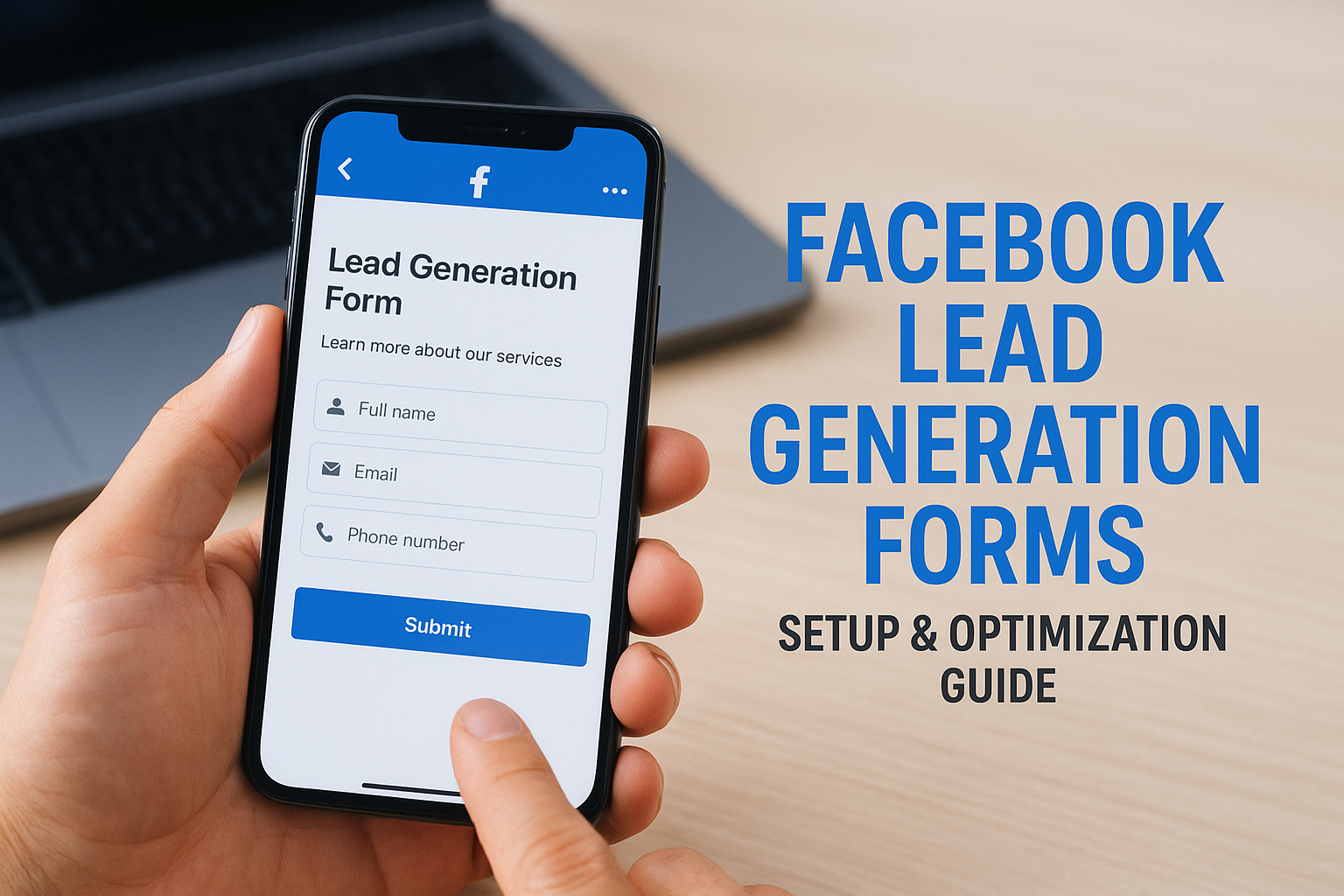
Most businesses running Facebook ads leave money on the table because their lead forms are poorly designed. Facebook lead generation forms (also called Instant Forms) let prospects submit their information without leaving the platform, but only if you set them up correctly.
At Client Factory, we’ve built and optimized hundreds of lead generation funnels for service businesses and law firms. One pattern shows up repeatedly: the difference between a form that generates junk leads and one that delivers qualified prospects often comes down to a few specific settings and design choices.
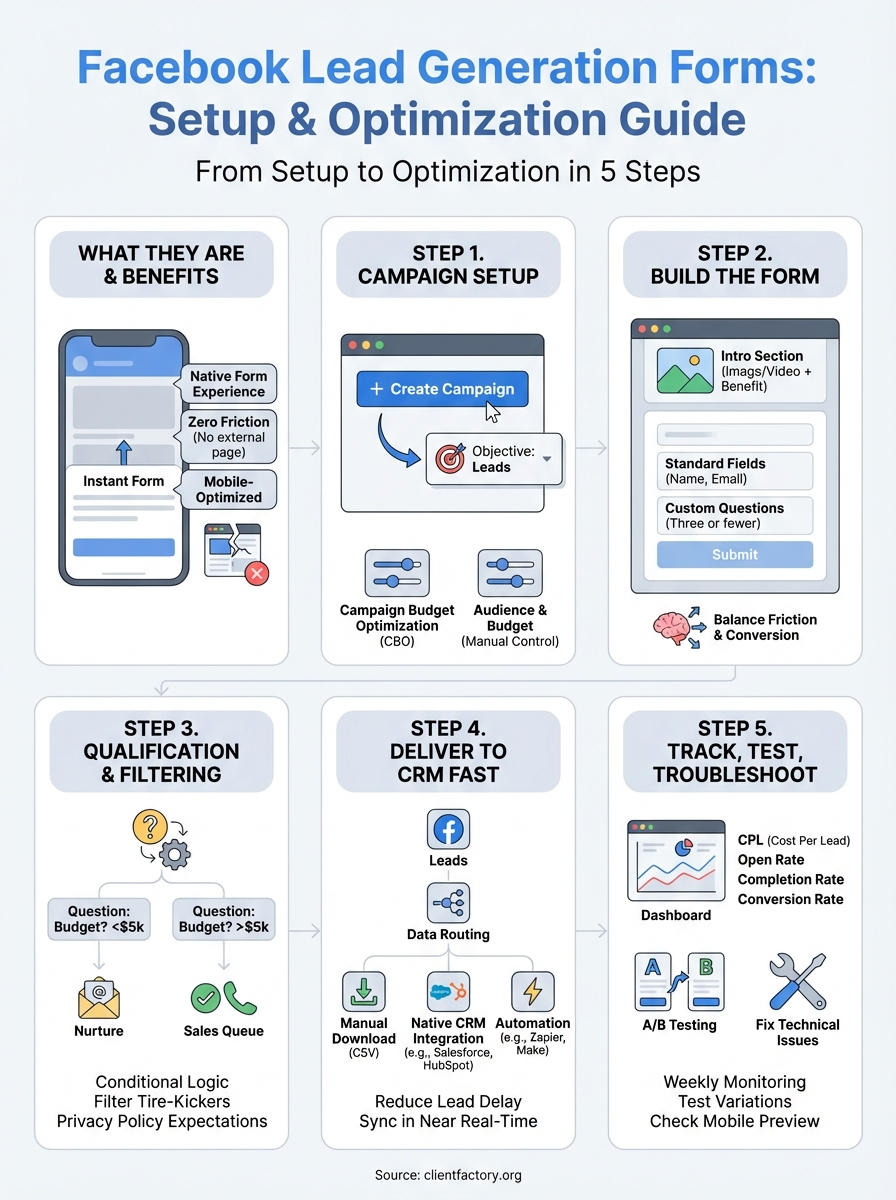
This guide walks you through the complete process, from initial setup to advanced optimization techniques. You’ll learn how to create forms that capture high-intent prospects, filter out tire-kickers, and integrate seamlessly with your CRM or follow-up systems. Whether you’re launching your first campaign or troubleshooting an underperforming funnel, these strategies will help you turn more clicks into actual clients.
What Facebook lead generation forms are
Facebook lead generation forms (officially called Instant Forms) are native form experiences that live inside the Facebook platform. When someone clicks your ad, the form slides up directly within Facebook or Instagram instead of sending them to an external landing page. This eliminates the friction of page loads, mobile browser issues, and the psychological barrier of leaving a familiar app.
The form captures contact information and qualifying details you specify, then stores those responses in Facebook’s lead database. You can access submitted leads through Ads Manager, download them manually, or connect them to your CRM through integrations. Every field you add, from email address to custom questions, stays within the Facebook environment until you export or sync the data.
How Instant Forms differ from landing pages
Traditional lead generation sends clicks to an external webpage where prospects fill out a form. Instant Forms skip that step entirely. The form appears within two seconds of someone clicking your ad, which means you lose fewer prospects to slow load times or distractions during the transition.
Mobile users benefit most from this approach. Landing pages often break on different devices, display incorrectly, or take too long to load on cellular connections. Instant Forms are optimized for mobile by default because Facebook controls the entire experience. Your form will look identical whether someone views it on an iPhone, Android device, or desktop browser.
Instant Forms reduce drop-off rates by keeping prospects inside the platform they already trust, but this convenience comes with a tradeoff: lower friction can mean lower lead quality if you don’t add qualification steps.
Core components of a lead form
Your form starts with an intro section that includes your company name, a headline, and optional descriptive text. This is where you explain what prospects will receive after submitting their information. You can add an image or video here to reinforce your offer.
Question fields come next. Facebook pre-fills certain fields like name, email, and phone number using the person’s profile data, which speeds up submissions. You can add custom questions beyond these standard fields to qualify leads or gather specific information about their needs.
The final component is a completion screen that appears after someone submits. You control the message here and can include a website link that directs prospects to your site, a resource page, or scheduling tool. This screen also lets you add a tracking pixel to measure conversions.
Where lead forms appear
You can attach Instant Forms to ads in your Facebook and Instagram feeds, where they appear alongside organic content. These placements typically generate the most leads because users are already scrolling through updates and posts.
Stories placements also support lead forms. When someone taps your Story ad, the form slides up from the bottom of their screen. Messenger ads can trigger Instant Forms too, though the experience differs slightly because the form opens within the Messenger interface rather than the main Facebook app.
Step 1. Set up your lead campaign in Ads Manager
Your first task is to create a campaign structure that tells Facebook you want to collect leads, not drive traffic or boost engagement. The platform uses your campaign objective to determine how it optimizes delivery and what ad formats become available. If you select the wrong objective, you won’t see the option to attach an Instant Form to your ads.
Navigate to Ads Manager and click the green “Create” button. Facebook will present several campaign objectives grouped by marketing goal. Ignore objectives like “Traffic” or “Engagement” even if they sound relevant. You need to select the objective that specifically enables facebook lead generation forms.
Choose the right campaign objective
Select “Leads” from the objective menu. This unlocks the Instant Form option at the ad level and tells Facebook’s algorithm to show your ads to people most likely to submit their information. The platform tracks submission history across advertisers and prioritizes users who have completed lead forms in the past.
After selecting your objective, you’ll name your campaign and decide whether to enable Campaign Budget Optimization (CBO). CBO lets Facebook distribute your budget across multiple ad sets automatically. For your first lead campaign, start with a single ad set and manual budget control so you can understand performance before scaling.
Configure your ad set settings
Your ad set controls who sees your ads and how much you spend to reach them. Start by defining your audience using location, age, gender, and interests that match your ideal client profile. If you’re a law firm targeting personal injury cases, you might focus on people aged 25-65 within 20 miles of your office who have shown interest in legal services.
Set your daily budget to at least $50 for lead campaigns. Lower budgets force Facebook to show your ads inconsistently, which prevents the algorithm from gathering enough data to optimize delivery. You’ll waste more money testing with insufficient budgets than you’ll save by starting small.
Facebook recommends running lead campaigns for at least 7 days before making optimization decisions, as the algorithm needs time to learn which users are most likely to convert.
Choose automatic placements initially. Facebook will test your ads across feeds, Stories, and other placements to find where your audience responds best. You can remove underperforming placements after collecting performance data.
Step 2. Build an Instant Form that converts
Once your campaign structure is active, you need to create the actual form that prospects will see when they click your ad. The form builder lives at the ad level, which means you’ll access it while setting up your ad creative. Click “Create Form” in the ad setup screen and Facebook will open a builder interface where you design each component of your Instant Form experience.
Your form’s structure directly impacts conversion rates and lead quality. A poorly designed form either scares prospects away with too many fields or attracts unqualified leads with too few barriers. The goal is to find the balance between friction and conversion that works for your specific offer and audience.
Design your intro section first
The intro screen appears before prospects see any questions. Use this space to reinforce what they’ll receive after submitting their information. Your headline should match the promise in your ad copy so people don’t experience a disconnect when the form opens.
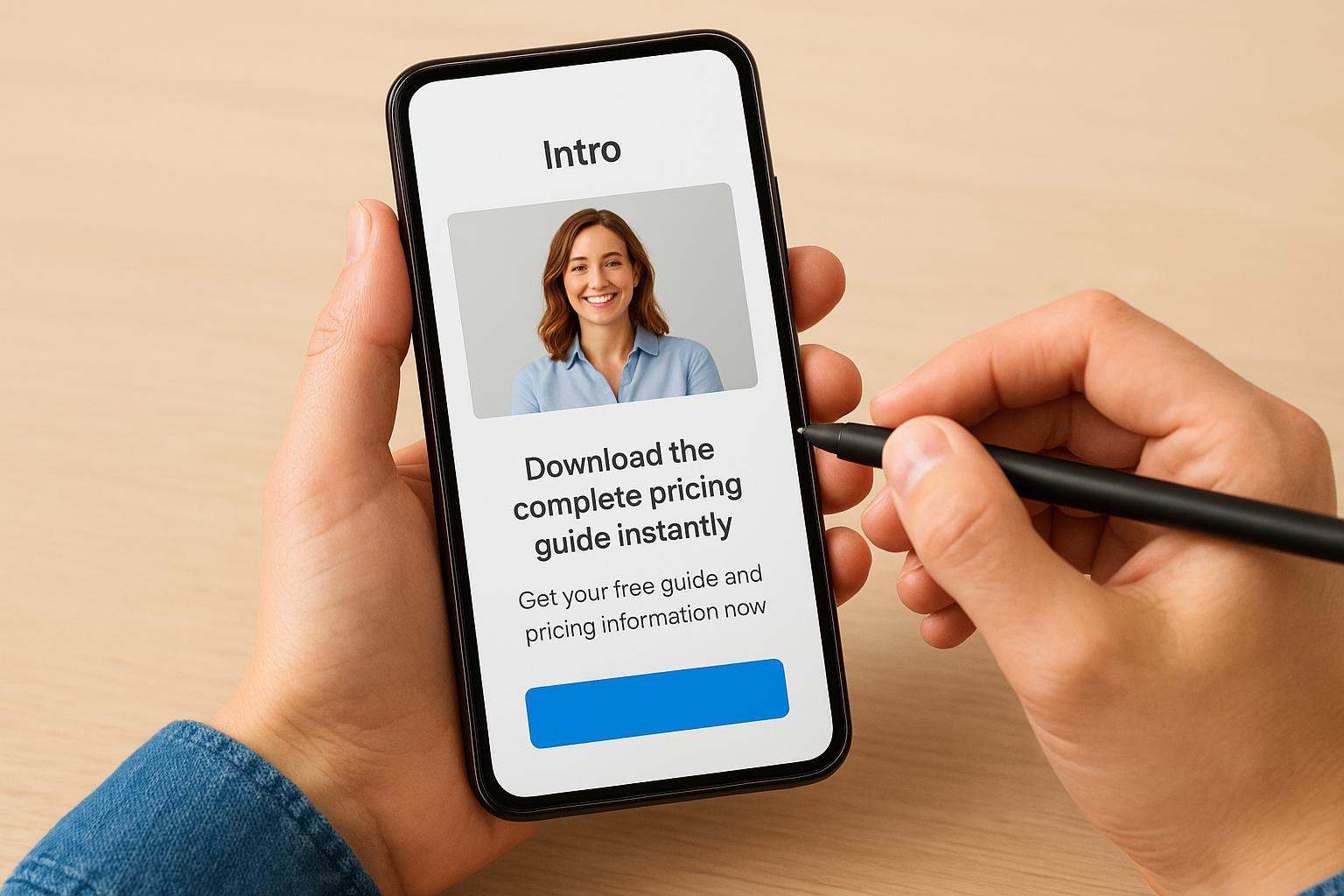
Add a clear benefit statement in the description field that explains exactly what happens next. Instead of generic text like “Fill out this form to learn more,” write something specific: “Get your free case evaluation within 24 hours” or “Download the complete pricing guide instantly.” Include an image or short video that reinforces your brand and makes the form feel legitimate rather than generic.
Forms with relevant images in the intro section see 15-20% higher completion rates because they build immediate trust and continuity from the ad.
Select your question fields strategically
Facebook offers standard contact fields that auto-populate from user profiles: full name, email address, phone number, city, state, and zip code. Start with only the fields you actually need for follow-up. Adding phone number increases form abandonment by 30-40% but delivers higher-quality leads who are ready to talk.
Create custom questions for qualification data specific to your business. A law firm might ask “What type of case do you need help with?” while a home services company could ask “What is your project timeline?” Keep custom questions to three or fewer unless you’re intentionally filtering for extremely qualified prospects.
Choose between higher volume and more context
Facebook provides three form types that balance submission speed against information depth. The “More volume” format shows only essential fields and skips the intro screen entirely, maximizing completions but providing minimal context about each lead. The “Higher intent” format includes the full intro section and custom questions, which reduces volume but improves lead quality significantly.
Step 3. Improve lead quality with qualification
The fastest way to waste your advertising budget is collecting leads who have no intention of buying or can’t afford your services. You need to build qualification barriers into your facebook lead generation forms that discourage unqualified prospects from submitting while making it easy for serious buyers to identify themselves. This step separates campaigns that generate appointment-ready leads from those that fill your CRM with dead ends.
Add qualifying questions that filter prospects
Insert custom multiple-choice questions that force prospects to reveal their readiness level before they submit. A law firm might ask “Have you already hired an attorney for this case?” with options including “Yes, I’m currently represented” as a disqualifier. A home services company could ask “What is your budget range?” and include “$0-$5,000” as the first option to filter out prospects below their minimum project size.
Place qualification questions after the contact fields rather than before them. Facebook’s auto-fill feature makes it effortless to enter name and email, which creates momentum. Prospects who complete those fields are more likely to answer one or two additional questions than those who see qualification barriers first.
Adding just one strategic qualification question can reduce your lead volume by 40% while increasing your close rate by 60% or more, dramatically improving your cost per client.
Use conditional logic to branch questions
Facebook lets you show or hide follow-up questions based on how someone answers a previous question. If a prospect selects “I need help within 30 days” for timeline, you can display an additional question asking about their specific requirements. This progressive disclosure collects detailed information from qualified prospects without overwhelming everyone who opens your form.
Set up conditional logic through the “Show question based on” option in the form builder. You can create multiple branches that adapt the form experience to different prospect types, ensuring you gather relevant context for each situation.
Set expectations in your privacy policy
Your form’s privacy policy section appears as linked text at the bottom. Use this space to explain what happens after submission and discourage unqualified leads explicitly. Include language like “Our team will contact qualified prospects within 24 hours to schedule a consultation” or “This service is only available to businesses with 10+ employees.” Clear expectations reduce junk submissions from people who don’t meet your criteria.
Step 4. Deliver leads to your CRM fast
The gap between when someone submits your form and when your sales team contacts them directly impacts conversion rates. Every hour of delay reduces your chance of connecting with that prospect. Facebook stores submitted leads in Ads Manager, but you need to extract and route that data to your CRM or follow-up system where your team can actually work with it.
Download leads manually from Ads Manager
Navigate to your Ads Manager dashboard and click the “Forms Library” option in the left menu. This screen displays all your Instant Forms and shows the number of leads each one has collected. Click the form name to open its detail page, then select “Download” to export your leads as a CSV file.
You can schedule automatic email notifications that alert you whenever someone submits a lead. Click the settings icon next to your form name and enable “Send leads to email addresses.” Add up to five email addresses that will receive lead data immediately after submission. This manual approach works for low-volume campaigns (under 10 leads per day) but becomes inefficient as your campaigns scale.
Connect through native CRM integrations
Facebook offers direct connections to major CRM platforms including Salesforce, HubSpot, and Marketo. Access these integrations through the Business Tools section of your Business Manager account. Navigate to “Integrations” in the Business Settings menu and select your CRM from the available options.

Native integrations sync lead data in near real-time, typically delivering new submissions to your CRM within 5-15 minutes of form completion.
Follow the authentication prompts to link your accounts. You’ll need admin access to both your Facebook Business Manager and your CRM platform. Once connected, map your facebook lead generation forms fields to the corresponding fields in your CRM database so information flows into the correct records.
Use automation platforms for advanced routing
Zapier and Make (formerly Integromat) bridge the gap when Facebook doesn’t offer native integration with your CRM. These platforms trigger automated workflows whenever a new lead submits your form. You create a connection between Facebook Lead Ads and your destination system, then map fields to ensure data lands in the right place.
Configure your automation to filter leads based on qualification answers before sending them to your CRM. A lead who answered “No budget set” for your budget question can route to a nurture sequence instead of your sales team’s hot leads queue.
Step 5. Track, test, and troubleshoot
Your facebook lead generation forms need constant monitoring and optimization to maintain performance over time. You can’t assume that your initial setup will continue delivering qualified leads at the same cost per acquisition six months from now. Track specific metrics weekly, identify underperforming elements, and run systematic tests to improve your results. Most campaigns experience a performance decline after 30-60 days as audience fatigue sets in and competition increases.
Monitor metrics that predict profitability
Focus on cost per lead (CPL) and lead-to-customer conversion rate rather than total lead volume alone. A campaign generating 100 leads at $15 each with a 5% close rate delivers five customers for $1,500. Another campaign producing 40 leads at $30 each with a 15% close rate delivers six customers for $1,200. The second campaign wins despite higher CPL and lower volume.
Track your form open rate (how many people who click your ad actually open the form) and form completion rate (what percentage of people who open the form submit it). Open rates below 70% indicate a disconnect between your ad and form intro. Completion rates below 40% suggest your form has too much friction or poorly worded questions.
A 10% improvement in your form completion rate has the same impact on lead volume as increasing your ad budget by 10%, but costs nothing extra.
Test form variations systematically
Create duplicate forms with single variable changes to identify which elements improve performance. Test your headline first, then your intro image, then your custom questions. Run each test for at least 100 form opens before declaring a winner, as smaller sample sizes produce unreliable results.
Test these specific elements in order:
- Headline variations: Benefit-focused vs. curiosity-driven vs. direct offer
- Question quantity: Minimum required fields vs. adding one qualification question vs. adding two
- Intro section length: Short description (one sentence) vs. detailed explanation (three sentences)
- Completion screen CTA: Calendar link vs. resource download vs. simple thank you
Fix common technical issues
Check your form’s mobile preview in Ads Manager if completion rates suddenly drop. Facebook occasionally releases interface updates that break custom formatting or image displays. Your form might look perfect on desktop while appearing broken on mobile devices where 80% of leads originate.
Verify your CRM integration status weekly through the Business Tools section. Connections expire when authentication tokens timeout or when someone changes password credentials. You could be collecting leads that never reach your sales team without realizing it.
Next steps
Your facebook lead generation forms won’t improve on their own. Set up a weekly review schedule where you check cost per lead, form completion rates, and lead quality metrics. Export your lead data every Monday and calculate how many submissions turned into actual appointments or sales calls. Track these numbers in a spreadsheet so you can spot trends before they become expensive problems.
Run your first A/B test within the next 14 days. Change one element of your form (headline, intro image, or a custom question) and let it run for at least 100 opens before deciding which version performs better. Document your results so you can build on what works rather than guessing.
If your team struggles to follow up with leads fast enough or you’re not seeing the qualified prospects you need, schedule a free funnel audit with Client Factory. We’ll identify exactly where your lead generation process breaks down and show you how to fix it.