


Most businesses running Google Ads or analyzing their website traffic in GA4 are sitting on audience data they never actually use. The GA4 audience builder is one of the most practical tools inside Google Analytics 4, yet a surprising number of marketers either skip it entirely or create audiences that are too broad to be useful. That’s a problem, because poorly defined audiences drain ad budgets and muddy your reporting.
The audience builder lets you segment users based on behavior, demographics, and events, then push those segments directly into Google Ads for remarketing. When done right, it’s how you stop paying to reach everyone and start spending on the people most likely to convert. At Client Factory, this is a core part of how we build data-driven acquisition funnels for service businesses and law firms, audiences built on real behavioral signals, not guesswork.
This guide walks you through exactly how to access the audience builder, create custom audiences step by step, and configure them for both reporting and remarketing. Whether you’re setting up your first audience or cleaning up a messy existing setup, you’ll leave with a clear process you can apply immediately. No fluff, just the steps that actually move the needle.
What the GA4 audience builder does and where it lives
The GA4 audience builder is a segmentation tool that lets you define groups of users based on conditions you set, then use those groups for reporting analysis or remarketing campaigns. Unlike Universal Analytics, which treated audiences as mostly an advertising add-on, GA4 treats audience building as a core function. You can create segments based on events, user properties, session behavior, and predictive metrics like purchase probability, then push those audiences directly to linked ad platforms.
What the audience builder actually does
At its core, the tool evaluates users against your defined conditions and groups them into an audience when they match. GA4 reassesses membership continuously, meaning users can enter or exit an audience as their behavior changes over time. For example, a user who visits your pricing page gets added to a "Pricing Viewers" audience. If you set a membership duration of 30 days, they stay in that audience for 30 days from their last qualifying action.
GA4 evaluates audience conditions in real time, so your segments always reflect current user behavior rather than a static snapshot.
Each audience you create can be shared with linked Google Ads accounts for remarketing, or kept inside GA4 purely for reporting and comparison purposes. You are not locked into one use case. Build an audience, use it for analysis first, and then activate it for advertising later once the data confirms it is worth targeting.
How to find the GA4 audience builder
Getting to the audience builder takes only a few clicks, but the navigation is not obvious if you have not been there before. Here is exactly where it lives:

- Log into Google Analytics and select your GA4 property.
- Click Admin (the gear icon in the bottom-left corner).
- Under the Data display column, click Audiences.
- Click the blue New audience button in the top right.
From the Audiences page, you can also see every audience you have already created, check their user counts and membership durations, and archive or delete segments you no longer need. The "New audience" button opens a panel where you can choose from suggested audiences, use a pre-built template, or start from scratch using custom conditions.
Pre-built suggestions include options like "Purchasers," "7-day inactive users," and "Likely 7-day churning users" under the predictive category. These are solid starting points if you want to move fast. Custom builds give you full control over the conditions, logic operators, and membership scope, which is exactly what the rest of this guide covers.
Before you build: tracking, permissions, and privacy
Before you open the GA4 audience builder and start creating segments, three things need to be in order: your event tracking must be capturing the right data, your account permissions must allow audience creation and publishing, and your property’s data retention settings must be configured to give audiences enough runway to accumulate members. Skipping these checks leads to audiences that populate slowly, fail to publish to Google Ads, or violate user consent requirements.
Confirm your key events are firing
Your audience conditions are only as good as the events feeding them. If you plan to build an audience around users who visited a specific page or completed a form, you need to verify those events exist in GA4 before setting conditions against them. Go to Reports > Realtime and trigger the action yourself on your website. If the event appears in the Realtime view, GA4 is recording it and you can safely use it as an audience condition.
Missing events are the most common reason audience membership counts stay at zero after creation.
Verify your permissions and linking
To create and publish audiences, you need at least Editor access on the GA4 property. Viewer-level access lets you see existing audiences but blocks you from creating new ones or publishing them to ad platforms. Also confirm your Google Ads account is linked to your GA4 property under Admin > Product links > Google Ads links. Without that link, your audiences stay inside GA4 and cannot be used for remarketing.
Set data retention to 14 months
GA4 defaults to a 2-month data retention window, which limits how far back audience conditions can look. Change this to 14 months under Admin > Data collection and modification > Data retention. This single setting expands the historical window your audience conditions can reference and gives your segments more users to work with from day one.
Build high-intent audiences in GA4
With your tracking verified and your account linked, you can start building audiences that reflect real buying intent. The goal is not to cast a wide net. You want tight conditions that identify users who showed specific signals of interest, such as visiting a pricing page, starting a form, or returning to your site multiple times. Those are the users worth retargeting.
Pricing page visitors
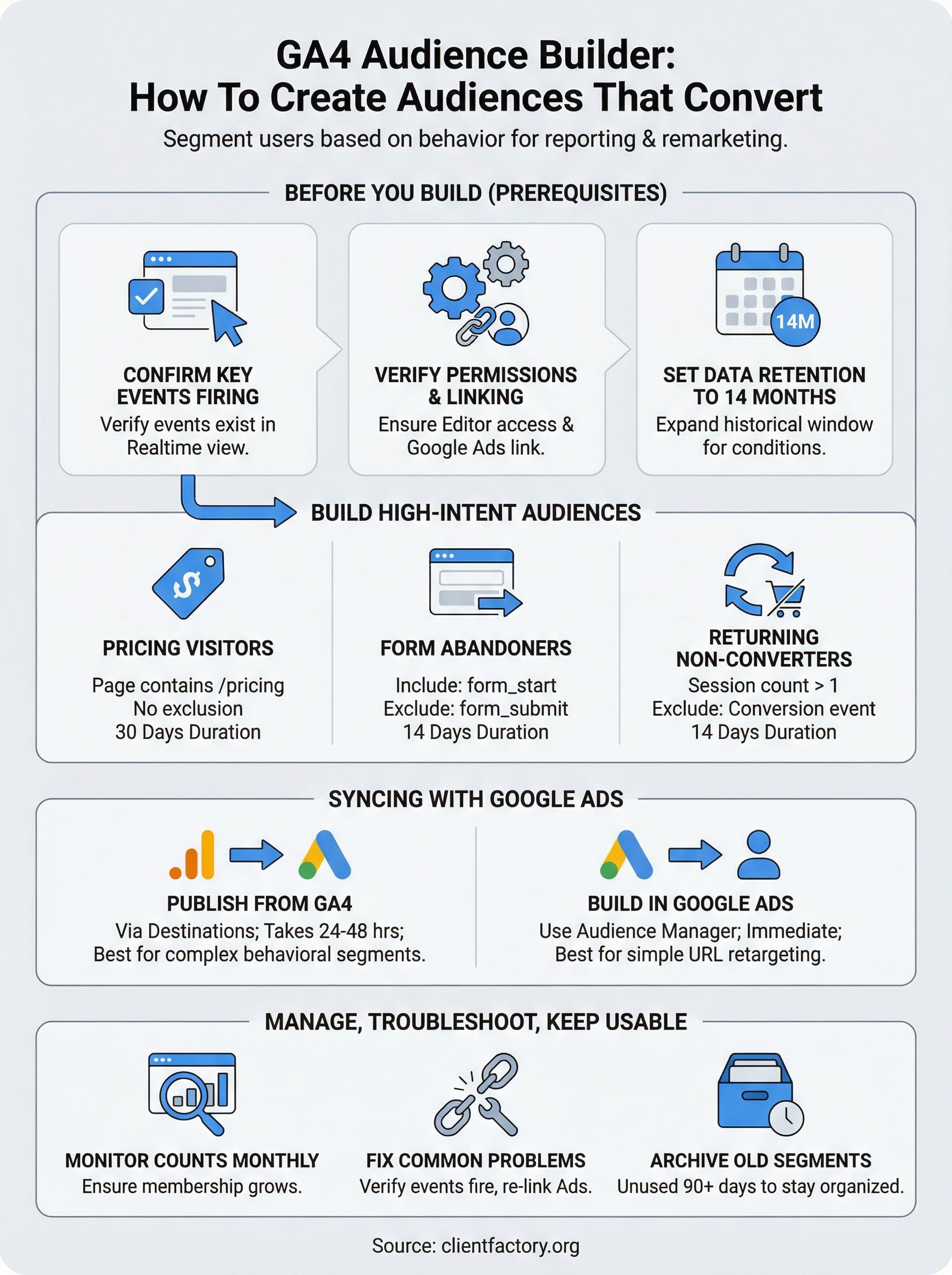
Open the GA4 audience builder by navigating to Admin > Data display > Audiences > New audience > Create a custom audience. Under "Include users when," set the condition to Page location contains /pricing (or whatever your pricing URL slug is). Set the membership duration to 30 days, name the audience clearly ("Pricing Page Visitors – 30D"), and click Save.
This audience captures users who showed enough interest to check your pricing, making them significantly warmer than general site visitors and worth their own dedicated ad group.
Form starters who did not submit
Some of your highest-intent visitors start filling out a contact form and then leave. You can build an audience to catch them if your GA4 setup fires a form_start event and a separate form_submit event. Set the condition to include users where form_start has occurred AND exclude users where form_submit has occurred.
Form abandoners often convert at higher rates than cold traffic because they already showed intent; they just needed one more reason to act.
Targeting this segment lets you reach specifically the people who almost converted, rather than lumping them in with visitors who never engaged with your form.
Returning visitors who have not converted
Set the condition to Session count greater than 1 and exclude users who completed your key conversion event. Keep the membership duration at 14 days to stay relevant without burning impressions on people who have long moved on.
| Audience | Condition | Exclude | Duration |
|---|---|---|---|
| Pricing Visitors | Page contains /pricing | None | 30 days |
| Form Abandoners | form_start fired | form_submit fired | 14 days |
| Returning Non-Converters | Session count > 1 | Conversion event | 14 days |
Create audiences inside Google Ads and sync them
Once you save an audience in the GA4 audience builder, it does not automatically appear in your Google Ads campaigns. You need to either publish your GA4 audiences to Google Ads or build compatible audiences directly inside Google Ads and pull in GA4 data. Both paths work, and knowing which to use saves you time when setting up your first remarketing campaign.
Publish your GA4 audiences to Google Ads
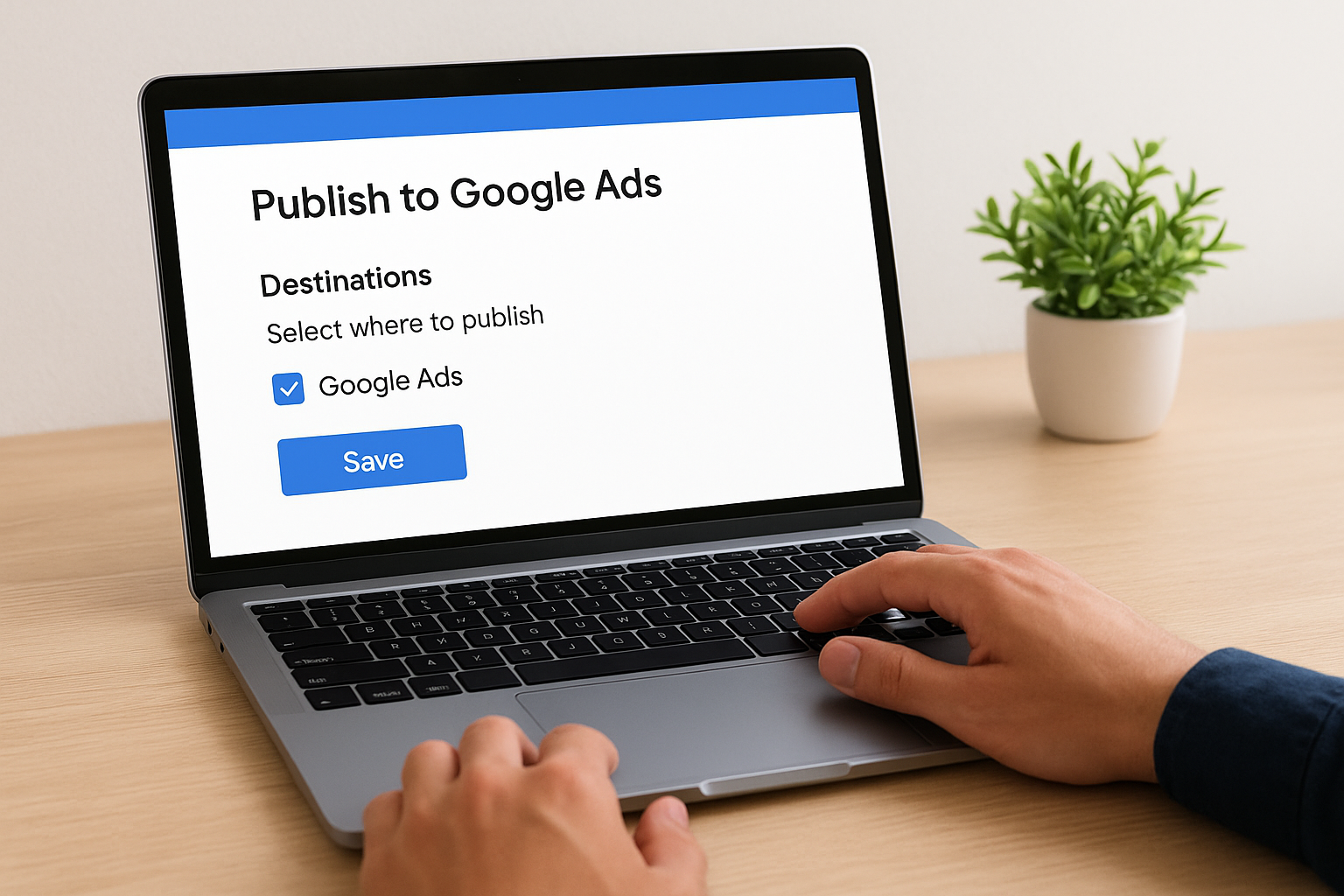
When you save a new audience in GA4, a "Destinations" section appears at the bottom of the audience configuration screen. Click "Add destinations," select your linked Google Ads account, and click Save. GA4 will start sending that audience to Google Ads, where it appears under Tools > Shared Library > Audience manager within 24 to 48 hours.
New audiences need a minimum of 1,000 active members before Google Ads will serve ads to them, so build your audiences and let them populate before launching a campaign.
Keep in mind that only data collected after you publish the audience counts toward membership. Users who visited your pricing page last week will not automatically populate a new audience you create today. This is why setting up your key audiences early, even before you are ready to run ads, makes sense.
Build audiences directly inside Google Ads
You can also create audiences from the Google Ads audience manager by navigating to Tools > Shared Library > Audience manager > Segments > New audience. Select "Website visitors" as the source and choose your linked GA4 property. From there, set conditions based on pages visited or events completed, which mirrors the logic inside GA4.
| Method | Best For | Population Speed |
|---|---|---|
| Publish from GA4 | Behavioral and predictive segments | 24-48 hours |
| Build in Google Ads | Simple URL-based retargeting | Immediate |
Building directly in Google Ads works well for straightforward page-visit segments, while GA4 publishing handles complex behavioral conditions with multiple event triggers far better.
Manage, troubleshoot, and keep audiences usable
Building audiences in the GA4 audience builder is only half the job. Keeping them accurate, populated, and organized over time is what separates a useful remarketing setup from a cluttered list that slows down your campaigns. Check your audiences at least once a month under Admin > Data display > Audiences to confirm membership counts are growing and no segments have gone stale.
Fix the most common audience problems
The two problems that kill audience usability are zero or near-zero membership counts and audiences that fail to appear in Google Ads. If your audience is not populating, open the segment in GA4, review each condition, and verify it maps to an event that is actually firing in your property. Use Reports > Realtime to trigger the event yourself and confirm GA4 records it before assuming the configuration is correct.
If your Google Ads account was linked after the audience was created, delete and recreate the audience to trigger a fresh publish to your ad platform.
If the audience exists in GA4 but is missing from Google Ads, reopen the audience configuration and confirm your Google Ads account appears under Destinations. A broken or missing link between GA4 and Google Ads is the most frequent reason audiences fail to sync, and fixing the link alone resolves it in most cases.
Archive and clean up old audiences
Unused audiences do not remove themselves, and a long list of outdated segments makes it harder to find the ones that matter. Archive any audience you have not used in 90 days by opening it and selecting Archive. Archiving stops the segment from collecting new members without permanently deleting it, so you can restore it later if a campaign calls for it. Use the guide below to decide quickly:
- Keep active: Audiences with growing membership tied to live campaigns
- Archive: Segments unused for 90 or more days with no planned campaign
- Delete: Test audiences or duplicates you created during setup and no longer need
Next steps
You now have a complete workflow for the GA4 audience builder: from verifying your event tracking and permissions to creating high-intent segments, syncing them to Google Ads, and keeping your audience list clean over time. The process is repeatable, and the more you refine your conditions based on actual user behavior, the better your remarketing results will get.
Start with the three audiences covered in this guide: pricing page visitors, form abandoners, and returning non-converters. Build them today, let them populate for two to three weeks, and then review membership counts before launching any campaigns. Do not wait for a perfect setup before you start collecting data. An imperfect audience running now beats a perfect one you never ship.
If you want a second set of eyes on your full acquisition funnel, including how your audiences connect to your ad spend and conversion flow, book a free funnel audit with our team at Client Factory.