


Most of your traffic is coming from phones. You probably already know that. What you might not realize is how much revenue you’re leaving on the table because of it. Mobile conversion optimization is where many service businesses and law firms fall short, their sites look fine on a phone, but they don’t convert on a phone. The result? Visitors bounce before they ever become leads.
The gap between mobile and desktop conversion rates is real, and it’s wider than most business owners expect. Research consistently shows that mobile users convert at roughly half the rate of desktop users. That’s not because mobile users are less interested, it’s because their experience is worse. Slow pages, clunky forms, tiny buttons, and confusing layouts all kill conversions before a prospect even picks up the phone. And for businesses spending money on paid ads, that gap represents a serious drag on ROI.
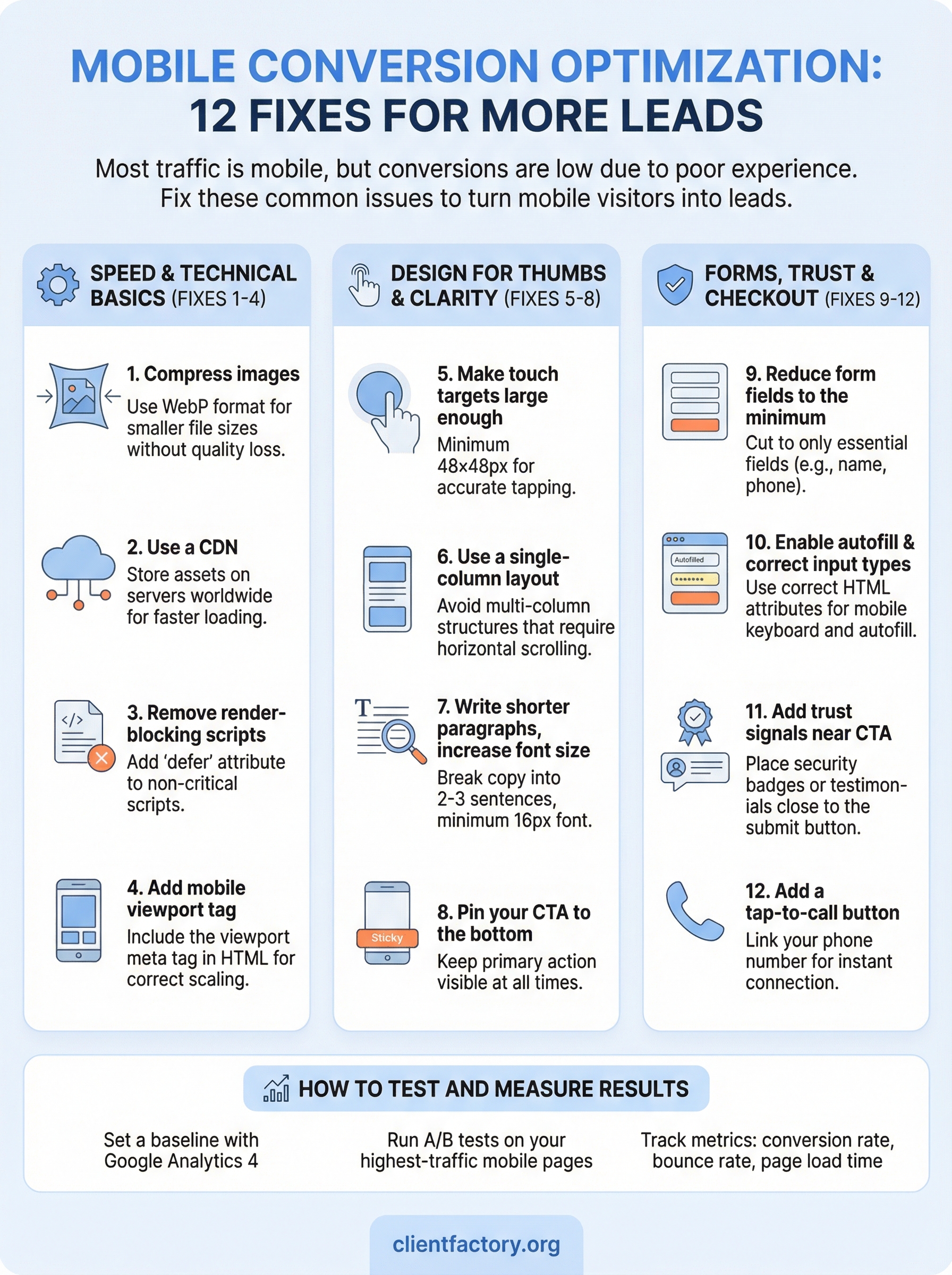
At Client Factory, we optimize client acquisition funnels from click to conversion, and mobile is where we see the biggest untapped gains. Below, we’re sharing 12 specific fixes that address the most common mobile conversion problems we encounter during our audits. These aren’t abstract tips. They’re the same changes we implement for clients to turn more mobile visitors into actual leads.
Why mobile visitors don’t convert
Mobile users behave differently than desktop users, and your site needs to account for that. On a desktop, someone might sit at a desk with time to read, compare options, and fill out a form carefully. On a phone, that same person is likely moving, distracted, and making split-second decisions about whether your page is worth their attention. If your site creates any friction at all, they leave. Understanding the root causes of mobile drop-off is what separates a site that generates leads from one that just collects traffic numbers.
The experience feels designed for a mouse
Most websites were originally built for desktop screens and then adapted for mobile, often as an afterthought. When your site loads on a phone, visitors run into small text that requires zooming, buttons crammed too close together, and layouts that demand horizontal scrolling to read a full sentence. Your visitors won’t zoom in and squint through your content. They’ll tap the back button and move on to someone whose site actually works on their device. The effort required to navigate your page becomes the barrier to conversion, not your pricing or your offer.

Consider a law firm running paid search ads. If their homepage displays a phone number in non-clickable plain text, a mobile visitor cannot tap to call. That’s a lost lead, not because the prospect lacked intent, but because the site created a wall between interest and action.
Speed expectations are unforgiving on mobile
Page load speed has a direct and measurable impact on your mobile results. According to Google’s research on page speed, as load time increases from one second to five seconds, the probability of a mobile visitor bouncing rises by 90%. Your visitors won’t wait. If your page takes more than three seconds to load on a mobile device, a substantial portion of your traffic is already gone before they see a single line of copy.
As page load time goes from one second to five seconds, the probability of a mobile bounce increases by 90%, according to Google.
When you’re spending money on paid traffic, a slow page is burning your ad budget without generating leads. Every second of delay directly increases your cost per acquisition.
Forms create unnecessary obstacles to leads
Contact forms are one of the most consistent friction points in mobile conversion optimization. A form with eight required fields might feel manageable on a desktop keyboard, but on a phone, each additional field is another reason to abandon the process entirely. Small input boxes, vague field labels, and missing autofill support pile friction onto an experience that was already demanding.
For service businesses and law firms, the most important action a mobile visitor can take is submitting their contact information or calling your office directly. If your form makes that harder than it needs to be, you’re losing leads that your competitors are picking up.
Fixes 1–4: Speed and technical basics
Speed is the foundation of every effective mobile conversion optimization effort. Before you adjust copy or redesign layouts, confirm your pages actually load fast enough to hold a mobile visitor’s attention. These four technical fixes target the most common speed problems and give you a reliable base to build on.
Fix 1: Compress your images
Large, uncompressed images are the most common cause of slow mobile load times. Convert your images to WebP format, which delivers smaller file sizes without visible quality loss, and set a maximum display width so you’re not loading a 3000-pixel image into a 390-pixel screen. Use Google PageSpeed Insights to identify oversized images immediately.
Switching to WebP format typically reduces image file sizes by 25–34% compared to JPEG, according to Google.
Fix 2: Use a content delivery network
A CDN stores copies of your site’s assets on servers around the world, so your mobile visitor loads data from a server close to their physical location. This cuts server response time without requiring any redesign work. Most major hosting providers include CDN options in their standard plans, making this a setting you turn on rather than a separate service you purchase.
Fix 3: Remove render-blocking scripts
JavaScript and CSS files that load before your page content are called render-blocking resources. They delay how quickly a visitor sees anything on screen, which directly increases your bounce rate. Add the defer attribute to non-critical scripts so they load after your main content appears:
<script src="your-script.js" defer></script>
Fix 4: Add the mobile viewport tag
Without this one line in your <head>, mobile browsers render your page at desktop width and then shrink everything down. Every layout improvement you make becomes irrelevant if the viewport tag is missing. Add this to your HTML immediately:
<meta name="viewport" content="width=device-width, initial-scale=1">
Fixes 5–8: Design for thumbs and clarity
Once your pages load fast, the way they’re laid out determines whether visitors act or leave. Mobile conversion optimization at the design level means building for a 390-pixel screen operated by a thumb, not a mouse cursor. Small touch targets, dense text, and multi-column layouts all create friction that pushes visitors away before they reach your call to action.
Fix 5: Make touch targets large enough
Buttons and links that are too small to tap accurately frustrate users and cause misclicks. Google recommends a minimum touch target size of 48×48 CSS pixels with at least 8 pixels of spacing between adjacent targets. Apply this standard to every button, link, and form element on your site.
According to Google’s accessibility guidelines, touch targets smaller than 48×48 pixels create usability problems for a significant portion of mobile users.
Your phone number, contact button, and form submit button are the most critical touch targets on any service business or law firm page. Test them on a real device, not just a browser preview tool.
Fix 6: Use a single-column layout
Multi-column layouts force mobile visitors to zoom and scroll sideways, which breaks the reading flow and drives abandonment. Stack your content vertically in a single column so visitors can move straight down to your call to action without any lateral navigation.
Sidebars, two-column text sections, and comparison grids should collapse into a single stacked column on screens below 768 pixels wide using CSS media queries.
Fix 7: Write shorter paragraphs and increase font size
Dense text blocks on a small screen push visitors away before they read your offer. Break copy into two-to-three sentence paragraphs and set body font size to at least 16px so visitors aren’t squinting.
Subheadings create a visual hierarchy that lets a scanning visitor understand your offer without reading every word.
Fix 8: Pin your CTA to the bottom of the screen
A sticky call-to-action bar keeps your primary action visible as visitors scroll. For a law firm or service business, this typically means a "Call Now" button or "Get a Free Consultation" link anchored to the bottom of the viewport at all times.
Removing the need for a visitor to scroll back up to take action eliminates one of the most common drop-off points in a mobile conversion funnel.
Fixes 9–12: Forms, trust, and checkout
The last four fixes target the moments in mobile conversion optimization where visitors decide whether to trust you and whether to complete the final action. Forms, trust signals, and contact options are where most service businesses and law firms lose prospects who were genuinely ready to reach out.
Fix 9: Reduce form fields to the minimum
Every field you add to a contact form reduces the number of people who complete it. On mobile, this effect is amplified. Cut your form down to the fields you absolutely need to follow up: name, phone number, and one qualifying question at most. You can gather additional information during the consultation rather than on the form itself.

Removing optional fields from a lead form consistently increases completion rates on mobile, because each field represents a reason to abandon the process.
Fix 10: Enable autofill and use the correct input types
HTML input type attributes tell mobile browsers what keyboard to display and whether to offer autofill suggestions. Setting the correct type for each field removes friction without any redesign work. Use the following pattern as your baseline:
<input type="text" name="name" autocomplete="name" placeholder="Your name">
<input type="tel" name="phone" autocomplete="tel" placeholder="Phone number">
<input type="email" name="email" autocomplete="email" placeholder="Email address">
Each attribute here serves a purpose: type="tel" triggers the numeric keypad, and autocomplete pulls saved data from the visitor’s browser so they don’t have to type it manually.
Fix 11: Add trust signals near your call to action
Visitors deciding whether to submit their contact details need reassurance right at that moment. Place a short client testimonial, a bar association badge, or a "no spam" note within a few pixels of your submit button.
Fix 12: Add a tap-to-call button
A linked phone number removes every barrier between a mobile visitor and your office. Mark it up with <a href="tel:+15551234567">Call Now</a> so one tap connects them directly.
How to test and measure results
Implementing these fixes without measuring their impact means you’re guessing whether they work. Every change you make to your mobile pages should connect to a specific metric you’re tracking. Mobile conversion optimization only improves when you know what moved after each adjustment.
Set a baseline with Google Analytics 4
Before you start testing, you need to know where you stand. Log into Google Analytics 4 and navigate to Reports > User > Tech > Device Category to compare your mobile and desktop conversion rates side by side. Record these numbers before making any changes so you have a real baseline to measure against.
Track these metrics for mobile visitors specifically:
- Conversion rate: form submissions or calls divided by total mobile sessions
- Bounce rate: percentage of visitors who leave without any interaction
- Average session duration: how long mobile users stay on your pages
- Page load time: available in the Core Web Vitals report under Experience
Google’s Core Web Vitals report inside Google Search Console shows you exactly how your mobile pages perform on real user devices, broken down by page URL.
Run A/B tests on your highest-traffic mobile pages
Pick one change at a time and test it against your current version. If you test five things simultaneously, you won’t know which one moved the numbers. Start with your highest-traffic landing page and test a single element: your CTA button text, your form field count, or your headline. Run the test for at least two weeks to collect statistically meaningful data before drawing conclusions.
Use Google Optimize or your existing CMS split-testing tools to serve two versions of the page to different mobile visitors. Once one version shows a clear lift in conversions, make it your new control and move on to testing the next element.
Next steps for better mobile leads
You now have 12 specific fixes and a clear testing framework to work with. Mobile conversion optimization isn’t a one-time project, it’s an ongoing process of measuring, adjusting, and improving the experience for every visitor who lands on your pages from a phone. Start with the speed and technical fixes first, since they create the foundation everything else depends on, then move through design, forms, and trust signals in order.
Pick one page, apply the fixes, set your baseline in Google Analytics 4, and run your first A/B test within the next two weeks. Small, measurable improvements compound quickly when you apply them consistently across your highest-traffic pages.
If you want a professional eye on your current funnel before you start, we can walk through it with you and identify exactly where mobile visitors are dropping off. Book a free conversion audit and we’ll show you what to fix first.