

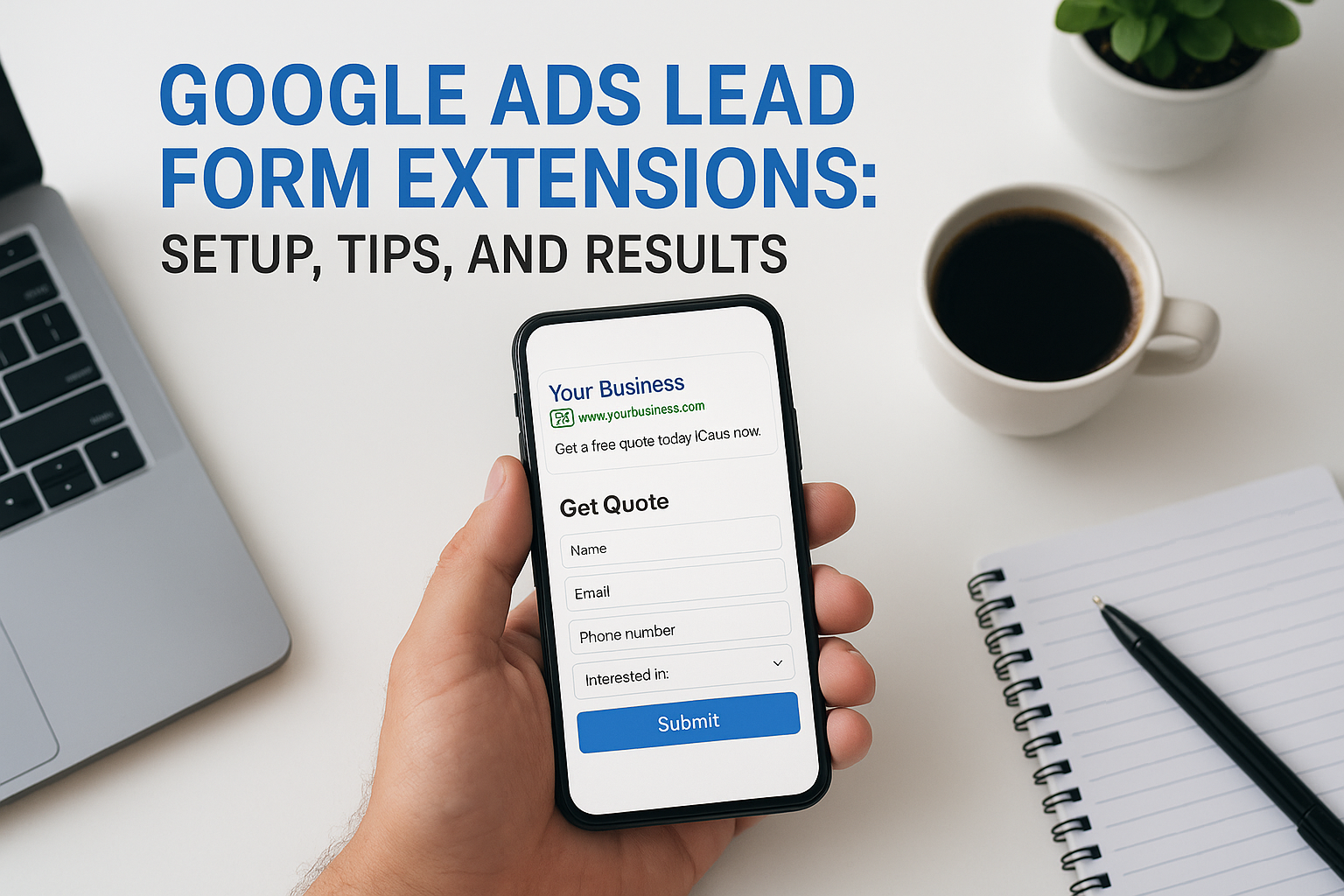
Most Google Ads campaigns send people to a landing page and hope they fill out a form. But what if you could skip the landing page entirely and capture lead information right inside the ad? That’s exactly what Google Ads lead form extensions (now officially called lead form assets) let you do, and for service businesses and law firms trying to lower cost per lead, they’re worth a serious look.
The concept is straightforward: a user clicks your ad, a pre-filled form pops up within Google’s interface, and you get their contact details without them ever leaving the search results. Less friction, faster submissions, and, at least in theory, more leads for less money. But the reality is more nuanced than Google’s marketing suggests.
At Client Factory, we’ve set up and tested lead form assets across dozens of client acquisition campaigns. Some performed exceptionally well. Others generated a flood of low-quality leads that wasted our clients’ time. This article breaks down how lead form extensions actually work, walks you through setup step by step, shares the tips that made a measurable difference in our campaigns, and gives you an honest look at the results you can realistically expect.
Why lead form assets matter for service businesses
Service businesses live and die by their pipeline. Whether you run a law firm, a home services company, or a consulting practice, every day without new leads is a day you’re losing revenue. Most digital marketing funnels have a critical weak point: the moment someone clicks an ad and lands on a page, a large percentage of them leave before filling out your contact form. That drop-off is where your ad budget disappears, and it’s a problem that affects nearly every service business running Google Ads today. Solving it often comes down to removing friction at the exact moment someone is ready to act.
The friction problem in service business lead gen
When someone searches for a lawyer, a contractor, or a financial advisor, they’re often on a mobile device, in a hurry, or both. Sending them to a landing page adds multiple steps: the page has to load, the form has to render correctly, and the user has to type out their information from scratch. Every additional step costs you leads. Research from Google’s own data shows that pages taking more than three seconds to load lose more than half of their mobile visitors, and the average mobile page takes far longer than three seconds to fully load.
According to Google, the average mobile landing page takes over 15 seconds to fully load, which means a significant portion of your paid traffic bounces before they even read your headline.
Google Ads lead form extensions were built specifically to address this friction. Instead of sending users to a separate page, the form appears directly in the Google interface, and Google pre-fills contact details it already has on file for signed-in users. The result is a submission path that takes under 10 seconds for a motivated prospect, which is a fundamentally different experience from clicking through to a slow-loading landing page on a phone.
What lower friction actually means for your numbers
For service businesses, the math on friction removal is direct. If your current landing page converts at 5% and a lead form asset converts at 12%, you’re getting more than twice the leads from the same ad spend. That difference compounds quickly at scale. Lower cost per lead means more budget available for testing, better targeting opportunities, and a faster path to a full client pipeline without increasing your monthly spend.
The impact is even sharper for high-intent search campaigns. When someone types "emergency plumber near me" or "personal injury attorney free consultation," they want help immediately. A landing page that loads slowly or looks broken on their phone creates hesitation that kills conversions. A clean, pre-filled form that takes 10 seconds to complete removes that hesitation entirely and keeps the momentum of the search going.
Your budget also stretches further in competitive markets. In industries like legal, insurance, and home services, cost per click on Google can run from $15 to well over $100. Wasting those clicks on an underperforming landing page is an expensive and fixable problem, and lead form assets offer one concrete way to address it. The trade-off, which this article covers in detail later, is that you need a plan to qualify and follow up on leads quickly, or your lead quality will suffer.
How Google Ads lead form assets work
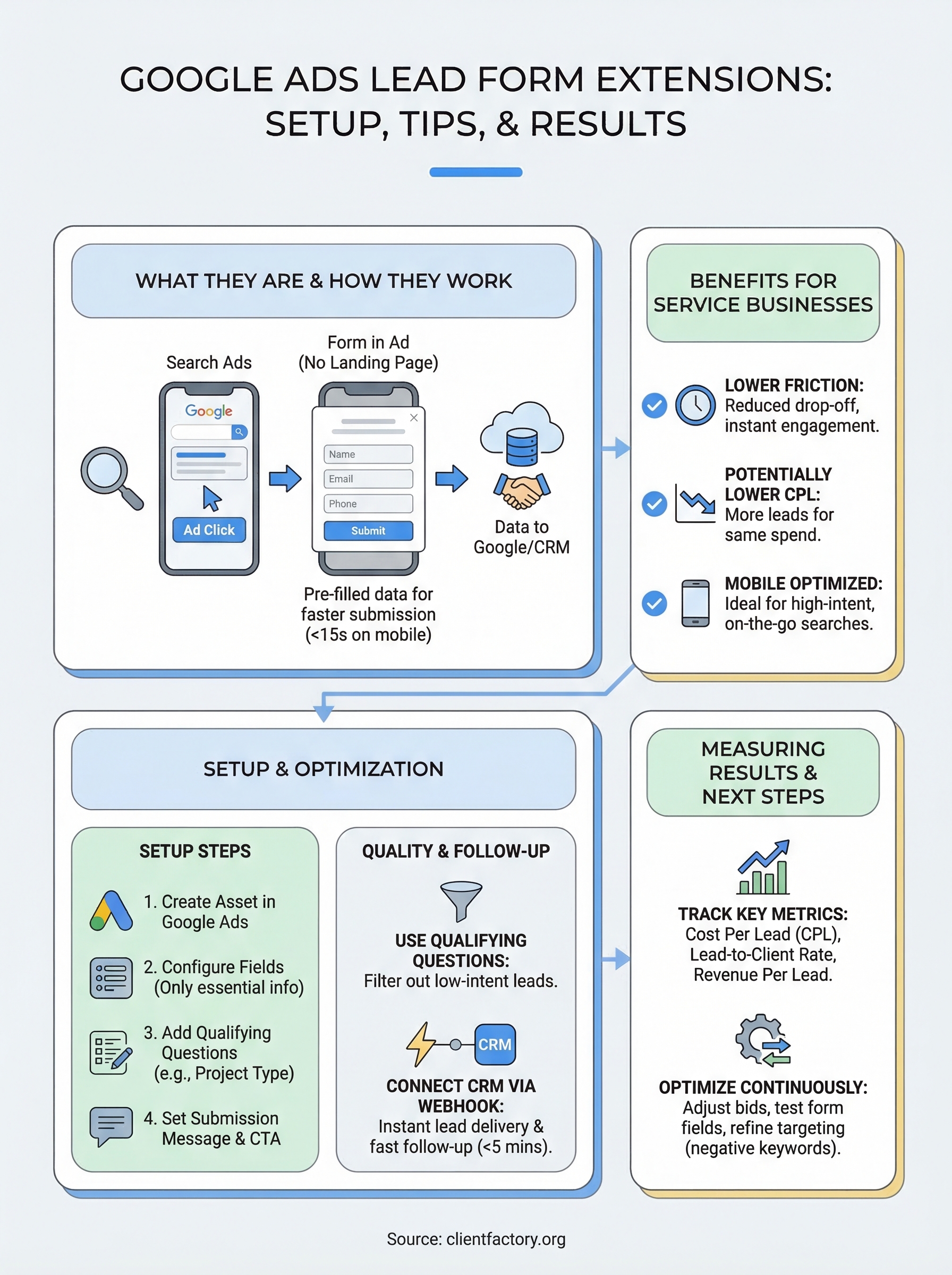
Google Ads lead form extensions function by attaching a form directly to your ad unit instead of routing the user to an external page. When a user sees your ad and taps or clicks the call-to-action button, a form slides up within the Google interface. The user fills in their details and submits, and that lead data goes straight to Google Ads, where you can download it manually or connect it to a CRM via webhook. The whole process happens without the user ever visiting your website.
What the user experience looks like
From the user’s perspective, the interaction is fast and low-effort. They see your ad, tap a button like "Get a free consultation" or "Request a quote," and a form appears instantly. There is no page load, no new tab, and no form they have to hunt for. On mobile, this flow takes under 15 seconds for a motivated prospect, which is a meaningful difference compared to navigating to and loading a standalone landing page.

Google reports that lead form assets can reduce cost per lead significantly compared to standard landing page campaigns, particularly on mobile devices.
You control what fields appear on the form. Standard options include name, email, phone number, zip code, and job title, and Google also offers custom questions that let you add qualifying information specific to your business, such as case type for a law firm or project size for a contractor. Keeping the form short improves completion rates, while adding a custom question helps screen out low-intent submissions.
How Google pre-fills contact information
When a user is signed into their Google account, Google automatically pulls their saved contact details and pre-fills the form fields on their behalf. This removes the single biggest source of drop-off in mobile form submissions: the typing barrier. Users only have to confirm the information and hit submit, which takes a few seconds.
Pre-fill rates vary depending on how many users are signed in on the device and what information Google has stored. On mobile, where most users stay signed into their Google accounts, pre-fill rates tend to be higher, which is one reason lead form assets often outperform traditional landing pages on mobile campaigns.
Where they can run and who can use them
Google Ads lead form assets don’t work across every campaign type or every industry. Knowing where they’re available and whether your account qualifies saves you time during setup and helps you plan your campaigns around the right placements from the start.
Campaign types and placements
Lead form assets are available on Search, YouTube, Discovery, and Display campaigns. Each placement type reaches users at a different stage of intent, which affects how well the lead form performs in practice. Search campaigns tend to deliver the highest intent leads because the user is actively typing a query, while YouTube and Discovery campaigns work better for capturing demand from users who aren’t yet searching for your service.
On Search campaigns, lead form assets consistently outperform other placements for service businesses because the user’s search query already signals purchase intent.
On mobile devices, lead form assets perform best across all campaign types, largely because Google pre-fills information for signed-in users. On desktop, pre-fill rates drop and the form experience is less seamless, so you’ll generally see lower conversion rates compared to mobile placements. If your audience skews heavily toward desktop, factor that into your expectations before building a strategy around lead forms alone.
Eligibility requirements
Not every advertiser can use Google Ads lead form extensions immediately. Your Google Ads account needs to be in good standing, which means no active policy violations, a history of campaign activity, and full compliance with Google’s advertising policies. Google also looks at your account’s track record before enabling the feature, especially in regulated industries.
Certain industry categories face restrictions or outright exclusions from using lead form assets. These include some healthcare providers, financial services companies in specific markets, and any business Google classifies as sensitive. If your campaign falls into one of these categories, you may find the lead form option grayed out or missing entirely during setup.
To check whether your account qualifies, navigate to your campaign settings and look under the assets section. If lead forms don’t appear as an available option, your account may need a manual review, or your industry may require additional verification before Google unlocks the feature for your campaigns.
How to set up lead form assets step by step
Setting up Google Ads lead form extensions takes about 15 minutes once your account is eligible. The process lives inside your campaign’s assets section, and you’ll complete the entire configuration within the Google Ads interface without needing any third-party tools or developer help. Before you start, confirm your campaign is already live or in draft form, since lead form assets attach to an existing campaign rather than being built independently.
Create the lead form asset in Google Ads
Log into your Google Ads account and open the campaign where you want to add the lead form. Navigate to Assets in the left-hand menu, then click the plus button and select Lead form from the dropdown. Google will open a form builder where you enter your headline, business name, and a short description. Keep your headline under 30 characters and make it action-oriented, such as "Get a free consultation" or "Request a quote today," since this is the first thing users read before deciding whether to submit.
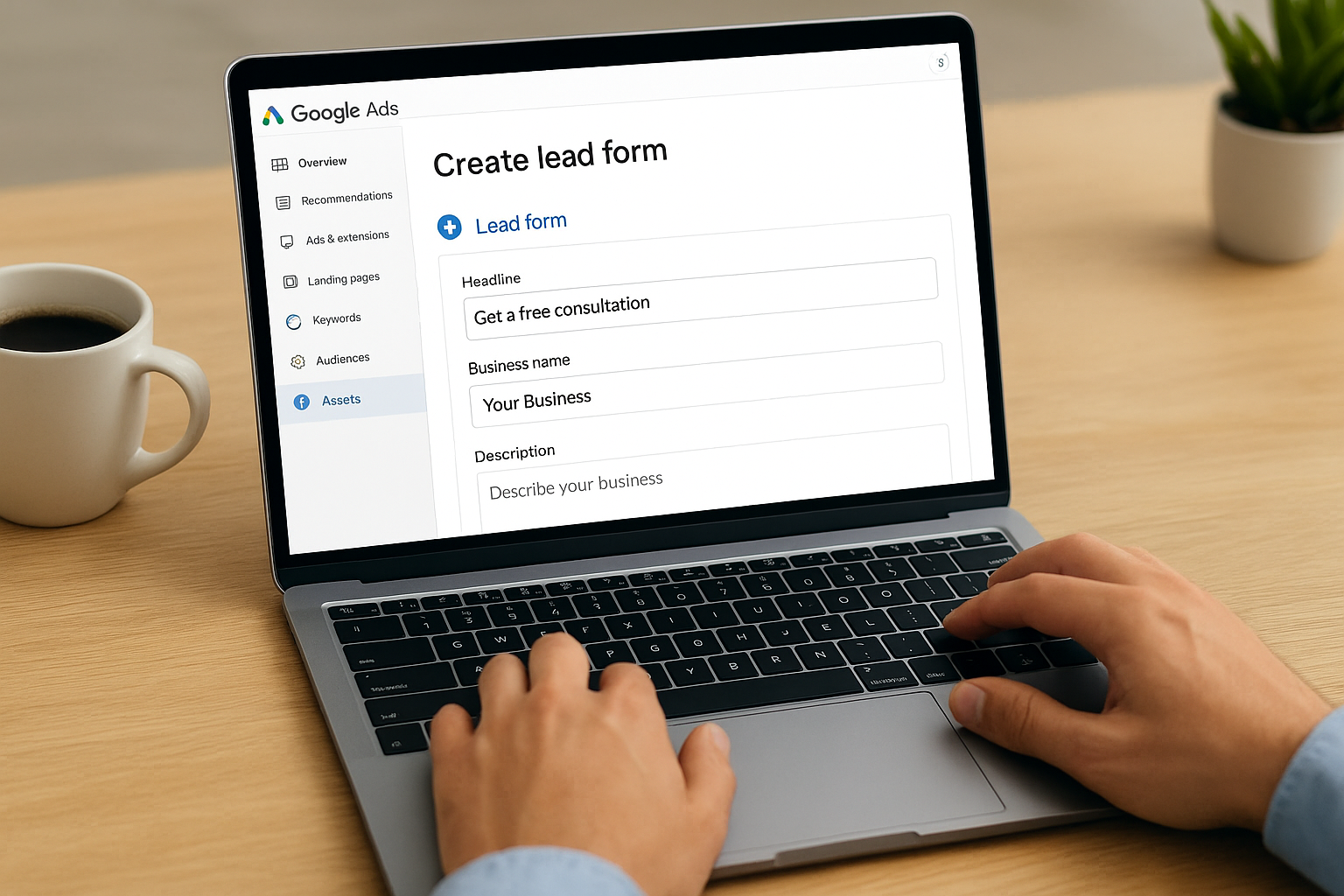
Your headline is the single biggest driver of form open rates, so test at least two variations before committing to one.
Configure your form fields and questions
The default fields include name, email, phone number, and zip code, and you can toggle each one on or off depending on what your team actually needs to qualify a lead. Avoid adding every available field just because it’s there. Each additional field reduces your completion rate, so only ask for information you will use within the first 24 hours of receiving the lead.
Google also lets you add up to five custom questions. For a law firm, you might ask "What type of legal issue do you need help with?" For a contractor, "What is your estimated project budget?" works well. These questions help your team prioritize follow-up before they even pick up the phone.
Set your post-submission message
After a user submits the form, Google displays a thank-you screen that you write yourself. Use this space to set a clear expectation, such as "We’ll call you within one business day." You can also add a call-to-action button on the thank-you screen that links directly to your website, giving motivated prospects a way to learn more while they wait to hear from you.
Save your lead form and attach it to your campaign by confirming the selection in the asset settings. Google typically reviews new assets within a few hours, and the form will start appearing alongside your ads once it clears review. Check the Assets tab in your campaign dashboard to confirm the form shows an active status before assuming it’s live.
How to improve lead quality and reduce spam
One of the most common complaints about Google Ads lead form extensions is that they generate high volume but low quality. Because the barrier to submit is so low, unmotivated users and bots can submit forms with a single tap, which floods your team with leads that go nowhere. Several configuration choices and campaign-level settings directly control how many of these low-quality submissions you receive, and applying them early saves your team significant time.
Use qualifying questions to filter intent
Custom questions are the most effective tool you have for screening leads before they reach your inbox. When you add a question that requires a specific answer, such as a minimum budget or a description of the issue at hand, users who are not serious will drop off rather than complete the extra step. This drop-off is intentional and beneficial. You will lose some volume, but the leads you receive are far more likely to convert into paying clients.
Adding a single qualifying question typically reduces form completion rate by 10 to 20 percent while significantly improving the quality of leads that do come through.
A well-designed qualifying question for a law firm might ask "Have you already consulted with another attorney?" while a home services company might ask "When are you looking to start your project?" Both questions require real engagement from the user and naturally filter out accidental taps and low-effort submissions that waste your team’s follow-up time.
Tighten your targeting to reduce irrelevant traffic
Broad audience targeting feeds spam into your lead forms faster than almost any other factor. When your campaign reaches users who have no real need for your service, some of them will still tap the form out of curiosity. Narrowing your geographic targeting to the exact areas you serve, adding negative keywords to block irrelevant search terms, and raising your bid adjustments for high-intent audiences all reduce the volume of low-quality submissions before a single form loads.
Regularly reviewing your search terms report gives you a clear view of which queries trigger your ads and send you unqualified traffic. Blocking those terms with negative keywords is free, fast, and one of the highest-return maintenance tasks you can perform on any lead generation campaign.
How to route leads to your CRM and follow up fast
Getting a lead submission is only half the job. If your team doesn’t follow up within minutes, your conversion rate on those leads will be far lower than the numbers suggest. Google Ads lead form extensions store submissions in your Google Ads account, but leaving them there and downloading a CSV manually every few days is a process that loses deals. You need leads flowing directly into your CRM the moment someone hits submit, so your team can act while the prospect is still thinking about your service.
Connect your CRM using Google’s webhook
Google Ads supports direct webhook integration, which means you can push lead data to your CRM automatically every time a form is submitted. To set this up, navigate to your lead form asset settings and look for the lead delivery option. You’ll enter your CRM’s webhook URL, along with a key that authenticates the connection. Most major CRMs, including Salesforce and HubSpot, provide a webhook URL inside their integrations or API settings. If your CRM does not support webhooks natively, you can use a middleware tool like Zapier or Make to bridge the connection without any custom code.

Google provides detailed documentation on lead form asset delivery that walks through webhook setup, field mapping, and testing your integration before going live.
Test the connection by submitting a lead form yourself using a test campaign. Confirm the data lands in your CRM within 30 seconds and that all fields map correctly, including the custom questions you added. A broken field mapping means your team receives incomplete lead records, which slows follow-up and frustrates the people making the calls.
Set a follow-up process before leads go live
Speed is the single biggest factor in whether a lead converts after a form submission. Studies consistently show that response times under five minutes produce dramatically higher contact rates than waiting even an hour. Before your campaign goes live, assign a specific team member to handle incoming leads, write a short script for the first call, and set an internal SLA of five minutes or less for any lead that comes in during business hours. A fast, consistent follow-up process turns a good lead form campaign into a reliable client acquisition system.
How to measure results and optimize campaigns
Running Google Ads lead form extensions without a measurement plan is like driving without a dashboard. You’ll generate submissions, but you won’t know which campaigns, ad groups, or keywords are producing clients versus burning budget. Google Ads tracks lead form submissions as a conversion action automatically, so your first step is confirming that the conversion is recording correctly in your account before you draw any conclusions from the data.
Track the metrics that actually matter
Your campaign dashboard shows you impressions, clicks, and form submissions, but those three numbers don’t tell the full story on their own. The metrics that directly connect to revenue are cost per lead, lead-to-client conversion rate, and revenue per lead. Pull your submission data from the Google Ads interface or your CRM and calculate how many of those leads actually booked a call, then how many became paying clients. That chain of numbers tells you whether your cost per lead is sustainable.
A campaign with a low cost per lead but a 2% close rate is often more expensive per client than a campaign with a higher cost per lead and a 20% close rate.
Beyond conversion rate, track which individual keywords generate your best leads by tagging submissions with keyword and campaign data through your CRM integration. This attribution shows you where to concentrate your budget and which terms to cut.
Adjust bids and targeting based on data
Once you have four to six weeks of data, you can start making confident optimizations. Raise bids on the keyword themes and audience segments that produce qualified leads, and reduce spend on anything generating high volume with low close rates. Many advertisers over-invest in broad match keywords that drive form submissions from users who never intended to hire anyone.
Testing your form fields and qualifying questions is also part of optimization. If your close rate is low, tighten your qualifying question to filter harder. If your volume drops too far, loosen one field or simplify the question. Treat your lead form like a landing page and run structured tests every 30 days rather than leaving the original configuration untouched for months.
Next steps
Google ads lead form extensions give you a faster path from ad click to qualified lead, but they only deliver results when you pair them with tight targeting, qualifying questions, and a follow-up system that moves quickly. The setup is straightforward, the optimization is ongoing, and the payoff for service businesses that get the fundamentals right can be significant. Lower friction, faster submissions, and a direct CRM connection put your pipeline in a position to grow without requiring more ad spend.
Start by reviewing your current campaigns and identifying where landing page drop-off is costing you leads. If your mobile conversion rates are low and your cost per lead is climbing, lead form assets are a concrete fix worth testing this week. The strategies in this article work best when they’re applied together, not in isolation. If you want an expert set of eyes on your current setup, book a free funnel audit and we’ll show you exactly where to start.