

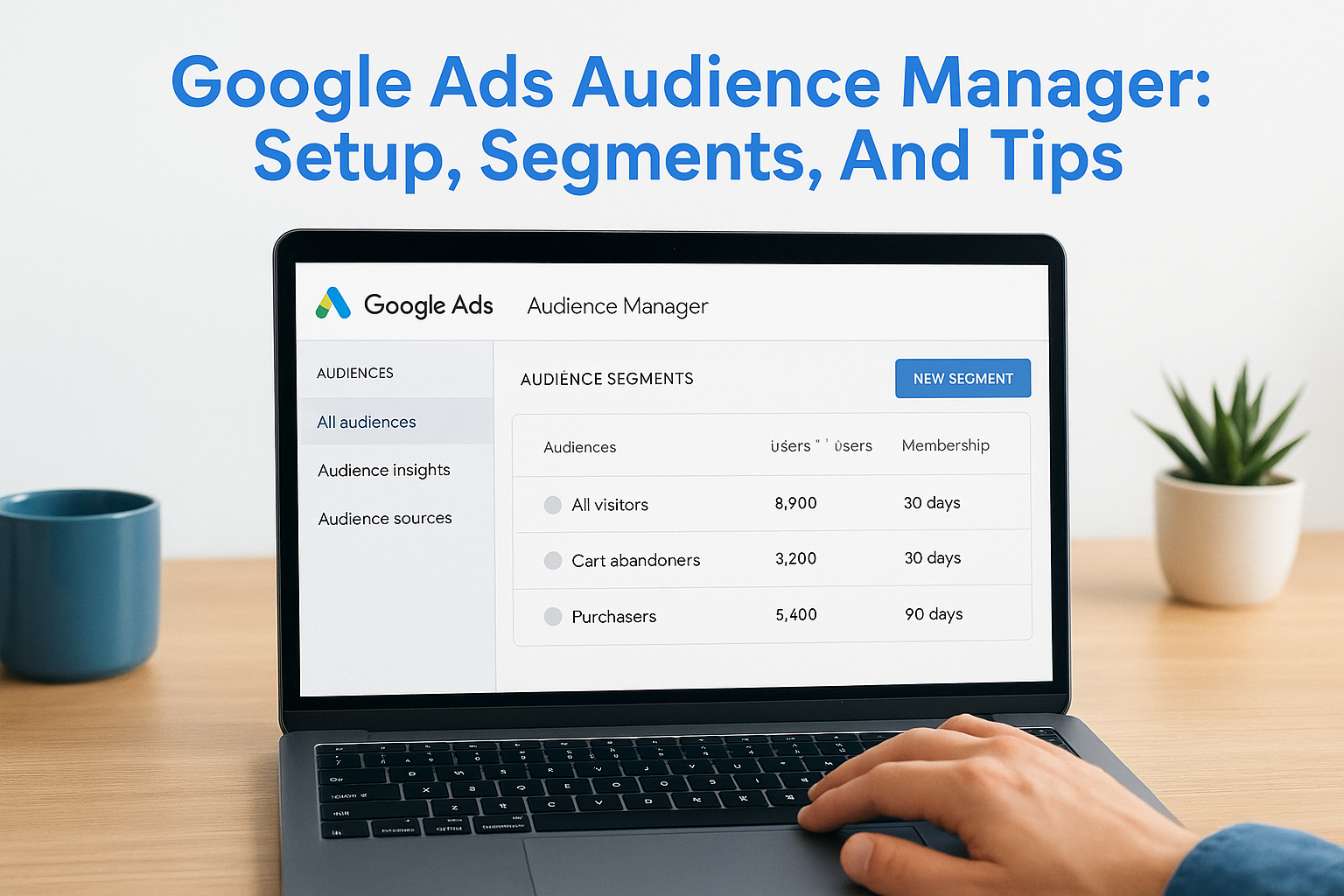
Running Google Ads without knowing who you’re targeting is like throwing darts blindfolded, you might hit something, but you’ll waste a lot of money finding out. That’s where the Google Ads Audience Manager comes in. It’s the central hub where you build, organize, and refine the audience segments that determine who actually sees your ads. Whether you’re uploading customer lists, creating remarketing audiences, or combining signals for lookalike targeting, this is the tool that makes it all work.
At Client Factory, we manage paid advertising campaigns for service businesses and law firms, and Audience Manager is one of the first places we go when setting up or auditing a Google Ads account. The difference between a campaign that drains budget and one that consistently generates qualified leads often comes down to how well your audiences are configured. We’ve seen firsthand how proper audience setup can cut cost-per-acquisition in half while improving lead quality at the same time.
This guide walks you through everything you need to know about Audience Manager, from initial setup and segment creation to troubleshooting common issues and getting more out of your data. By the end, you’ll have a clear, practical understanding of how to use this tool to put your ads in front of the right people instead of hoping for the best.
Why Google Ads Audience Manager matters
Most advertisers spend the majority of their time on keywords, bids, and ad copy, but they skip past the audience layer entirely. That’s a costly mistake. The Google Ads Audience Manager exists because Google recognized that who you target matters just as much as what you target. Without it, your campaigns run on demographic guesswork. With it, you can build precise audience segments based on real behavior, customer data, and site activity, and then use those segments to reach people who are far more likely to convert.
The shift from keyword-only targeting
Google Ads has moved well beyond keyword matching. Today, audience signals layer on top of your keyword strategy to help Google’s systems serve your ads to the people most likely to take action. A searcher typing "personal injury attorney near me" is already expressing intent, but if you also know that person previously visited your consultation page, you can bid more aggressively or show a different ad. Audience Manager gives you the tools to build those layered targeting strategies without relying on third-party platforms or manual guesswork.
This matters especially for service businesses and law firms, where a single qualified lead can be worth hundreds or thousands of dollars. The more precisely you define your audiences, the less you spend reaching people who will never become clients. When you use Audience Manager to build remarketing lists, upload customer match data, and create in-market audience layers, you’re essentially telling Google’s algorithm exactly what kind of person you want to reach, rather than leaving it to figure that out on its own.
Audience targeting doesn’t replace keyword strategy; it sharpens it by adding behavioral and intent signals that keywords alone can’t provide.
How audience data directly affects your ROI
Every campaign you run collects data, but that data only becomes useful when you organize and apply it correctly. Audience Manager is where raw data turns into targeting power. When you connect your website via the Google tag, link your Google Analytics 4 property, or upload a customer list, you’re feeding Audience Manager the information it needs to build segments that reflect real user behavior. Without those connections, you’re running campaigns blind to what past visitors and customers actually did.
The impact on return on investment is direct and measurable. Remarketing audiences consistently outperform cold audiences because those people already know your business. Customer match audiences let you re-engage your existing client list through search, display, and YouTube campaigns, often at a lower cost per conversion than prospecting. In-market and affinity audiences help you reach new prospects who share behavioral patterns with your best clients. When all of these segments are set up and maintained properly inside Audience Manager, your entire account runs more efficiently because the right messages reach the right people at the right stage of their decision.
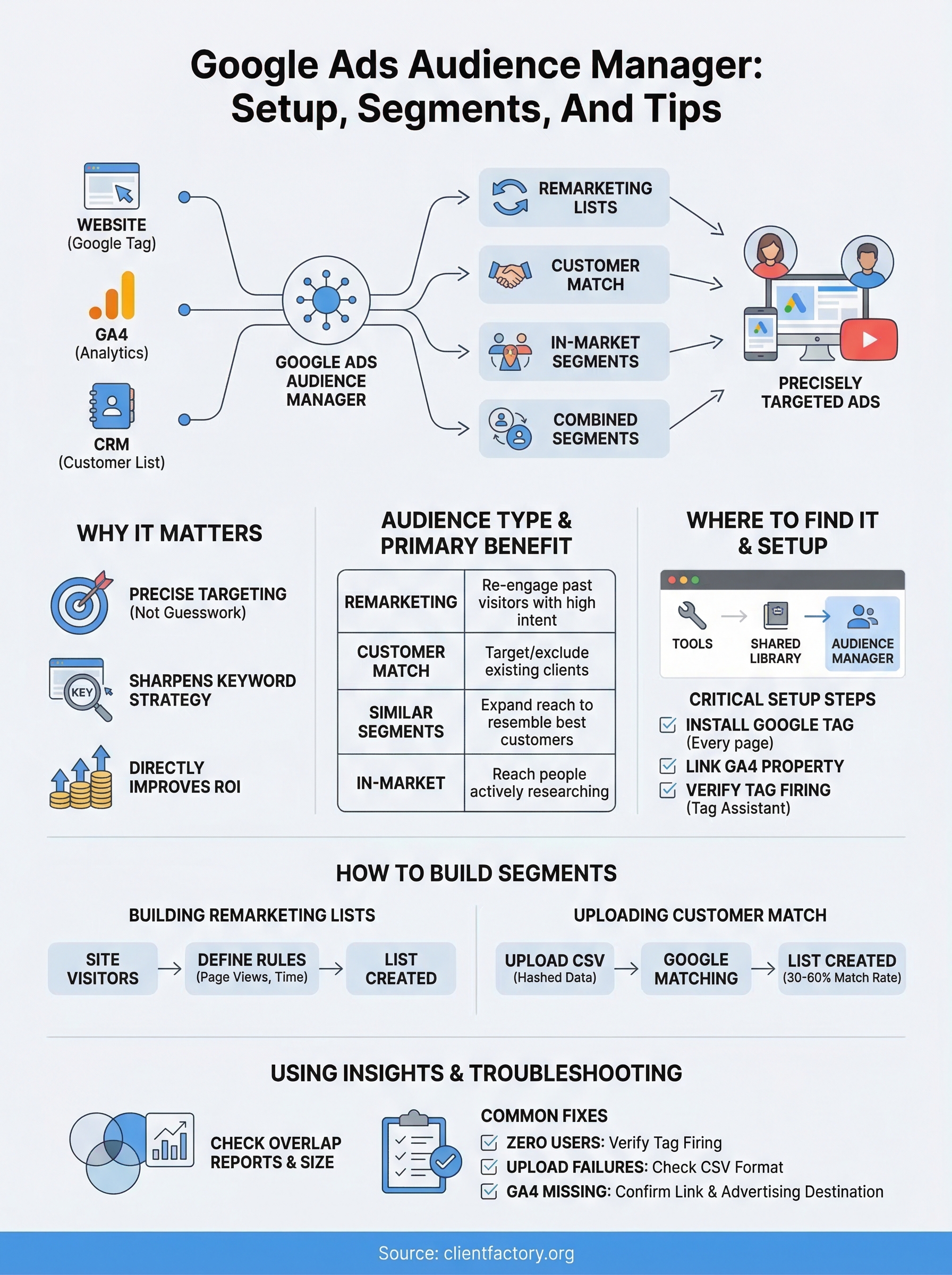
Here’s a quick look at the types of value each audience category brings:
| Audience Type | Primary Benefit |
|---|---|
| Remarketing | Re-engage past visitors with high purchase or conversion intent |
| Customer Match | Target or exclude existing clients using your own data |
| Similar Segments | Expand reach to new users who resemble your best customers |
| In-Market | Reach people actively researching your type of service |
| Combined Segments | Stack multiple signals for tighter, more qualified targeting |
Getting these segments right inside Audience Manager is the foundation of any high-performing Google Ads account. The setup work you do here compounds over time as your lists grow, your data improves, and your targeting becomes more precise.
Where to find it and what each section does
Before you can use the Google Ads Audience Manager, you need to know where it lives inside your account. Google has moved things around over the years, so newer account holders sometimes spend time looking in the wrong place. The good news is that the current location is straightforward once you know where to go.
How to navigate to Audience Manager
Log into your Google Ads account and look at the left-hand navigation panel. Click on "Tools", which is typically represented by a wrench icon depending on your interface version. From there, select "Shared Library", and you’ll see Audience Manager listed as one of the options. Click it, and you’re in. If you manage multiple accounts through a manager (MCC) account, you can access Audience Manager at the account level or across linked accounts, which is useful when you want to share audience segments between campaigns or clients.
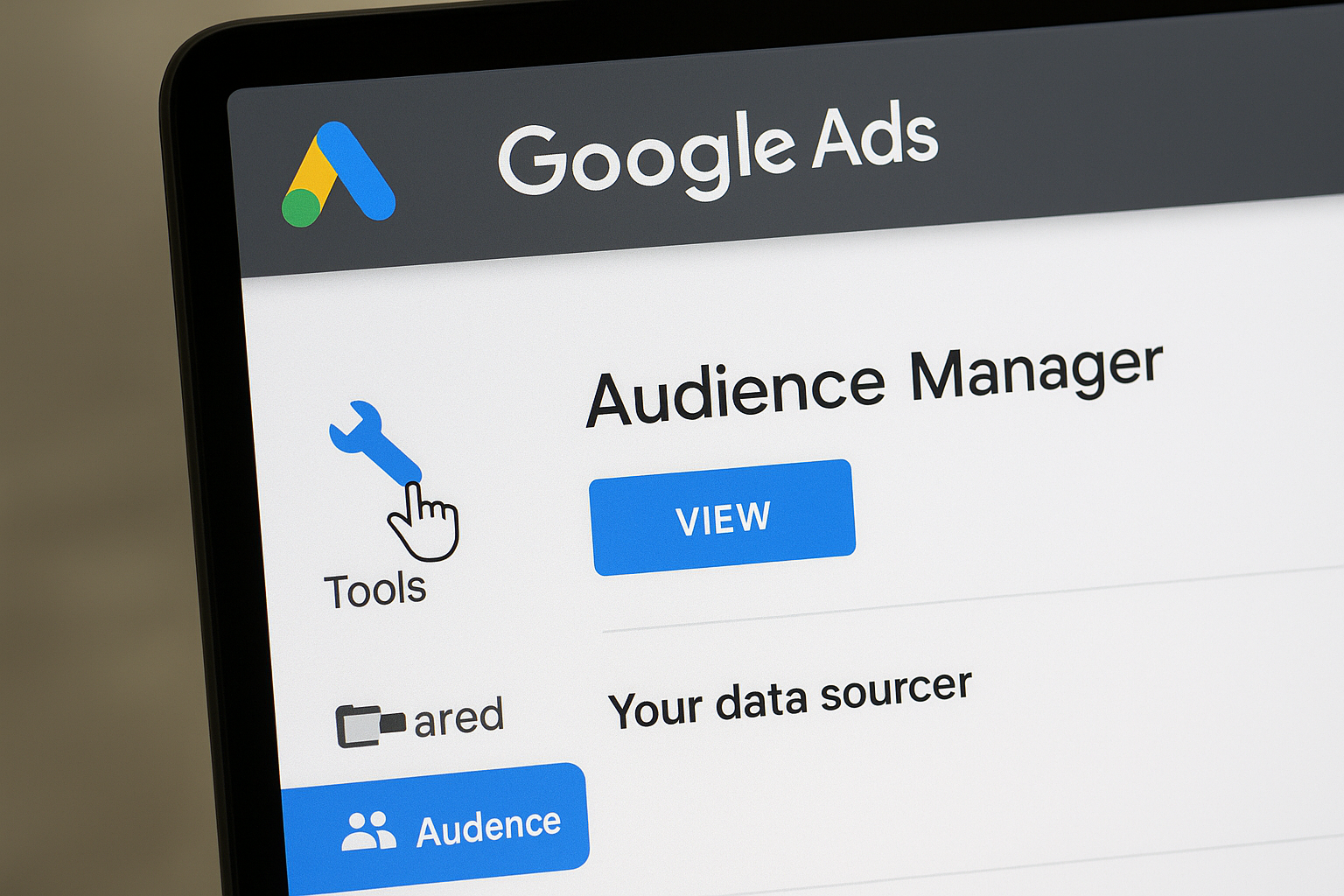
Always access Audience Manager at the account level first to make sure your data sources and segments are connected to the right campaigns.
The three main tabs and what they do
Once you’re inside, you’ll notice the interface is organized into distinct tabs. Each one serves a different purpose, and understanding what lives where saves you a lot of time when you’re building or auditing your setup.
Here’s a breakdown of each tab:
| Tab | What it contains |
|---|---|
| Your data segments | Remarketing lists, customer match uploads, and combined segments built from your own data |
| Your data sources | Connected properties like your Google tag, GA4, and any CRM or app integrations |
| Insights | Audience overlap data, segment size estimates, and performance signals |
The "Your data segments" tab is where you’ll spend most of your time building and editing audience lists. The "Your data sources" tab is critical because nothing in Audience Manager works well without properly connected data sources, so that’s always the first thing to check when diagnosing a setup issue. The Insights tab often gets ignored, but it gives you useful overlap reports that show how your audiences relate to each other and where you might be over-targeting or missing coverage in your campaigns.
How to set up audience sources the right way
Audience sources are the connections that feed data into your segments. Without them properly configured, the Google Ads Audience Manager has nothing to work with, and your lists either stay empty or populate with incomplete data. Setting these up correctly from the start saves you from a common and costly problem: you build a campaign, apply remarketing audiences, and then realize weeks later that your lists show zero users because the source was never properly connected. Getting this right early is not optional, and it takes less time than most advertisers expect.
Connecting the Google tag to your website
The Google tag is the foundation of most audience sources. Installing it on every page of your website lets Google Ads track visitor behavior across your entire site, which is what powers your remarketing lists. You can find the tag code inside the "Your data sources" tab in Audience Manager under "Google Ads Tag." Once you add the tag to your site’s header, verify it’s firing correctly using Google Tag Assistant before building any lists on top of it.
If your site runs on a platform like WordPress or Shopify, you can often add the tag through a plugin or native integration rather than editing code directly. The critical requirement is making sure the tag fires on every page load, not just your homepage or a specific landing page.
Linking Google Analytics 4
Connecting your GA4 property to Google Ads unlocks a second layer of audience data that goes much deeper than what the Google tag captures alone. Once linked, you can import GA4 audiences directly into Audience Manager and use them for targeting or exclusions. To set this up, go to your GA4 property settings, select "Product Links," and choose Google Ads from the list.
Linking GA4 is one of the highest-leverage steps in the entire setup process, because it gives you behavioral segments built on session depth, engagement time, and conversion events rather than simple page visits.
After linking, allow 24 to 48 hours for GA4 audiences to appear in your Google Ads account before you apply them to campaigns. Skipping verification at this stage frequently leads to wasted spend on segments that look active but contain no real users.
How to build and manage segments and audiences
Once your data sources are connected, you’re ready to start building the segments that power your campaigns. The Google Ads Audience Manager gives you several segment types to work with, and choosing the right one for each campaign goal is what separates a well-structured account from one that wastes budget on the wrong people. Start by thinking about where each segment fits in your customer journey, from first-time visitors all the way to people who are ready to call.
Building remarketing lists from site visitors
Remarketing lists are the most common segment type, and they’re built directly from the behavioral data your Google tag collects. To create one, go to the "Your data segments" tab, click the blue plus button, and select "Website visitors." From there, you define the rules: which pages a visitor must have viewed, how recently they visited, and how long they stay on the list. Setting the membership duration correctly matters because a 540-day window for a law firm consultation page is excessive, while a 7-day window may be too short to re-engage someone still researching their options.
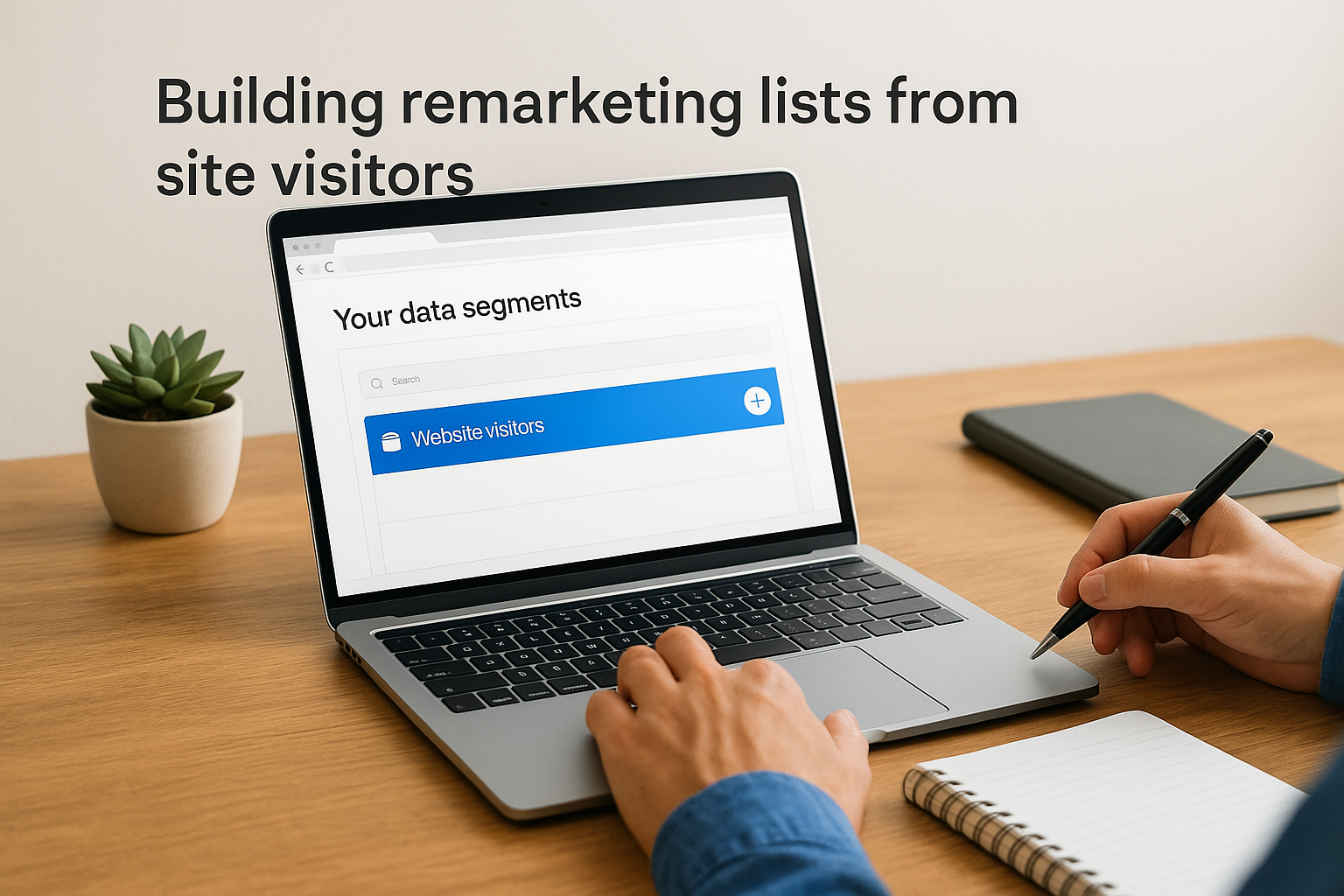
A reasonable starting point for most service businesses is a 30-day window for general site visitors and a 90-day window for people who visited a specific service page or started a contact form but never submitted it.
The more specific your list rules are, the more targeted your remarketing campaigns become, which directly lowers your cost per conversion.
Uploading customer match data
Customer Match lets you upload a list of existing contacts, such as past clients or email subscribers, and target them across Google Search, YouTube, and Gmail. Inside Audience Manager, go to "Your data segments," click the plus button, and choose "Customer list." You’ll upload a CSV file containing hashed user data, and Google then matches it against signed-in Google users. Match rates typically range from 30 to 60 percent, so the larger and more current your list, the more users you’ll reach.
Before uploading, clean your data to remove outdated or invalid entries. The fields Google accepts for matching include:
- Email address
- Phone number
- First and last name combined with zip code
- Mobile device ID
Focusing on email addresses gives you the highest match rates because they’re the most consistently linked to Google accounts.
How to use insights and troubleshoot common issues
The Insights tab inside the Google Ads Audience Manager is one of the most underused features in the platform. It gives you overlap reports and segment size estimates that tell you how your audiences relate to each other, which is critical information when you’re deciding whether to combine, exclude, or separate segments across different campaigns. Checking this tab regularly helps you catch targeting gaps and over-saturation before they inflate your cost per lead.
Reading the Insights tab
The overlap data shows you what percentage of users appear in more than one segment simultaneously. If your general site visitor list and your "viewed service page" list have 90 percent overlap, those aren’t two distinct audiences. You’d either combine them into one list or adjust your targeting strategy so you’re not running competing bids against the same users in different ad groups. The segment size estimates also tell you whether a list is large enough to be useful, because Google requires a minimum of 1,000 active users before a segment qualifies for targeting on most campaign types.
If a segment consistently shows fewer than 1,000 users, expand your membership duration or broaden your page-visit rules before applying it to any campaign.
Fixing common setup problems
Three issues come up repeatedly when auditing accounts: lists that show zero users, audiences that fail to match after a Customer Match upload, and GA4 segments that never appear in Google Ads after linking. For zero-user lists, the cause is almost always a Google tag that isn’t firing on the correct pages, so start by opening Google Tag Assistant and confirming the tag fires on every URL your list rules reference. For Customer Match upload failures, check that your CSV follows Google’s accepted format exactly, since extra columns or incorrect hashing will cause the upload to reject silently.
For GA4 segments that don’t appear after linking, verify the link is active from both the GA4 side and the Google Ads side, because a one-sided link won’t pass data. Also confirm that the GA4 audiences you want to import have "Advertising" as a permitted destination inside GA4’s data settings. Once both sides of the connection are confirmed active, allow 48 hours before expecting segments to populate.
Key takeaways and next steps
The Google Ads Audience Manager is not a set-it-and-forget-it tool. It requires intentional setup, regular maintenance, and ongoing attention to how your segments perform and evolve. The most important steps are connecting your data sources correctly, building segments that reflect real stages of your customer journey, and using the Insights tab to catch targeting overlap or list size problems before they cost you money.
Start with the basics: verify your Google tag fires on every relevant page, link GA4 to Google Ads, and build at least one remarketing list before your next campaign goes live. From there, layer in Customer Match uploads and combined segments as your data grows. Small improvements to your audience setup compound quickly into lower cost per lead and better overall campaign performance. If you want expert help applying these strategies to your account, schedule a free conversion audit and find out exactly where your setup can improve.