


Sending a broken email to your entire client list is the kind of mistake that keeps marketers up at night. Mailtrap email testing solves this problem by giving you a safe environment to catch errors before they reach real inboxes. Whether you’re debugging transactional emails, testing newsletter layouts, or validating email sequences, having a proper testing workflow can save you from embarrassing, and costly, slip-ups.
At Client Factory, we build client acquisition systems that depend heavily on email deliverability and presentation. A single formatting issue or broken link in a lead nurturing sequence can tank conversion rates and damage trust with potential clients. For service businesses and law firms especially, professional email communication isn’t optional, it’s expected.
This guide walks you through Mailtrap’s Email Sandbox and API, showing you exactly how to set up, configure, and use these tools in your development workflow. You’ll learn how to capture test emails, preview them across devices, debug delivery issues, and integrate Mailtrap with your existing tech stack. By the end, you’ll have a reliable testing process that keeps your email campaigns polished and error-free.
What Mailtrap email testing covers
Mailtrap email testing gives you two main tools: Email Sandbox for manual testing and inspection, and the Mailtrap API for automated testing workflows. The sandbox acts as a fake SMTP server that captures all outgoing emails from your development environment, letting you preview, analyze, and debug them without risking accidental sends to real users. The API extends this functionality by allowing you to programmatically retrieve messages, check content, and integrate testing into your continuous integration pipeline.
Core Testing Features
Email Sandbox captures every message your application sends and displays it in a clean, organized inbox interface. You can view the raw HTML, plain text version, and actual rendered email across multiple email clients including Gmail, Outlook, Apple Mail, and mobile apps. This multi-client preview feature alone catches formatting issues that slip through basic testing, like broken CSS in Outlook or misaligned images on mobile devices.
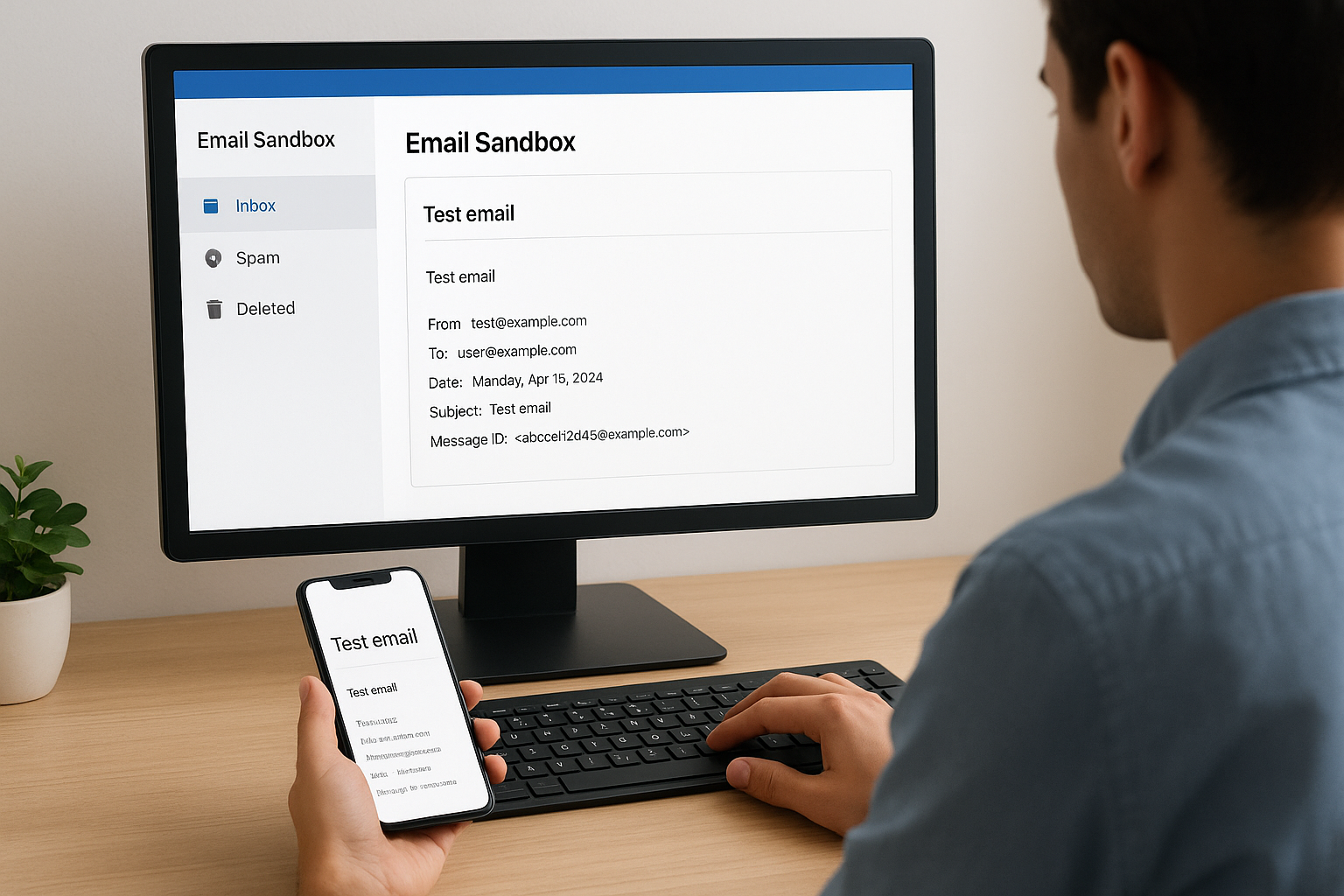
The platform also shows you technical email headers, SMTP logs, and delivery paths. You’ll see exactly how your email server communicates with the recipient server, which helps you diagnose authentication problems, DNS configuration errors, and other infrastructure issues. Mailtrap runs automatic spam score analysis using SpamAssassin rules, flagging potential deliverability problems before you ship code to production.
Debugging and Quality Checks
Beyond basic preview, Mailtrap validates your email HTML structure and highlights common mistakes. The HTML check feature identifies unclosed tags, missing alt text on images, broken links, and other technical problems that hurt email rendering. You can also test JavaScript and CSS support across different email clients, since each one handles these elements differently.
Testing email content in a safe sandbox environment prevents reputation damage and helps you maintain professional communication standards with clients.
Link validation scans every URL in your message to confirm they’re active and properly formatted. This catches broken tracking pixels, incorrect unsubscribe links, and typos in call-to-action buttons. For law firms and service businesses sending appointment confirmations or client updates, a single broken link can undermine trust and cause missed meetings.
Integration and Workflow
The Mailtrap API lets you automate email testing as part of your development workflow. You can write scripts that send test emails, retrieve them via API, and verify specific content elements like subject lines, recipient addresses, or embedded data. This turns email testing into a repeatable, version-controlled process instead of relying on manual checks before each release.
Integration options include webhooks for real-time notifications when emails arrive, API endpoints for message retrieval, and filtering by recipient, subject, or date range. Development teams use these features to build automated test suites that catch regressions in transactional emails, validate template rendering, and confirm personalization variables populate correctly. You can also forward specific test emails to real addresses when you need stakeholder approval without giving them full sandbox access.
Step 1. Create your Email Sandbox inbox
Setting up your Email Sandbox inbox takes less than five minutes and gives you immediate access to Mailtrap’s testing environment. You’ll create a dedicated inbox for each project or application, keeping test emails organized and preventing cross-contamination between different development environments. This first step establishes the foundation for your entire testing workflow and ensures you can capture emails the moment your application sends them.
Sign Up and Access Your Dashboard
Navigate to Mailtrap’s website and create a free account using your email address or GitHub credentials. The free tier gives you one inbox and 500 test emails per month, which covers most small to medium development projects. Once you verify your email and log in, you’ll land on the main dashboard where all your inboxes and email activity appear.
Click the "Add Inbox" button in the Email Sandbox section to create your first testing environment. Mailtrap automatically generates a new inbox with unique SMTP credentials that you’ll use to route test emails. Each inbox operates independently, so you can create separate ones for staging, development, and different team members without emails mixing together.
Configure Your First Inbox
Name your inbox something descriptive and project-specific like "ClientPortal-Dev" or "EmailCampaign-Test" so you can quickly identify it later. Mailtrap displays your SMTP settings immediately, including the host, port, username, and password needed to connect your application. You’ll find these credentials under the "SMTP Settings" tab in your inbox view.
Creating separate inboxes for each project or environment prevents confusion and makes it easier to track which application sent which test emails.
Your inbox configuration includes options to enable forwarding rules, set up webhooks, and configure API access. For basic mailtrap email testing, you only need the SMTP credentials to start capturing messages. The interface also shows you integration examples for popular frameworks like Rails, Laravel, Django, and Node.js, giving you ready-to-use configuration snippets. Copy these credentials and keep them accessible since you’ll need them in the next step when pointing your application to this sandbox.
Step 2. Point your app to Mailtrap SMTP
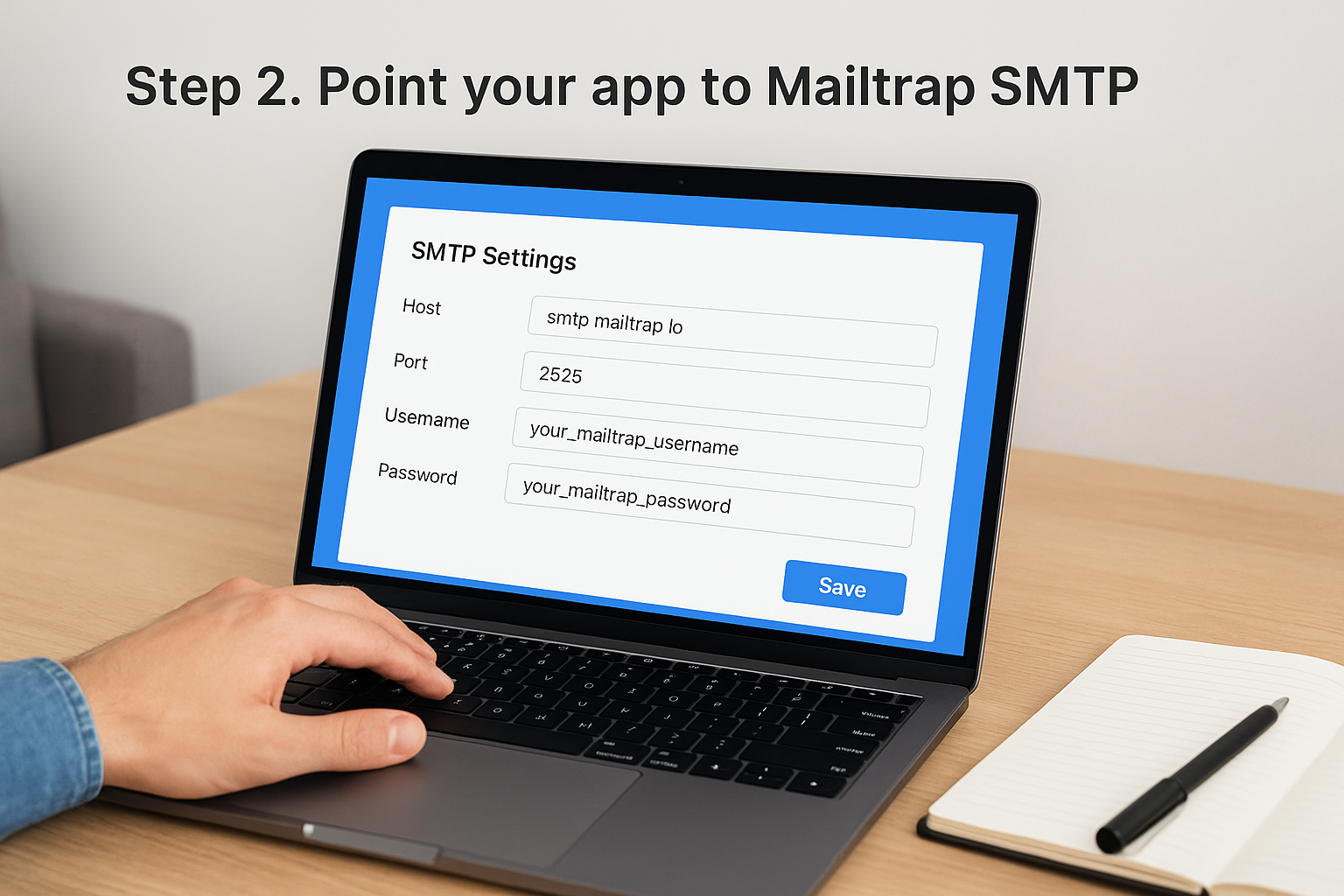
Connecting your application to Mailtrap’s SMTP server redirects all outgoing emails to your sandbox inbox instead of sending them to real recipients. This configuration replaces your production email settings with Mailtrap’s test credentials, creating a safe environment where you can validate email functionality without risking accidental sends. The process varies slightly depending on your framework or language, but the core concept stays the same: swap your SMTP host, port, and authentication details with Mailtrap’s values.
Update Your SMTP Configuration
Locate your application’s email configuration file where SMTP settings currently live. In most frameworks, this appears in environment configuration files, settings modules, or dedicated email configuration sections. Replace the existing SMTP host with smtp.mailtrap.io, set the port to either 2525 or 587 (both work identically), and update your username and password with the credentials from your Mailtrap inbox dashboard.
You need to modify four key values: host, port, username, and password. Authentication type should be set to "plain" or "login" depending on your framework’s requirements. Most modern email libraries handle TLS encryption automatically on ports 2525 and 587, but you can explicitly enable STARTTLS if your setup requires it.
Configuring your development environment to use Mailtrap SMTP ensures you never accidentally send test emails to real users during development or debugging.
Framework-Specific Examples
Here’s how you configure common frameworks for mailtrap email testing:
Node.js with Nodemailer:
const transporter = nodemailer.createTransport({
  host: "smtp.mailtrap.io",
  port: 2525,
  auth: {
    user: "your_mailtrap_username",
    pass: "your_mailtrap_password"
  }
});
Laravel (.env file):
MAIL_MAILER=smtp
MAIL_HOST=smtp.mailtrap.io
MAIL_PORT=2525
MAIL_USERNAME=your_mailtrap_username
MAIL_PASSWORD=your_mailtrap_password
MAIL_ENCRYPTION=tls
Django (settings.py):
EMAIL_HOST = 'smtp.mailtrap.io'
EMAIL_PORT = 2525
EMAIL_HOST_USER = 'your_mailtrap_username'
EMAIL_HOST_PASSWORD = 'your_mailtrap_password'
EMAIL_USE_TLS = True
Replace the placeholder credentials with your actual Mailtrap values from the SMTP Settings tab in your inbox. Save your configuration file and restart your application to activate the new settings.
Step 3. Send a test email and verify basics
Sending your first test email confirms your SMTP configuration works correctly and gives you immediate visibility into how Mailtrap captures and displays messages. This step validates that emails flow from your application to your sandbox inbox without errors, and it lets you inspect basic email properties before diving into advanced debugging. You’ll trigger a test send from your application, confirm delivery, and check fundamental elements like subject lines, recipients, and body content.
Trigger Your First Test Email
Execute the email-sending function in your application using your standard workflow, whether that’s clicking a button in your UI, running a command-line script, or triggering an automated process. For most applications, this means performing an action that normally sends an email like submitting a contact form, creating a new user account, or processing a transaction. Your application uses the Mailtrap SMTP credentials you configured in Step 2 to route the message to your sandbox instead of a real inbox.
Watch your Mailtrap dashboard for the incoming message notification, which typically appears within seconds of sending. If the email doesn’t arrive after 30 seconds, check your application’s error logs for SMTP connection failures or authentication problems. Common issues include incorrect credentials, firewall blocking port 2525 or 587, or your application still pointing to production SMTP settings instead of Mailtrap’s test server.
Verify Core Email Elements
Open the captured message in your Mailtrap inbox to inspect basic email properties that confirm functionality. Check that the "From" and "To" addresses match what your application intended to send, and verify the subject line displays correctly without encoding errors or truncation. Review the message body in both HTML and plain text views to ensure content appears as expected.
Verifying basic email elements in your first test catches configuration problems early and establishes a baseline for more advanced mailtrap email testing in later steps.
Expand the "Headers" tab to view technical metadata including message ID, timestamps, and routing information. Confirm that custom headers your application adds appear correctly, and check that attachment handling works if your email includes files. This initial verification ensures your foundation setup functions properly before you move into spam analysis, rendering tests, and automation workflows.
Step 4. Fix spam, HTML, and client rendering issues
Mailtrap’s built-in diagnostic tools identify deliverability problems and rendering errors that would otherwise reach your recipients and damage your sender reputation. After verifying your test email arrives correctly, you need to analyze its spam score, validate HTML structure, and confirm it displays properly across different email clients. This step transforms raw test results into actionable fixes that improve email quality before production deployment.
Analyze Spam Score Results
Click the "Spam Analysis" tab in your captured message to see your SpamAssassin score and specific rules that triggered. Scores above 5.0 indicate high spam risk, while anything below 2.0 typically passes inbox filters without issues. Mailtrap shows you exactly which elements caused point deductions, whether that’s suspicious keywords, missing authentication, or formatting problems.
Common spam triggers include excessive capitalization in subject lines, too many exclamation points, misleading "Re:" or "Fwd:" prefixes, and suspicious URL shorteners. You’ll also see penalties for missing unsubscribe links, invalid sender addresses, or content-to-image ratios that suggest template abuse. Fix high-impact issues first by removing spam trigger words, adding proper authentication headers, and balancing text with images.
Addressing spam score issues during mailtrap email testing prevents your production emails from landing in junk folders and protects your domain reputation.
Validate HTML Structure
Switch to the "HTML Check" tab to scan for broken tags, unclosed elements, and deprecated attributes that cause rendering failures. Mailtrap highlights missing alt text on images, inaccessible color contrasts, and table structure problems that break layouts in Outlook. You’ll see warnings about inline CSS specificity issues and JavaScript that email clients strip out.
Fix HTML errors by closing all tags properly, using table-based layouts for complex designs, and keeping CSS inline rather than in style blocks. Replace deprecated attributes like "align" and "bgcolor" with CSS equivalents, and ensure every image has descriptive alt text for accessibility.
Test Client Rendering
Open the "Preview" section to see how your email renders across Gmail, Outlook, Apple Mail, and mobile clients. Each preview shows actual pixel-perfect rendering, revealing alignment issues, broken responsive layouts, and font rendering differences between platforms. Click through each client to spot problems like images not loading in Outlook or mobile layouts breaking on small screens.
Compare desktop and mobile versions to verify responsive design works correctly, checking that touch targets are large enough and content reflows properly. Test both light and dark mode previews to confirm your color choices remain readable in different theme settings.
Step 5. Automate Mailtrap tests with the API
Moving beyond manual inspection, the Mailtrap API lets you programmatically retrieve messages, verify content, and integrate email testing into your continuous integration pipeline. This automation transforms mailtrap email testing from a manual checklist into a repeatable process that catches email bugs before they reach production. You can write scripts that validate subject lines, check recipient addresses, verify links, and confirm personalization variables populate correctly across your entire email suite.
Set Up API Authentication
Generate your API token by navigating to your account settings and clicking the "API Tokens" section. Mailtrap creates a unique token that authenticates all your API requests, giving you access to retrieve messages, manage inboxes, and filter email data. Copy this token and store it securely in your environment variables rather than hardcoding it into your scripts.
Your API requests require this token in the Authorization header using the format "Bearer YOUR_TOKEN". Each inbox has its own numeric ID, which you’ll find in the inbox settings or by listing all inboxes through the API. You need both the token and inbox ID to retrieve specific messages from your test environment.
Retrieve and Validate Messages
Use the GET endpoint to fetch messages from your inbox with filtering options like date range, recipient email, or subject line. The API returns JSON data containing message content, headers, attachments, and metadata. You can extract specific fields to verify against expected values in your test scripts.
Automating email validation through the API catches content errors and template bugs that slip through manual review, especially in complex applications with dynamic email generation.
Here’s a Python example that retrieves messages and validates content:
import requests

api_token = "your_api_token"
inbox_id = "your_inbox_id"

headers = {"Api-Token": api_token}
response = requests.get(
    f"https://mailtrap.io/api/v1/inboxes/{inbox_id}/messages",
    headers=headers
)

messages = response.json()
latest_email = messages[0]

assert "Welcome" in latest_email['subject']
assert latest_email['to_email'] == "test@example.com"
Build Automated Test Scripts
Integrate API calls into your test suite by creating functions that send test emails, wait for delivery, retrieve them via API, and assert expected values. Your script can check that transactional emails fire after specific user actions, verify personalization tokens render correctly, and confirm tracking pixels and unsubscribe links appear in every message.
Combine API validation with your existing test framework by adding email checks to your integration tests. You’ll catch regressions when template changes break email generation or when configuration updates accidentally modify sender addresses.
Step 6. Move from sandbox to staging and production
Your sandbox testing workflow confirms emails work correctly in development, but you need a controlled path to production that maintains quality standards without risking customer communication. This transition involves setting up a staging environment that mirrors production conditions while still using Mailtrap for final validation, then carefully switching to your production SMTP provider when you’re ready to send real emails. The goal is eliminating any chance of test emails reaching actual users while ensuring your production configuration works identically to what you tested.
Configure Staging Environment
Create a separate Mailtrap inbox specifically for staging tests that uses different credentials from your development sandbox. This separation lets your team test production-ready code without mixing staging emails with active development work. Configure your staging environment to use these new Mailtrap credentials exactly as you did in Step 2, but with staging-specific inbox settings that match your production email volume and patterns.
Your staging configuration should mirror production conditions as closely as possible, including sender addresses, domain authentication, and email frequency. Test your entire email workflow in staging using real customer scenarios like signup confirmations, password resets, and transaction receipts. Verify that rate limiting doesn’t throttle your emails and confirm that bulk sends complete successfully within expected timeframes.
Moving through a dedicated staging phase with mailtrap email testing catches integration problems and configuration drift before they affect customer communication.
Switch to Production SMTP
Replace Mailtrap credentials with your production email provider (SendGrid, Amazon SES, Mailgun, or your own SMTP server) only after staging tests pass completely. Store production credentials in environment variables or secrets management tools rather than configuration files to prevent accidental commits. Update your deployment configuration to automatically use production SMTP in production environments while keeping Mailtrap active in development and staging.
Here’s an environment-based configuration example:
Node.js:
const smtpConfig = process.env.NODE_ENV === 'production'
  ? {
      host: process.env.PROD_SMTP_HOST,
      port: process.env.PROD_SMTP_PORT,
      auth: {
        user: process.env.PROD_SMTP_USER,
        pass: process.env.PROD_SMTP_PASS
      }
    }
  : {
      host: "smtp.mailtrap.io",
      port: 2525,
      auth: {
        user: process.env.MAILTRAP_USER,
        pass: process.env.MAILTRAP_PASS
      }
    };
Deploy to production during low-traffic periods and monitor your email logs closely for the first few hours to catch delivery failures or authentication errors immediately.
Next steps
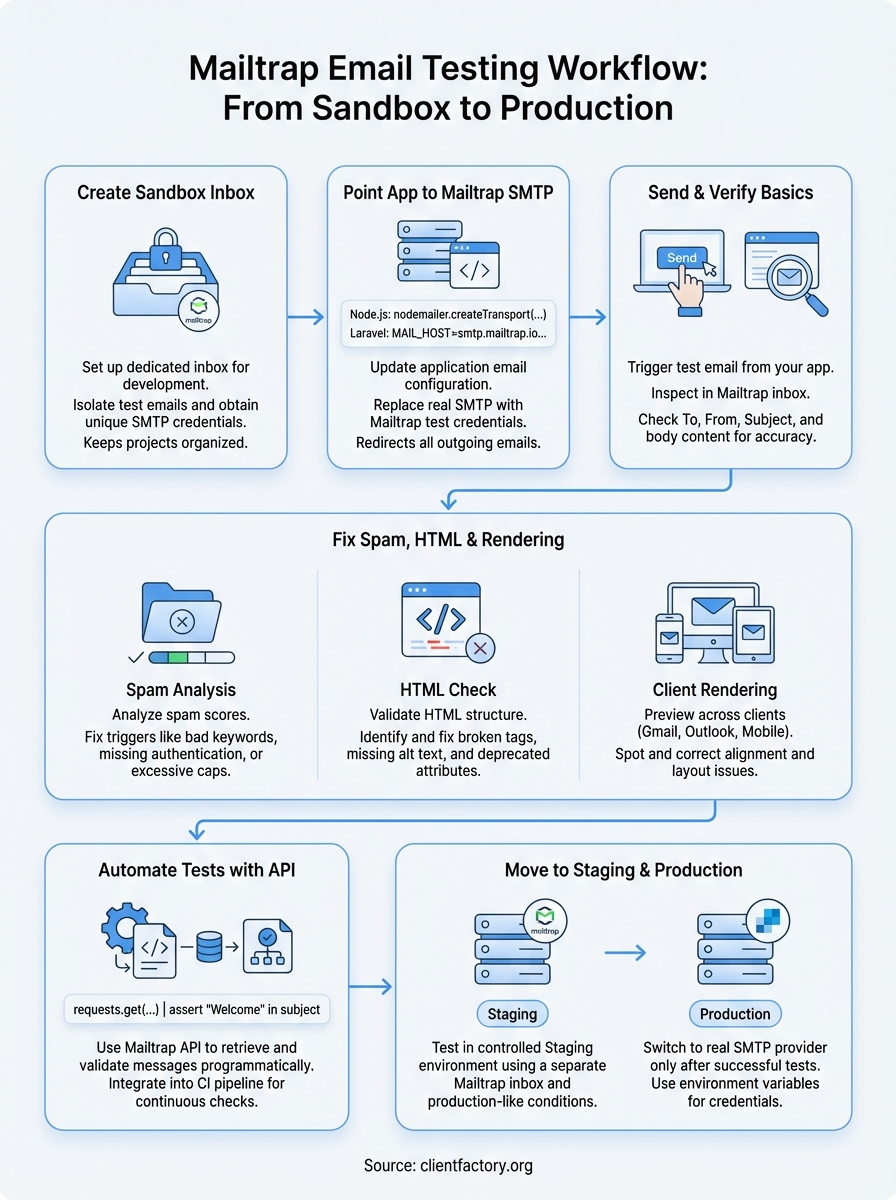
You now have a complete mailtrap email testing workflow that catches errors before they reach real inboxes. Your sandbox environment gives you safe space to debug SMTP issues, preview emails across multiple clients, and validate deliverability without risking customer communication. The API integration lets you automate these checks and build email validation into your continuous deployment process.
Start by implementing this testing process across your entire email suite, from transactional messages to marketing campaigns. Document your configuration settings and create runbooks that your team can follow when deploying new email features. Regular testing prevents the formatting mistakes and broken links that damage trust with your audience.
Email campaigns drive significant results when they actually reach inboxes and display correctly. If you’re building client acquisition systems that depend on email performance, we can help you optimize your entire marketing funnel. Client Factory specializes in turning clicks into clients for service businesses and law firms through data-driven strategies that maximize every touchpoint in your customer journey.