

You need a landing page that captures leads without the hassle of hiring a developer or paying for expensive software. Maybe you’re running ads, sending emails, or posting on social media. But when people click, where do they go? Sending traffic to your homepage means competing with navigation menus, multiple calls to action, and distractions that kill conversions. You need a focused page built for one thing: turning visitors into subscribers or customers.
Mailchimp’s landing page builder gives you exactly that. It’s free, requires no coding, and integrates directly with your email list. You can build signup pages to grow your audience or product pages to drive sales. Everything connects to your existing Mailchimp account, so new leads flow straight into your campaigns.
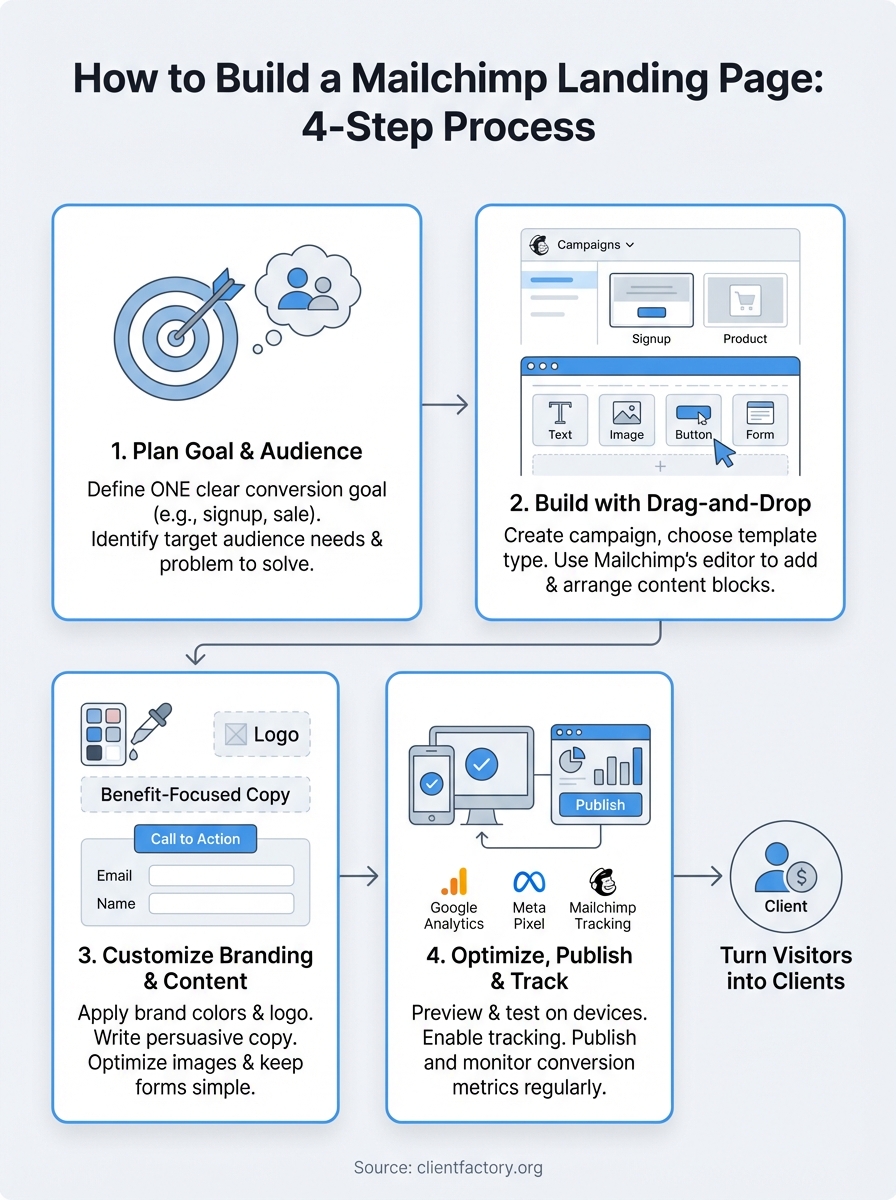
This guide walks you through the entire process. You’ll learn how to plan your page with a clear goal, build it using Mailchimp’s drag and drop editor, customize the design to match your brand, and publish it with proper tracking. By the end, you’ll have a live landing page ready to convert visitors into clients.
What is a Mailchimp landing page
A Mailchimp landing page is a standalone web page built specifically to convert visitors into leads or customers. Unlike your homepage, which serves multiple purposes and contains various navigation options, a landing page focuses on one clear action. You remove distractions, eliminate unnecessary links, and guide visitors toward a single goal like signing up for your email list or purchasing a product. Mailchimp’s platform lets you build these pages directly in your account without writing code or paying extra fees.
Key differences from your homepage
Your homepage acts as the front door to your entire business. It includes navigation menus, multiple service descriptions, blog links, and various paths visitors can take. A mailchimp landing page strips away these options. You create a focused experience that moves visitors toward conversion. Think of it as a dedicated sales conversation where you control exactly what visitors see and do next.
Landing pages increase conversion rates by eliminating competing messages and directing attention to one specific offer or action.
Two types of Mailchimp landing pages
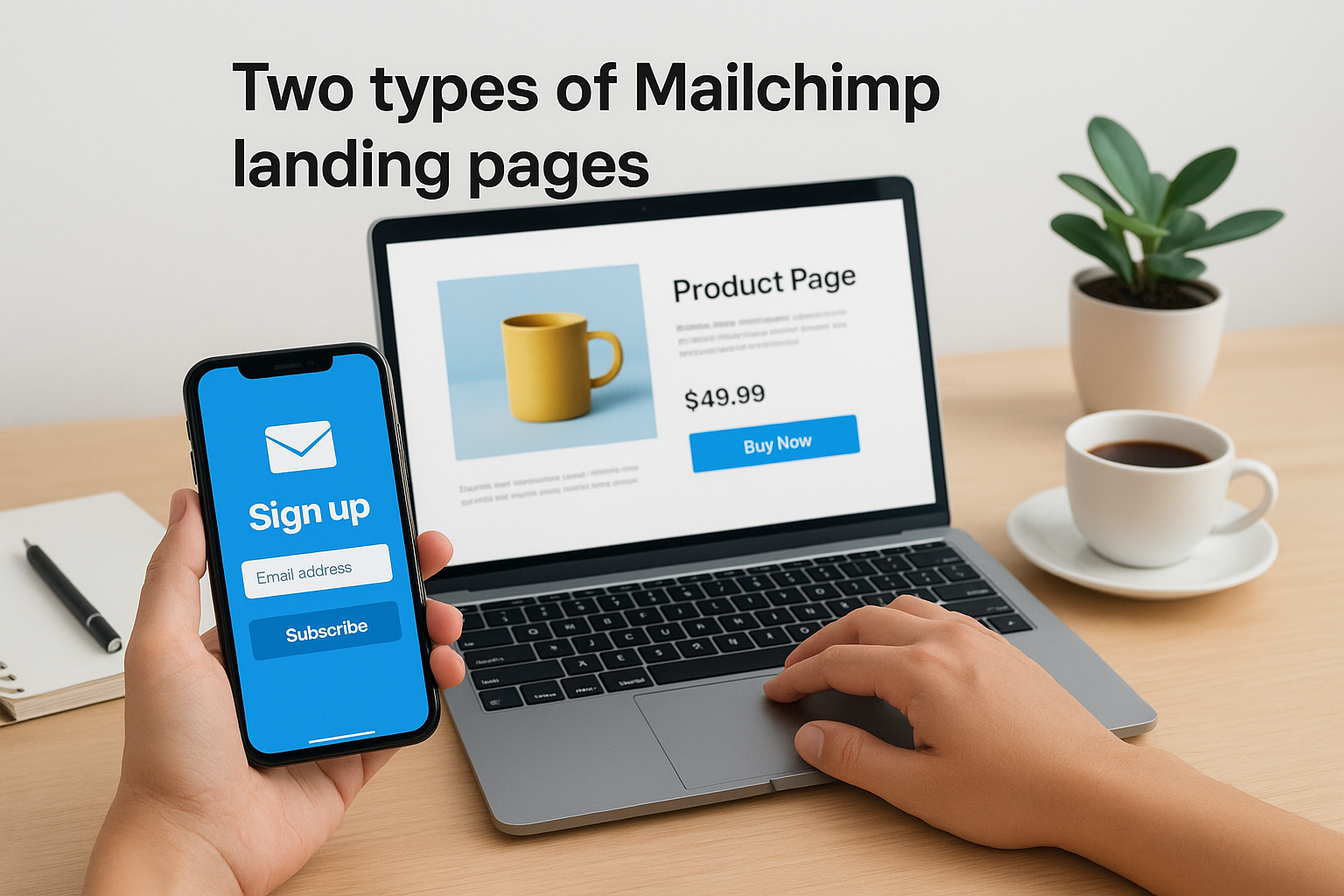
Mailchimp offers two template options when you start building. Signup pages collect email addresses and grow your audience. You add a form, write compelling copy about your newsletter or offer, and capture contact information. Product pages showcase specific items you sell. These include product descriptions, images, pricing, and buy buttons. Both types connect directly to your Mailchimp account, so new signups flow into your email lists automatically and purchases trigger your automated sequences.
Step 1. Plan your goal and audience
Every successful mailchimp landing page starts with clarity about what you want visitors to do. Before you open Mailchimp’s builder, you need to define your conversion goal and understand who you’re targeting. Skip this planning step and you’ll create a page that looks nice but converts poorly. Take 15 minutes now to map out your strategy, and you’ll save hours of revisions later.
Define your single conversion goal
You get one goal per landing page. Not two, not three. One. Decide whether you’re collecting email signups, selling a product, promoting an event, or offering a free consultation. When you try to accomplish multiple objectives on the same page, you dilute your message and confuse visitors. A personal injury law firm might create one page to collect case evaluations and a separate page to promote a free legal guide. Keep these goals separate.
Landing pages with a single call to action increase conversions by eliminating decision fatigue and directing all attention toward one specific outcome.
Write down your goal using this format: "I want visitors to [specific action] so that [business outcome]." For example: "I want visitors to schedule a free strategy call so that I can qualify them as potential clients." This statement keeps you focused as you build.
Identify your target audience
Your landing page performs better when you speak directly to a specific group. Generic messaging that tries to appeal to everyone converts nobody. Define your audience by asking: What problem do they have right now? What objection stops them from taking action? What language do they use to describe their situation? A divorce attorney targeting people going through separation writes differently than one targeting business owners protecting assets.
Match your offer to audience needs
Your offer needs to solve an immediate problem or fulfill a pressing desire. Review your goal and audience definition, then create an offer that bridges the gap. If you’re targeting small business owners struggling with lead generation, offer a free funnel audit rather than a generic newsletter signup. The audit speaks directly to their pain point and promises a specific outcome. List three potential offers, then choose the one that provides the most value for the least commitment from your visitor.
Build a simple audience profile that includes:
- Primary pain point they’re experiencing
- Desired outcome they want to achieve
- Main objection preventing them from acting
- Language and terms they use naturally
Step 2. Build the page in Mailchimp
You’re ready to build your mailchimp landing page once you’ve defined your goal and audience. Mailchimp’s landing page builder uses a drag-and-drop interface that requires zero coding knowledge. You’ll start by creating a new landing page campaign, selecting a template that matches your goal, and adding content blocks to create your layout. The entire process takes 15 to 30 minutes depending on how much content you’ve prepared in advance.
Access the landing page builder
Log into your Mailchimp account and navigate to the Campaigns section from the main menu. Click the green Create button in the upper right corner, then select Landing Page from the dropdown menu. Mailchimp prompts you to name your landing page (use a descriptive internal name like "Q1 Lead Magnet" or "Spring Product Launch") and choose which audience will receive signups. This audience selection matters because you can’t change it after publishing.
Follow these steps to start building:
- Click Create then Landing Page
- Enter an internal name for your reference
- Select the audience from the dropdown menu
- Click Begin to open the builder
Choosing the correct audience before you start prevents having to rebuild your entire page later, since Mailchimp locks this setting after publication.
Choose your template type
Mailchimp offers two primary template types based on your conversion goal. Signup page templates include a form to collect email addresses and grow your list. These work well for newsletter signups, free resources, or content upgrades. Product page templates showcase items you sell with product blocks, pricing information, and buy buttons. Select the template type that matches the goal you defined in your planning phase.
You’ll see multiple layout options within each template type. Browse through the available designs and pick one that aligns with your brand aesthetic and content needs. Templates labeled "Minimal" work well for single offers with limited text, while "Feature" templates provide more space for detailed explanations and multiple sections.
Select and customize your layout
Click on any template to preview the full layout. Mailchimp displays the template in desktop and mobile views so you can see how it adapts to different screens. Pay attention to the placement of the signup form or product blocks since these elements drive conversions. Templates with forms positioned above the fold (visible without scrolling) typically convert better for simple offers.
Some templates include pre-built sections for testimonials, benefits lists, or product galleries. Choose a template that includes the sections you planned for your content. You can add or remove sections later, but starting with a layout close to your vision saves time. After selecting your template, click the Use Template button to load it into the editor.
Add your content blocks
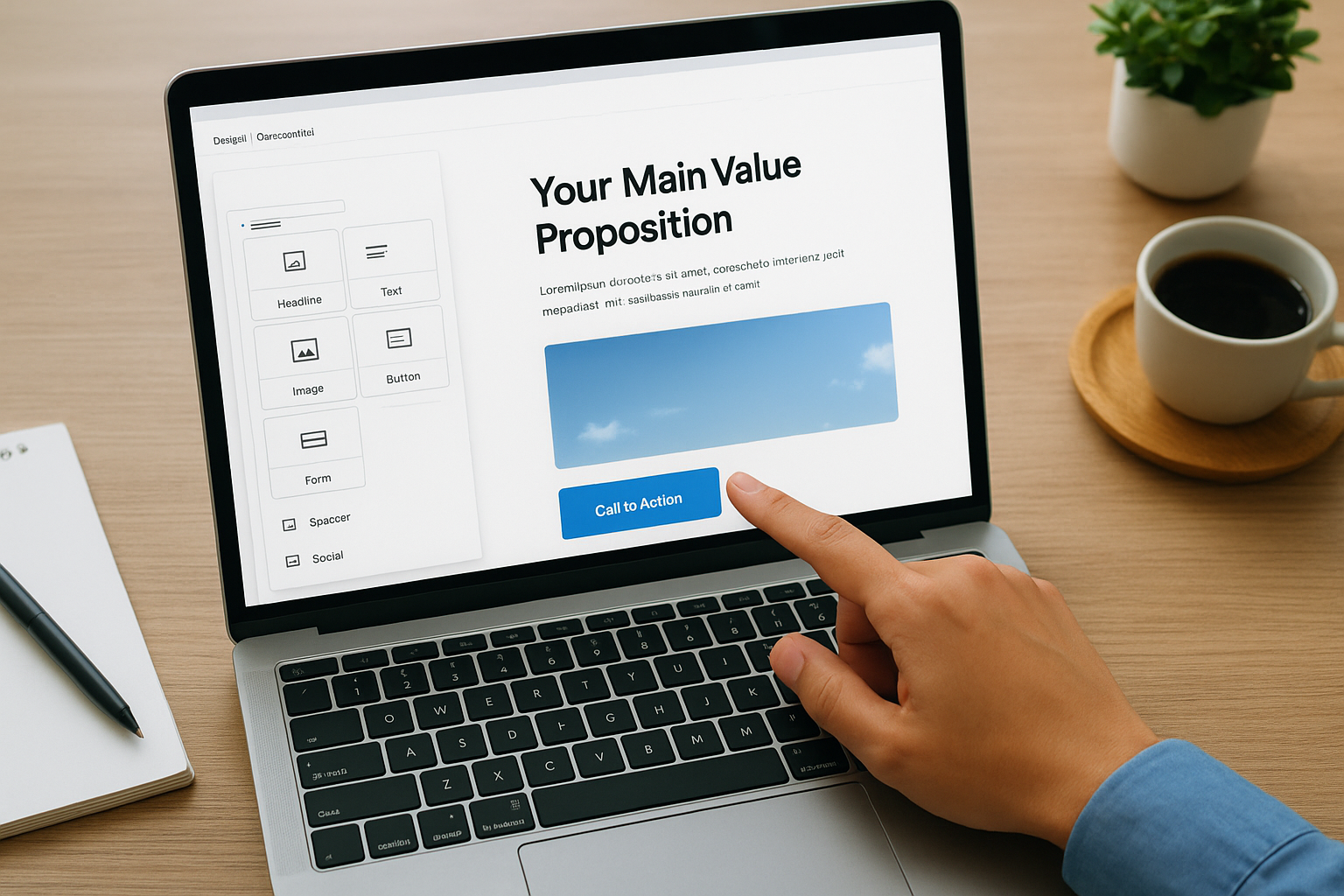
The landing page editor displays your template with a toolbar on the left containing content blocks. These blocks include text, images, buttons, signup forms, product listings, dividers, and social media links. Click any block in the toolbar, then drag it into your page layout where you want it to appear. Mailchimp highlights valid drop zones with a blue line as you drag.
Start by replacing placeholder text and images with your actual content. Click any text block to edit it directly in the page. Upload your images by clicking image placeholders and selecting files from your computer. Mailchimp automatically resizes images to fit the layout, but you should upload images that are at least 1200 pixels wide for sharp display on high-resolution screens.
Key content blocks to include:
- Headline block: Your main value proposition
- Text blocks: Benefits, explanations, and supporting details
- Image blocks: Product photos, screenshots, or hero images
- Button block: Your primary call to action
- Form block: Email capture for signup pages
- Social proof: Testimonials or trust badges
Arrange these blocks in a logical flow that guides visitors toward your conversion goal. Place your most important information and primary call to action in the top section where visitors see it immediately without scrolling.
Step 3. Customize branding and content
Your mailchimp landing page template provides the structure, but you need to customize every element to match your brand and speak directly to your audience. This step transforms a generic template into a conversion-focused page that builds trust and drives action. You’ll edit your page title and URL, apply your brand colors and logo, write compelling copy, optimize images, and configure form fields to collect the right information.
Edit your page title and URL
The page title appears in browser tabs and search results when people find your page, so it needs to clearly describe what visitors will get. Mailchimp auto-generates a title from your internal campaign name, but you should change this to something descriptive and benefit-focused. Click Edit title and icon in the Page title section to modify it. Write a title like "Free Marketing Audit for Service Businesses" instead of keeping the default "Landing Page 1."
Your URL determines how easy it is for people to remember and share your page. Navigate to the URL section and click Edit URL. You can choose between using a Mailchimp domain (free) or a custom domain you own (requires a paid Websites plan). For the path portion, use clear, descriptive words that match your offer. Instead of "/lp-1234," use "/marketing-audit" or "/lead-magnet." Keep URLs short, lowercase, and avoid special characters.
Follow this URL structure for better results:
- Use your offer name: /free-consultation
- Include your target audience: /law-firm-marketing
- Add action words: /schedule-demo
- Keep it under 5 words total
Apply your brand colors and logo
Consistent branding across your marketing increases recognition and trust by up to 80% according to studies. Click any content block in your page to reveal the styling toolbar on the right side of the editor. This toolbar lets you modify colors, fonts, spacing, and alignment for each element. Start by updating the background colors of your sections to match your brand palette.

Upload your logo by clicking the image block where you want it to appear (typically in the header). Mailchimp supports JPG, PNG, and GIF formats up to 10MB. Your logo should be a PNG file with a transparent background for the cleanest look. If your template includes a logo placeholder, Mailchimp can automatically pull your default brand logo from your account settings.
Customize your button colors to create visual contrast that draws attention to your call to action. Select your button block, then use the styling panel to change the button fill color, text color, and border. Choose a button color that stands out against your background. If your page uses a white background, try a bold blue, green, or orange button that catches the eye immediately.
Write persuasive copy
Your headline needs to communicate your value proposition in 10 words or less. Replace template placeholder text with a benefit-focused headline that answers "What’s in it for me?" Write "Get 10 Qualified Leads in 30 Days" instead of "Marketing Services." Click any text block to edit it directly in the page editor.
Body copy should explain who you help and what specific problem you solve. Use 2 to 3 short paragraphs that focus on benefits rather than features. Structure your copy in this order: acknowledge the problem your audience faces, present your solution, and state what they’ll achieve by taking action.
Clear, benefit-focused copy that speaks directly to your audience’s pain points converts up to 3 times better than generic feature descriptions.
Optimize your images
Images need to load quickly and display sharply on all devices. Upload images that are at least 1200 pixels wide for full-width sections and 600 pixels wide for smaller image blocks. Mailchimp accepts JPEG, PNG, and GIF files, but JPEG provides the best balance of quality and file size. Compress your images before uploading to keep file sizes under 200KB per image.
Choose images that show real people using your product or service rather than stock photos. Product pages should include multiple angles and close-up shots that reveal texture and details. Lifestyle images help potential clients visualize themselves benefiting from your offer.
Configure your form fields
Signup forms collect visitor information, but asking for too many fields reduces conversions significantly. Start with just email address for newsletter signups. Add first name if you plan to personalize your follow-up emails. Click your form block to access the field editor where you can add, remove, or reorder fields.
Keep your form simple with these field options:
- Email address (required for all signup pages)
- First name (improves email personalization)
- Phone number (only for high-value offers)
- Custom fields (match to your specific audience data needs)
Label each field clearly with action-oriented placeholder text like "Enter your email" instead of just "Email." Mark required fields appropriately so visitors know exactly what information they must provide before submitting.
Step 4. Optimize, publish, and track results
Your mailchimp landing page needs final optimization and proper tracking before it goes live. This step ensures your page displays correctly on all devices, captures accurate performance data, and gives you the insights needed to improve conversions over time. You’ll preview your page, configure analytics tools, publish it to the web, and set up monitoring to track how visitors interact with your content.
Preview and test your page
Click the Preview button in the upper right corner of the editor to see exactly how your page appears to visitors. Mailchimp displays your page in desktop and mobile views so you can verify that all content blocks, images, and forms render properly on different screen sizes. Check that your call to action button remains visible without scrolling on mobile devices, since most traffic comes from phones.
Test every interactive element before publishing. Click all buttons to confirm they work correctly, submit a test entry through your signup form, and verify that images load quickly. Look for text that runs together or overlaps on mobile screens, and adjust spacing or font sizes as needed. Review your page from your target audience’s perspective to catch any confusing language or missing information.
Configure tracking and analytics
Navigate to the Settings & tracking section in the landing page builder and click Edit to enable performance monitoring. You need to accept Mailchimp’s additional terms of use before activating tracking features, but you only do this once per account. Enable Track with Mailchimp to count unique visitors and conversions directly in your campaign reports.
Add these tracking options based on your needs:
- Track with Mailchimp: Counts visitors and signup conversions automatically
- Meta Pixel: Tracks visitors for Facebook and Instagram retargeting ads
- Google Analytics: Monitors traffic sources and user behavior (requires your Analytics ID)
Google Analytics provides the most detailed insights about where visitors come from and how they navigate your page. Copy your Google Analytics tracking ID from your Analytics account (format: UA-XXXXXXXXX-X or G-XXXXXXXXXX) and paste it into the Google Analytics field in Mailchimp.
Proper tracking from day one gives you the data needed to optimize your page and increase conversions by 20% to 40% over the first 90 days.
Publish your landing page
Click the Publish button when you’re ready to make your page live on the web. Mailchimp publishes your page immediately but keeps it unindexed by search engines so it won’t appear in Google results unless you share the direct link. This setup gives you control over who sees your page and prevents random traffic from unqualified visitors.
Your page goes live at the URL you configured in step 3. Copy this URL and test it in a private browser window to confirm everything works correctly. Share your page link through email campaigns, social media posts, paid ads, or anywhere else you drive traffic. Track your URL clicks in those channels to measure which traffic sources convert best.
Monitor conversion metrics
Check your landing page report regularly to understand performance. Navigate to Campaigns, find your landing page, and click View Report to see visitor counts, conversion rates, and revenue data. Mailchimp displays unique visitors (total people who viewed your page), conversions (people who signed up or purchased), and your conversion rate percentage.
Focus on these key metrics to gauge success:
- Conversion rate: Percentage of visitors who complete your goal
- Traffic sources: Where your highest-converting visitors come from
- Time on page: How long visitors spend reading your content
- Drop-off points: Where visitors leave without converting
Low conversion rates (under 2%) indicate problems with your message, offer, or call to action. Test different headlines, adjust your form fields, or simplify your page layout based on what the data reveals about visitor behavior.
Turn your page into clients
Your mailchimp landing page is live, but building it represents only half the equation. The other half involves driving qualified traffic and systematically optimizing based on real performance data. Start by sharing your page through the channels where your ideal clients spend time: targeted email campaigns, social media posts, and paid advertising. Track which sources deliver the highest conversion rates, then allocate more budget to those channels.
Test different elements every two weeks to improve results. Change your headline, adjust your call to action button color, rewrite your benefits list, or modify your form fields. Small tweaks often produce significant conversion increases when you measure their impact systematically. Review your analytics weekly and make data-driven decisions about what to keep, what to change, and what to eliminate.
Landing pages work best when they’re part of a complete acquisition system that nurtures leads through to becoming paying clients. If you need help building a conversion-focused funnel that turns visitors into revenue, Client Factory specializes in creating data-driven client acquisition systems for service businesses ready to scale.